> ## Documentation Index
> Fetch the complete documentation index at: https://docs.melonly.com/llms.txt
> Use this file to discover all available pages before exploring further.
# Configuration
> Open the CAD admin panel and configure general settings, sequencer formats, Falcon Cameras, webhooks and audit logs.
***
## The CAD Admin Panel
The CAD admin panel is where you set up Melonly CAD for everyone on your server, once the CAD is [turned on](/CAD/Intro/gettingstarted). The Config tab covers everyday CAD behavior, call and record numbering, Falcon Cameras, Discord webhooks and the audit log.
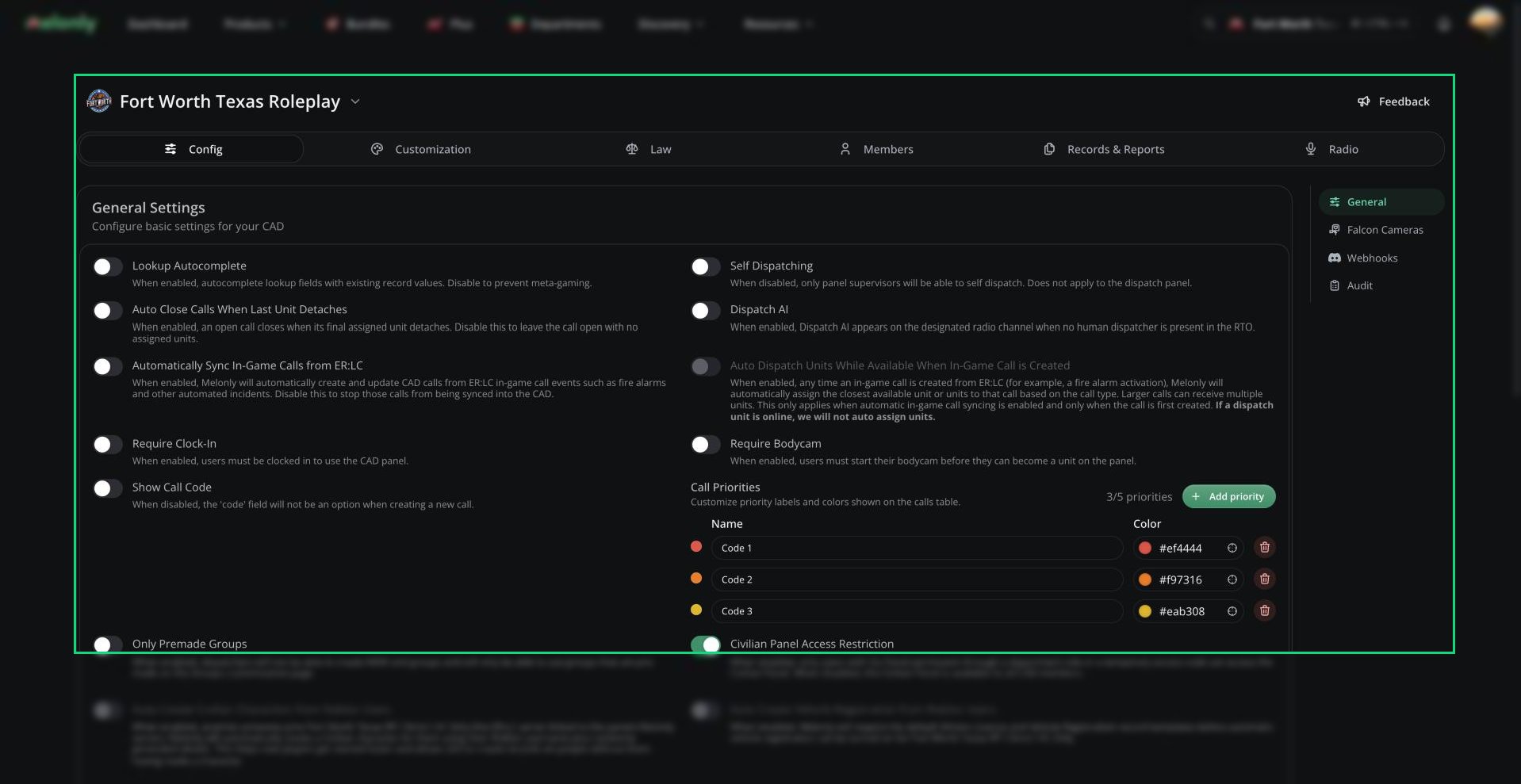 You need the CAD Admin permission. The server owner and server administrators always have it. Department Administrators only get it if their rank has it ticked, and join codes can't grant it.
General and Falcon Cameras keep your edits as a draft until you click **Save Changes** (or press `Ctrl` + `S`). Other admin pages save each change straight away.
***
## 🧭 Quick Navigation
### Config
How call, case and record numbers look.
Plate readers that alert on wanted vehicles.
Post CAD events to Discord.
### Other Admin Tabs
Regional terms, 10-Codes, tones, agencies, groups, statuses and panels.
Acts, charges, speeding, surcharges and the law system.
Units, connected users, blocked users and join codes.
Record templates, search indices, charge reports and purges.
Radio channels, groups and Radio FX.
Set up the AI dispatcher for your radio.
***
## General Settings
Open **Config** → **General** to control how the CAD behaves day to day.
You need the CAD Admin permission. The server owner and server administrators always have it. Department Administrators only get it if their rank has it ticked, and join codes can't grant it.
General and Falcon Cameras keep your edits as a draft until you click **Save Changes** (or press `Ctrl` + `S`). Other admin pages save each change straight away.
***
## 🧭 Quick Navigation
### Config
How call, case and record numbers look.
Plate readers that alert on wanted vehicles.
Post CAD events to Discord.
### Other Admin Tabs
Regional terms, 10-Codes, tones, agencies, groups, statuses and panels.
Acts, charges, speeding, surcharges and the law system.
Units, connected users, blocked users and join codes.
Record templates, search indices, charge reports and purges.
Radio channels, groups and Radio FX.
Set up the AI dispatcher for your radio.
***
## General Settings
Open **Config** → **General** to control how the CAD behaves day to day.
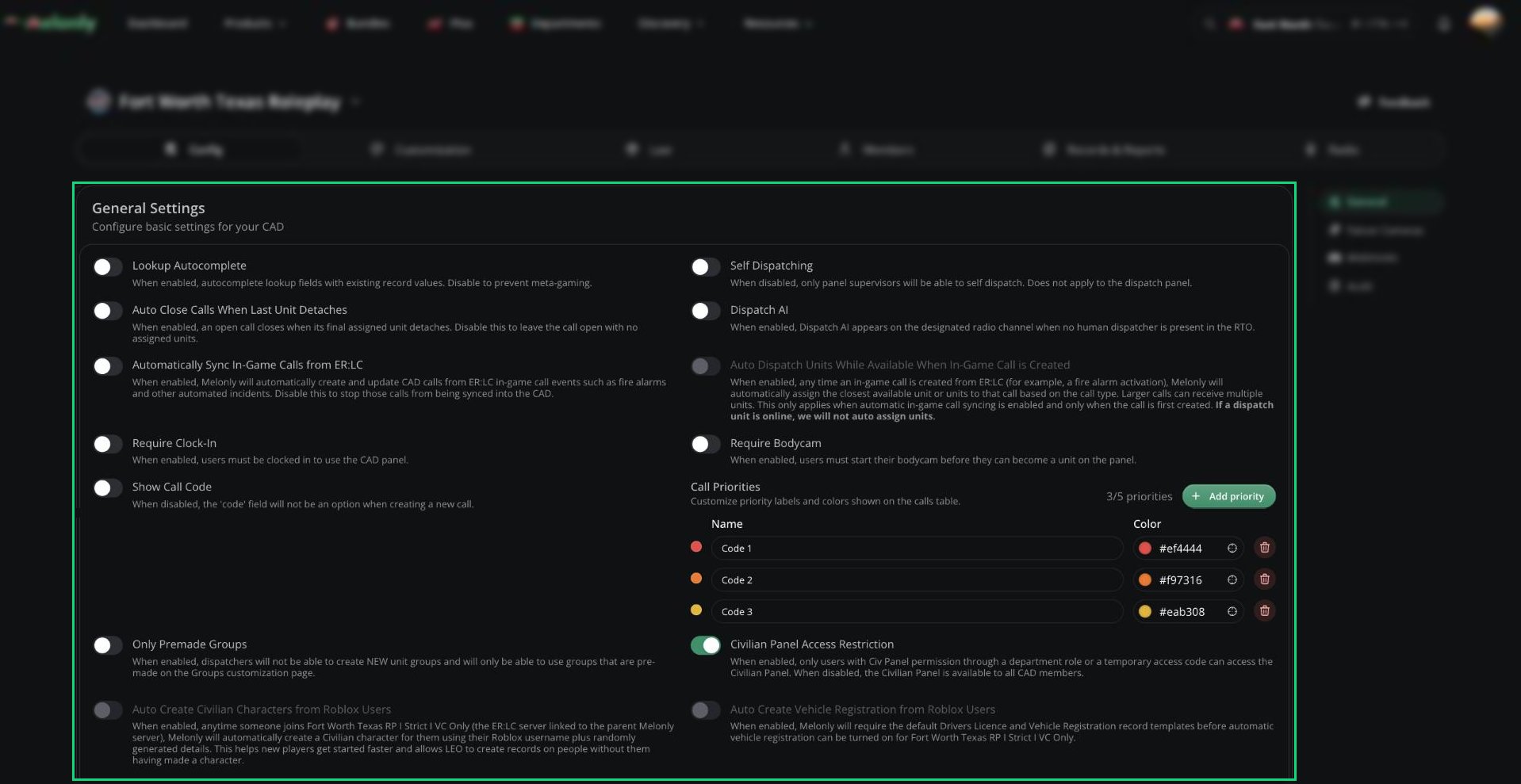 | Setting | Description | Default |
| - | - | - |
| Lookup Autocomplete | Suggests existing names and plates while users type in lookups. Turn off to stop meta-gaming. | On |
| Self Dispatching | When off, only panel supervisors can attach themselves to calls. Doesn't affect the Dispatch panel. | Off |
| Auto Close Calls When Last Unit Detaches | Closes a call when its last unit detaches. | On |
| Dispatch AI | Lets [Dispatch AI](/CAD/Admin/extras/dispatchai) answer on your Dispatch AI radio channel. | Off |
| Automatically Sync In-Game Calls from ER:LC | Creates CAD calls from ER:LC in-game calls, such as fire alarms. | On |
| Auto Dispatch Units While Available When In-Game Call is Created | Assigns the closest available units to new in-game calls. Needs call syncing on, and only works while no dispatcher is online. | Off |
| Require Clock-In | Users must be clocked in to use the CAD panels. | Off |
| Require Bodycam | Users must start their bodycam before becoming a unit. | Off |
| Show Call Code | Offers the Code field when creating a call. | On |
| Only Premade Groups | Dispatchers can only use groups from [Customization](/CAD/Admin/customization/groups-statuses#premade-groups). | Off |
| Civilian Panel Access Restriction | Only users with the Civilian Panel permission can open the Civilian panel. When off, every CAD member can. | Off |
| Auto Create Civilian Characters from Roblox Users | Creates a civilian with random details for each player who joins your ER:LC server. | Off |
| Auto Create Vehicle Registration from Roblox Users | Registers vehicles for auto-created civilians. | Off |
| Disable Balance Saving | Civilians use the user's live UnbelievaBoat balance instead of saving their own. | Off |
| Maximum Civilian Characters | How many civilians each user can have, from 1 to 25. | 25 |
| Clear Calls After an Amount of Time Has Passed | Hours (1 to 168) before closed calls leave the calls list. | 2 |
### Auto-Creating Civilians and Vehicles
Auto-created civilians need a linked ER:LC server and the default Civilian Character template. Vehicle registration also needs auto-created civilians on and the default Drivers Licence and Vehicle Registration templates.
While these are on, the matching [templates](/CAD/Admin/recordsreports#templates) are locked. When you turn civilian creation off, you can choose to delete the civilians it created.
### Call Priorities and UnbelievaBoat
Call priorities are colored labels on the calls table. You can have up to 5, each with a name (up to 45 characters) and a color. New CADs start with Priority 1, 2 and 3.
To sync economy balances with civilian characters, click **Authorize Unbelievaboat API** once. UnbelievaBoat only gets access to economy data.
***
## Sequencer Formats
The Sequencer Formats card (on the General page) sets how call numbers, court case numbers and record numbers look. See [Sequencer Formats](/CAD/Admin/config/sequencer-formats) for tokens, rules and presets.
***
## Falcon Cameras
Falcon Cameras are plate readers around the ER:LC map that alert Police and Dispatch when a wanted vehicle drives past. See [Falcon Cameras](/CAD/Admin/config/falcon-cameras) to turn them on and place them.
***
## Webhooks
Webhooks post a Discord message when CAD events happen, like a panic or a new call. See [Webhooks](/CAD/Admin/config/webhooks) to add one.
***
## Audit Logs
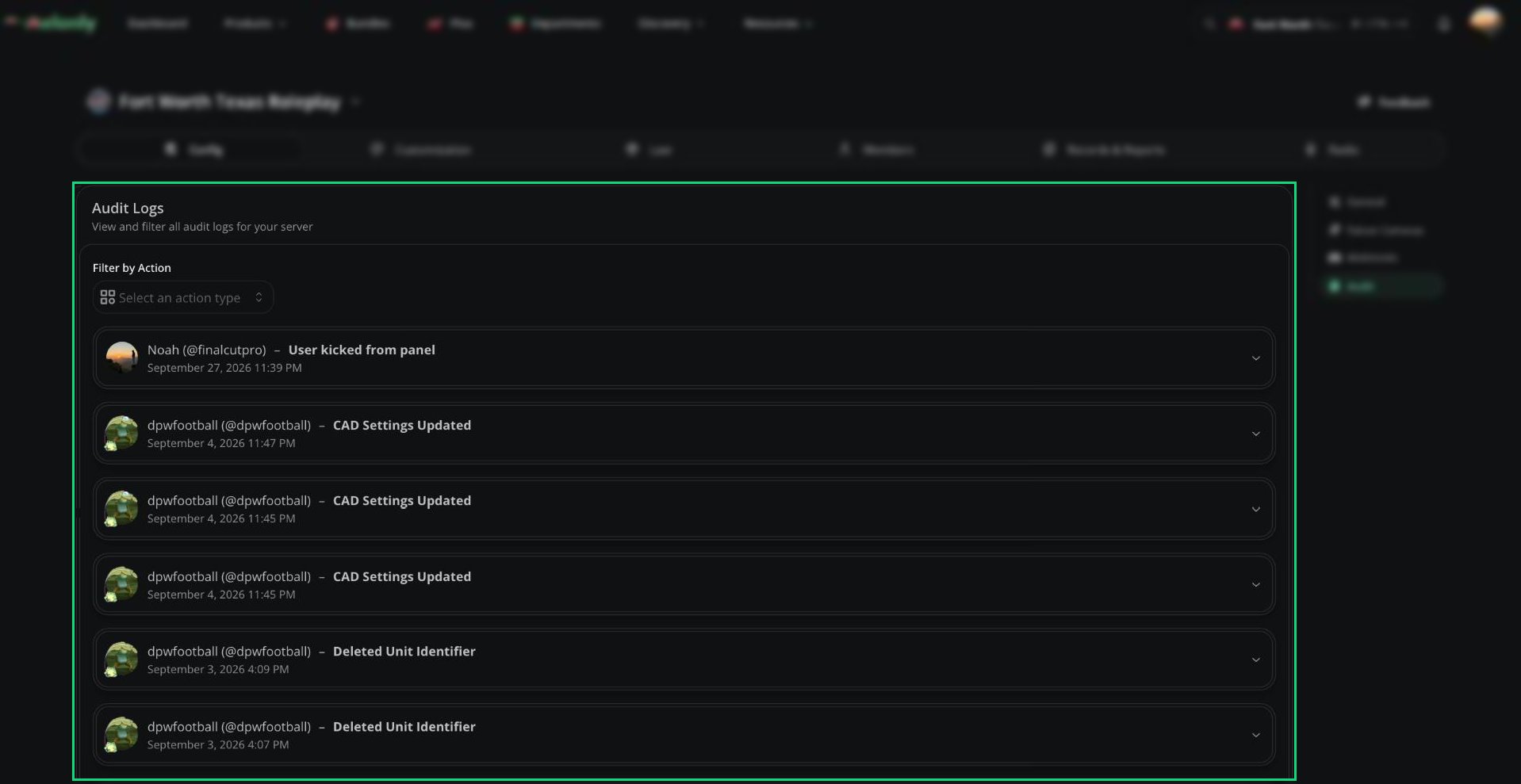
Open **Config** → **Audit** to see every change made in the CAD admin panel, newest first. Use **Filter by Action** to narrow it down, for example to settings changes, blocked users, purged records or template edits. For the rest of your server, see the [dashboard audit logs](/Dashboard/auditlogs).
| Setting | Description | Default |
| - | - | - |
| Lookup Autocomplete | Suggests existing names and plates while users type in lookups. Turn off to stop meta-gaming. | On |
| Self Dispatching | When off, only panel supervisors can attach themselves to calls. Doesn't affect the Dispatch panel. | Off |
| Auto Close Calls When Last Unit Detaches | Closes a call when its last unit detaches. | On |
| Dispatch AI | Lets [Dispatch AI](/CAD/Admin/extras/dispatchai) answer on your Dispatch AI radio channel. | Off |
| Automatically Sync In-Game Calls from ER:LC | Creates CAD calls from ER:LC in-game calls, such as fire alarms. | On |
| Auto Dispatch Units While Available When In-Game Call is Created | Assigns the closest available units to new in-game calls. Needs call syncing on, and only works while no dispatcher is online. | Off |
| Require Clock-In | Users must be clocked in to use the CAD panels. | Off |
| Require Bodycam | Users must start their bodycam before becoming a unit. | Off |
| Show Call Code | Offers the Code field when creating a call. | On |
| Only Premade Groups | Dispatchers can only use groups from [Customization](/CAD/Admin/customization/groups-statuses#premade-groups). | Off |
| Civilian Panel Access Restriction | Only users with the Civilian Panel permission can open the Civilian panel. When off, every CAD member can. | Off |
| Auto Create Civilian Characters from Roblox Users | Creates a civilian with random details for each player who joins your ER:LC server. | Off |
| Auto Create Vehicle Registration from Roblox Users | Registers vehicles for auto-created civilians. | Off |
| Disable Balance Saving | Civilians use the user's live UnbelievaBoat balance instead of saving their own. | Off |
| Maximum Civilian Characters | How many civilians each user can have, from 1 to 25. | 25 |
| Clear Calls After an Amount of Time Has Passed | Hours (1 to 168) before closed calls leave the calls list. | 2 |
### Auto-Creating Civilians and Vehicles
Auto-created civilians need a linked ER:LC server and the default Civilian Character template. Vehicle registration also needs auto-created civilians on and the default Drivers Licence and Vehicle Registration templates.
While these are on, the matching [templates](/CAD/Admin/recordsreports#templates) are locked. When you turn civilian creation off, you can choose to delete the civilians it created.
### Call Priorities and UnbelievaBoat
Call priorities are colored labels on the calls table. You can have up to 5, each with a name (up to 45 characters) and a color. New CADs start with Priority 1, 2 and 3.
To sync economy balances with civilian characters, click **Authorize Unbelievaboat API** once. UnbelievaBoat only gets access to economy data.
***
## Sequencer Formats
The Sequencer Formats card (on the General page) sets how call numbers, court case numbers and record numbers look. See [Sequencer Formats](/CAD/Admin/config/sequencer-formats) for tokens, rules and presets.
***
## Falcon Cameras
Falcon Cameras are plate readers around the ER:LC map that alert Police and Dispatch when a wanted vehicle drives past. See [Falcon Cameras](/CAD/Admin/config/falcon-cameras) to turn them on and place them.
***
## Webhooks
Webhooks post a Discord message when CAD events happen, like a panic or a new call. See [Webhooks](/CAD/Admin/config/webhooks) to add one.
***
## Audit Logs
Open **Config** → **Audit** to see every change made in the CAD admin panel, newest first. Use **Filter by Action** to narrow it down, for example to settings changes, blocked users, purged records or template edits. For the rest of your server, see the [dashboard audit logs](/Dashboard/auditlogs).
 ***
Still have questions? Join our Discord server for support from the Melonly Team.
This documentation is built and hosted on [Mintlify](https://mintlify.com), a developer documentation platform.
***
Still have questions? Join our Discord server for support from the Melonly Team.
This documentation is built and hosted on [Mintlify](https://mintlify.com), a developer documentation platform.