> ## Documentation Index
> Fetch the complete documentation index at: https://docs.melonly.com/llms.txt
> Use this file to discover all available pages before exploring further.
# Members
> Manage unit identifiers, connected users, members who joined by code, blocked users and join codes for your CAD.
***
## What is the Members Tab?
The Members tab is where you manage the people using your CAD. People get access in two ways:
* Department members get access from their rank. Manage them in your [department roster](/Department/roster).
* Temporary members join with a [join code](/CAD/Admin/members/join-codes). Their access can expire.
Requires the CAD Admin permission. See [Permissions](/CAD/Intro/permissions).
***
## 🧭 Quick Navigation
Create codes that give temporary CAD access.
***
## Unit Identifiers
Open **Members** → **Unit Identifiers** to see every unit on your CAD, with its owner, unit number, name, agency, rank, subdivisions and platoon. Search by username or unit number.
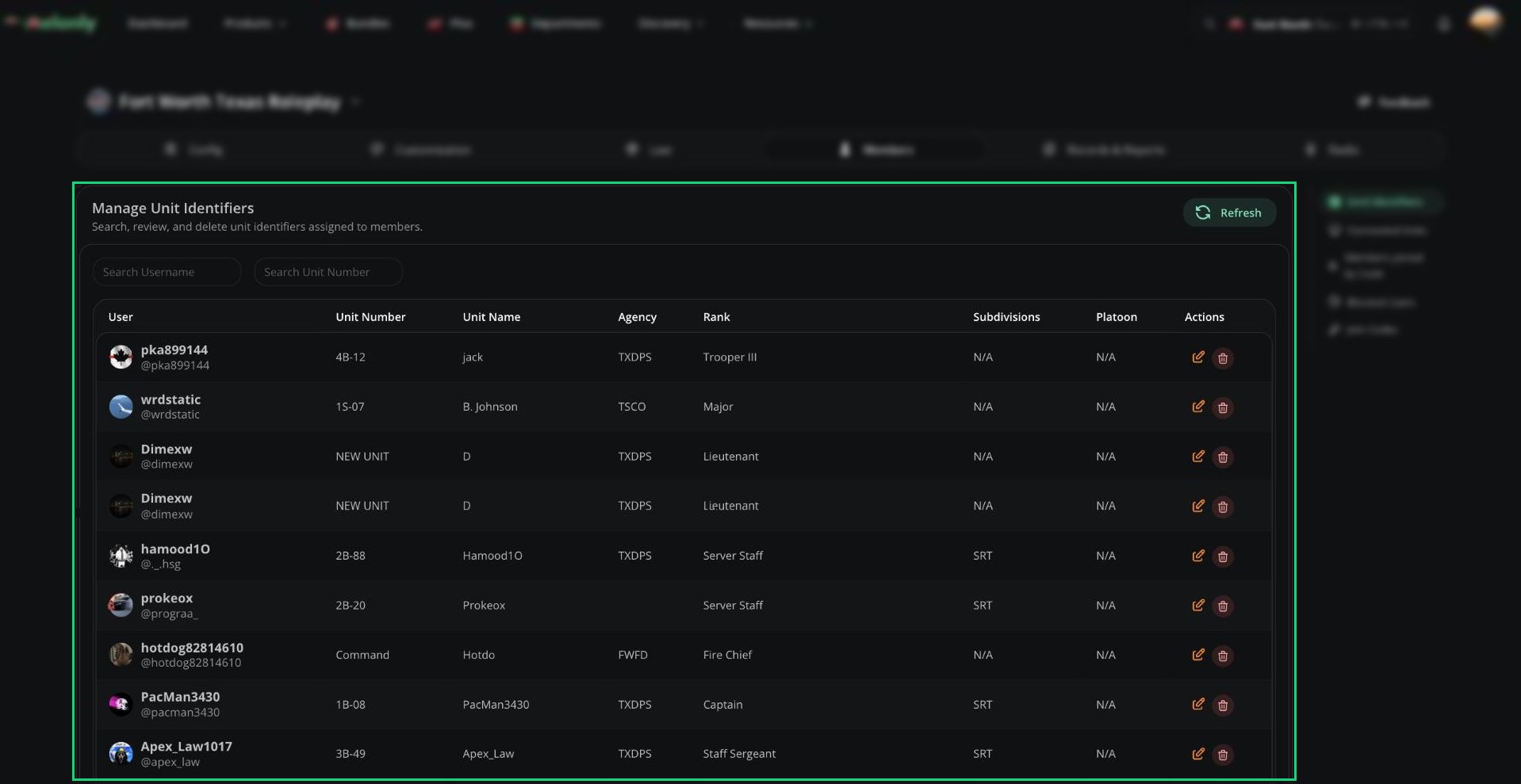 * Click **Edit Unit Identifier** to change a unit's details.
* Click **Delete unit identifier** to delete it for good. It's also removed from any unit groups.
You can't delete a unit while it's in use. Kick the user from [Connected Units](#connected-units) first.
***
## Connected Units
Open **Members** → **Connected Units** to see everyone connected to the CAD right now, which panel they're on and how long they've been there.
* Click **Edit Unit Identifier** to change a unit's details.
* Click **Delete unit identifier** to delete it for good. It's also removed from any unit groups.
You can't delete a unit while it's in use. Kick the user from [Connected Units](#connected-units) first.
***
## Connected Units
Open **Members** → **Connected Units** to see everyone connected to the CAD right now, which panel they're on and how long they've been there.
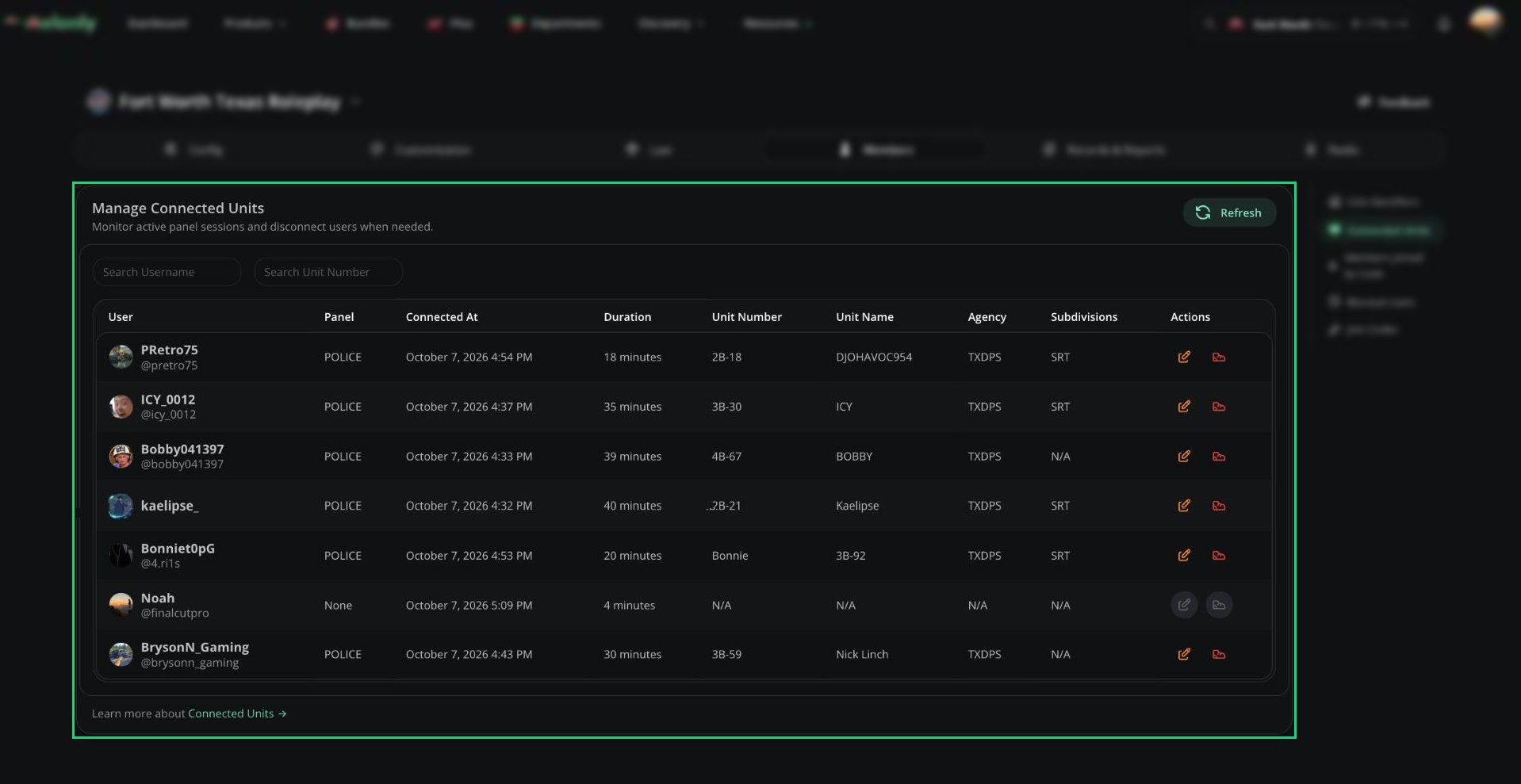 * Click **Edit User Unit** to change their unit details.
* Click **Kick User from Panel** to disconnect them. They're removed from the radio and their unit leaves the panel, but they can reconnect.
***
## Members Joined by Code
Open **Members** → **Members joined by Code** to review temporary members whose access hasn't expired. You'll see their permissions, when they joined and when their access ends. If someone used several codes, their permissions are combined into one row.
Search by username, or use **Filter Join Code** to see who joined with a specific code.
### Blocking a Member
Click **Block User** to remove all of their temporary access straight away and stop them using any join code until you unblock them.
Blocking only affects join codes. If they're also in a department, they keep their rank's access.
***
## Blocked Users
Open **Members** → **Blocked Users** to see who's blocked, when and by whom.
Click **Unblock User** to let them use join codes again. Their old access doesn't come back, so they'll need to rejoin with a code.
***
## Join Codes
Join codes let people join your CAD as temporary members with the permissions you choose. See [Join Codes](/CAD/Admin/members/join-codes) to create, share and manage them.
***
Still have questions? Join our Discord server for support from the Melonly Team.
This documentation is built and hosted on [Mintlify](https://mintlify.com), a developer documentation platform.
* Click **Edit User Unit** to change their unit details.
* Click **Kick User from Panel** to disconnect them. They're removed from the radio and their unit leaves the panel, but they can reconnect.
***
## Members Joined by Code
Open **Members** → **Members joined by Code** to review temporary members whose access hasn't expired. You'll see their permissions, when they joined and when their access ends. If someone used several codes, their permissions are combined into one row.
Search by username, or use **Filter Join Code** to see who joined with a specific code.
### Blocking a Member
Click **Block User** to remove all of their temporary access straight away and stop them using any join code until you unblock them.
Blocking only affects join codes. If they're also in a department, they keep their rank's access.
***
## Blocked Users
Open **Members** → **Blocked Users** to see who's blocked, when and by whom.
Click **Unblock User** to let them use join codes again. Their old access doesn't come back, so they'll need to rejoin with a code.
***
## Join Codes
Join codes let people join your CAD as temporary members with the permissions you choose. See [Join Codes](/CAD/Admin/members/join-codes) to create, share and manage them.
***
Still have questions? Join our Discord server for support from the Melonly Team.
This documentation is built and hosted on [Mintlify](https://mintlify.com), a developer documentation platform.