> ## Documentation Index
> Fetch the complete documentation index at: https://docs.melonly.com/llms.txt
> Use this file to discover all available pages before exploring further.
# Radio
> Create radio channels and groups, restrict who can use them and tune Radio FX for your CAD radio.
***
## What is Radio Setup?
The Radio tab of the CAD admin panel controls the channels people see in the CAD radio window: which channels exist, who can use them, how they're grouped and how voices sound. For how units use the radio, see [Radio](/CAD/User/radio).
Requires the CAD Admin permission. See [Permissions](/CAD/Intro/permissions).
***
## 🧭 Quick Navigation
Make channels sound like a real radio and fine-tune the effect.
An AI dispatcher that answers on one of your channels.
***
## Channels
Open **Radio** → **Channels** to manage your channels. They're listed under their group, with ungrouped channels last.
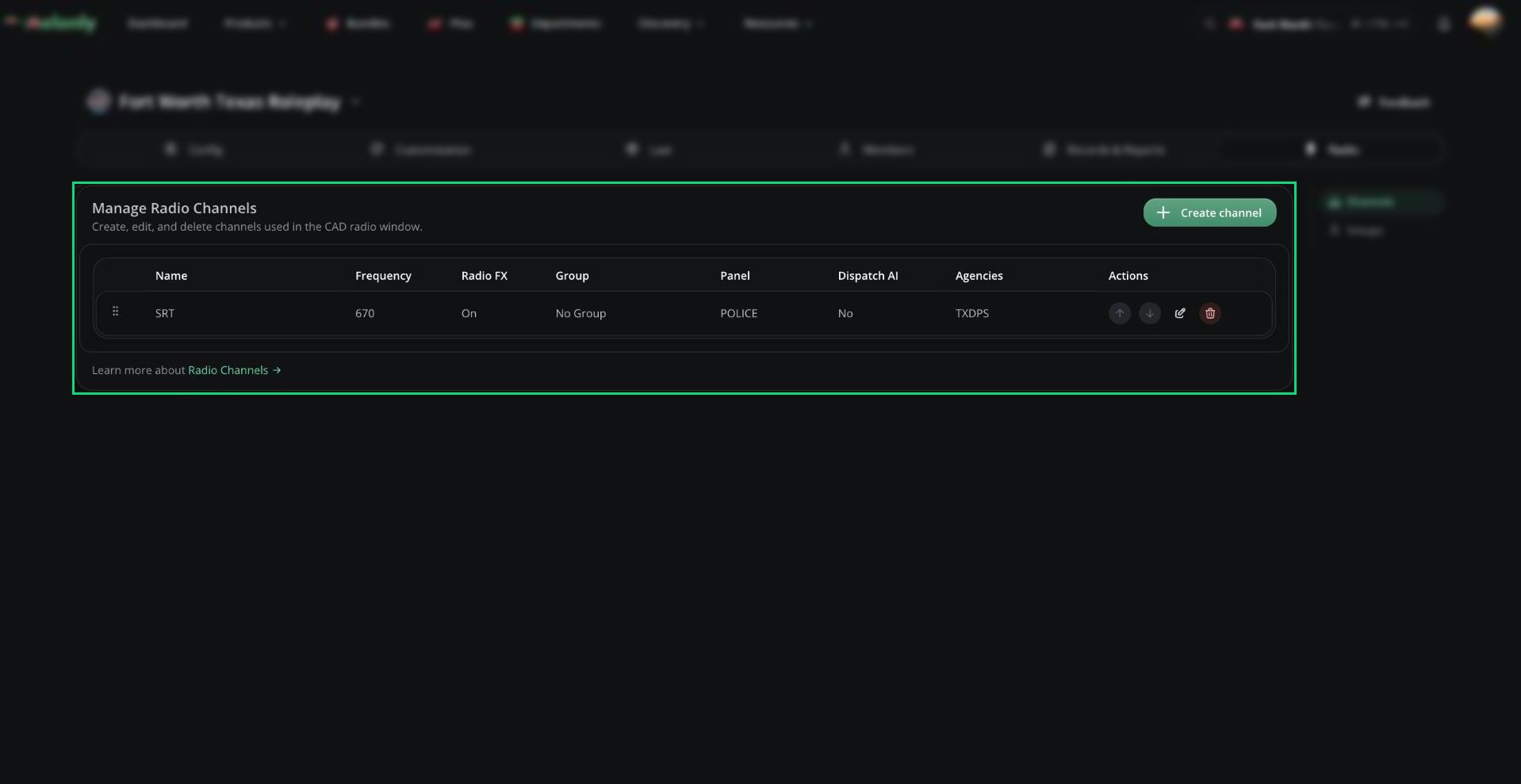 Click **Create channel** to add one, or **Edit Channel** on a row to change it. Drag a channel by its handle to reorder it or move it to another group. Deleting a channel can't be undone.
| Setting | Description |
| - | - |
| Channel Name | 1 to 64 characters. |
| Frequency | 0 to 999.99. Default 670. |
| Group | The [group](#groups) to list the channel under. Optional. |
| Priority | Order within the group, highest first (-999 to 999). Dragging updates this for you. |
| Restrict To Panel | Only users on this panel can use the channel. Dispatchers can always use it. |
| Restrict To Agencies | Only users in these agencies can use the channel. |
| Allow CAD admins to bypass panel/agency restrictions | CAD admins can always use the channel. On by default. |
| Allow Dispatch panel to bypass talkover protection | Dispatchers can talk over others. On by default. |
| Dispatch AI channel | Makes this the [Dispatch AI](/CAD/Admin/extras/dispatchai) channel. Only one channel can have it, and it only shows once Dispatch AI is on in [General Settings](/CAD/Admin/config#general-settings). |
| Radio FX | Applies a classic radio voice filter. See [Radio FX](/CAD/Admin/radio/radio-fx) to fine-tune it. |
***
## Groups
Groups organize channels in the radio window, like categories in Discord. Open **Radio** → **Groups**.
Click **Create channel** to add one, or **Edit Channel** on a row to change it. Drag a channel by its handle to reorder it or move it to another group. Deleting a channel can't be undone.
| Setting | Description |
| - | - |
| Channel Name | 1 to 64 characters. |
| Frequency | 0 to 999.99. Default 670. |
| Group | The [group](#groups) to list the channel under. Optional. |
| Priority | Order within the group, highest first (-999 to 999). Dragging updates this for you. |
| Restrict To Panel | Only users on this panel can use the channel. Dispatchers can always use it. |
| Restrict To Agencies | Only users in these agencies can use the channel. |
| Allow CAD admins to bypass panel/agency restrictions | CAD admins can always use the channel. On by default. |
| Allow Dispatch panel to bypass talkover protection | Dispatchers can talk over others. On by default. |
| Dispatch AI channel | Makes this the [Dispatch AI](/CAD/Admin/extras/dispatchai) channel. Only one channel can have it, and it only shows once Dispatch AI is on in [General Settings](/CAD/Admin/config#general-settings). |
| Radio FX | Applies a classic radio voice filter. See [Radio FX](/CAD/Admin/radio/radio-fx) to fine-tune it. |
***
## Groups
Groups organize channels in the radio window, like categories in Discord. Open **Radio** → **Groups**.
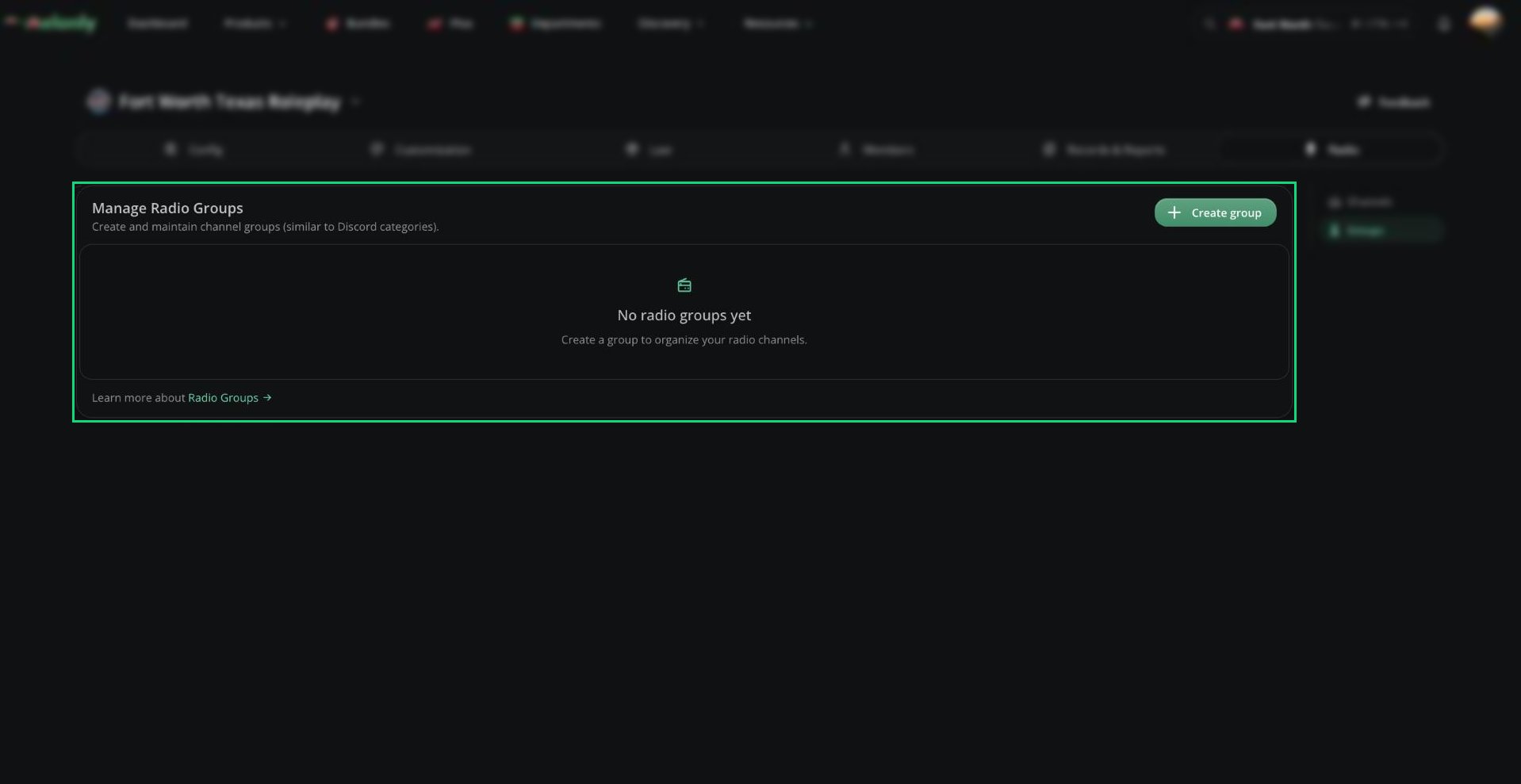 * Click **Create group**, enter a name (1 to 64 characters) and optionally pick channels to move into it.
* Drag groups to reorder them. The top group shows first.
* Click **Edit** to rename a group, or **Delete** to remove it.
You can't delete a group that still has channels. Move them out first.
***
Still have questions? Join our Discord server for support from the Melonly Team.
This documentation is built and hosted on [Mintlify](https://mintlify.com), a developer documentation platform.
* Click **Create group**, enter a name (1 to 64 characters) and optionally pick channels to move into it.
* Drag groups to reorder them. The top group shows first.
* Click **Edit** to rename a group, or **Delete** to remove it.
You can't delete a group that still has channels. Move them out first.
***
Still have questions? Join our Discord server for support from the Melonly Team.
This documentation is built and hosted on [Mintlify](https://mintlify.com), a developer documentation platform.