> ## Documentation Index
> Fetch the complete documentation index at: https://docs.melonly.com/llms.txt
> Use this file to discover all available pages before exploring further.
# Calls
> Respond to calls, self-dispatch, find past calls and add notes and linked records on the Police, Fire, EMS and DOT panels.
***
## What are Calls?
Calls are the incidents your units respond to. They're created by dispatchers, by civilians calling 911, by in-game ER:LC calls or by units themselves when self dispatching is allowed.
This page is for units on the Police, Fire, EMS and DOT panels. Dispatchers manage calls from the Call Editor, covered in [Dispatch Calls](/CAD/User/dispatch/calls).
***
## 🧭 Quick Navigation
Create, edit and end your own calls, and save call templates.
Add notes to a call, link records and start records from it.
***
## Your Assigned Call
Your assigned call shows on the **Home** tab. You can also add it to any layout as **My Calls**.
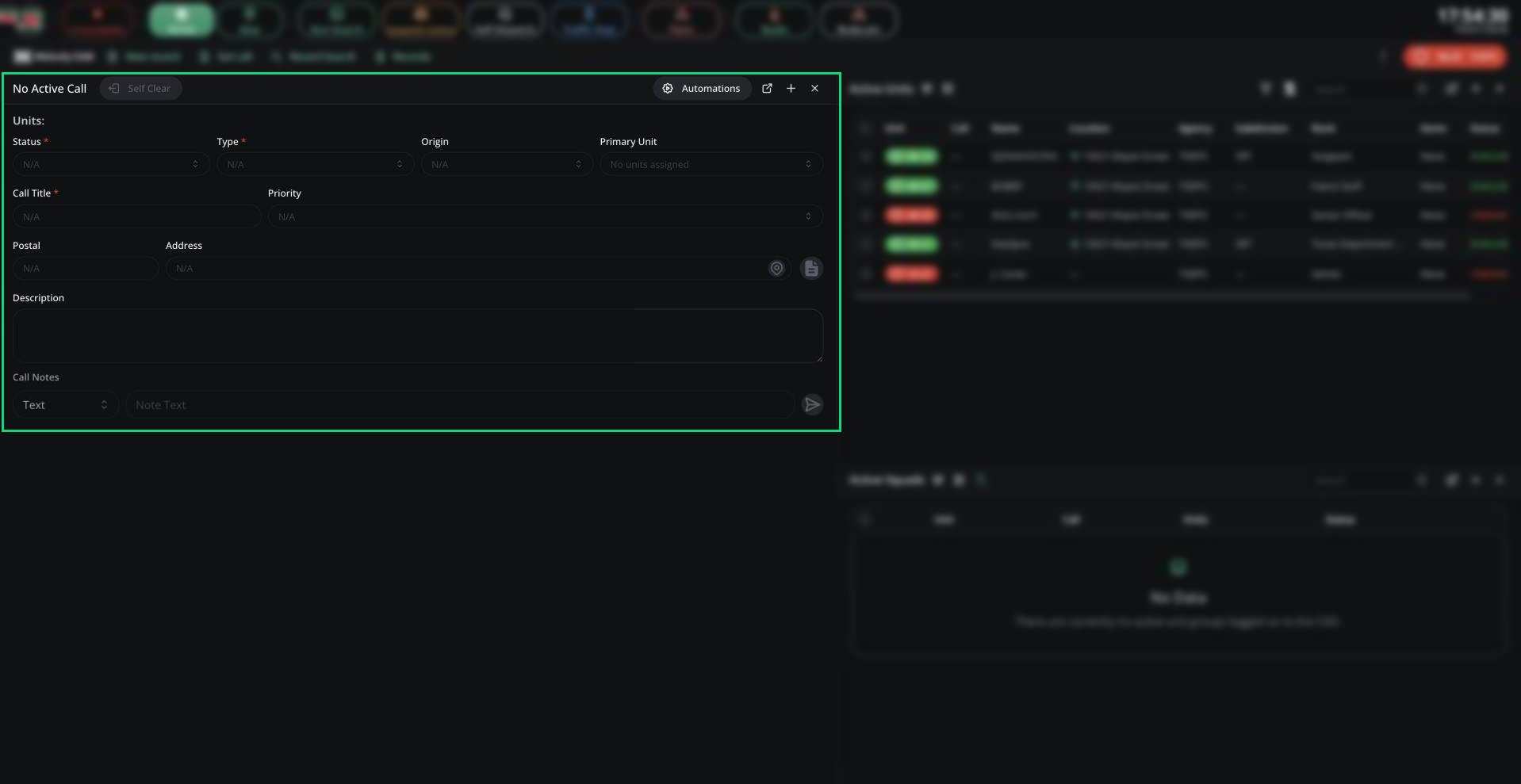 When you're assigned a call, the panel jumps to Home and a tone plays. A unit can only be on one call at a time, so a new assignment takes you off your old one.
| Button | What it does |
| - | - |
| Self Clear | Takes you off the call. In a group, only the lead unit can clear the whole group. |
| Automations | Opens [Auto Status](/CAD/User/units/statuses#auto-status) |
| Open overlay | Desktop app only. A small always-on-top window with your call, status and panic. |
***
## Calls Pane
The Calls pane lists your panel's calls, with an **Active** tab and a **Call History** tab. Add it to your layout from the + button. You only see calls in your agency's jurisdiction that are sent to your panel.
When you're assigned a call, the panel jumps to Home and a tone plays. A unit can only be on one call at a time, so a new assignment takes you off your old one.
| Button | What it does |
| - | - |
| Self Clear | Takes you off the call. In a group, only the lead unit can clear the whole group. |
| Automations | Opens [Auto Status](/CAD/User/units/statuses#auto-status) |
| Open overlay | Desktop app only. A small always-on-top window with your call, status and panic. |
***
## Calls Pane
The Calls pane lists your panel's calls, with an **Active** tab and a **Call History** tab. Add it to your layout from the + button. You only see calls in your agency's jurisdiction that are sent to your panel.
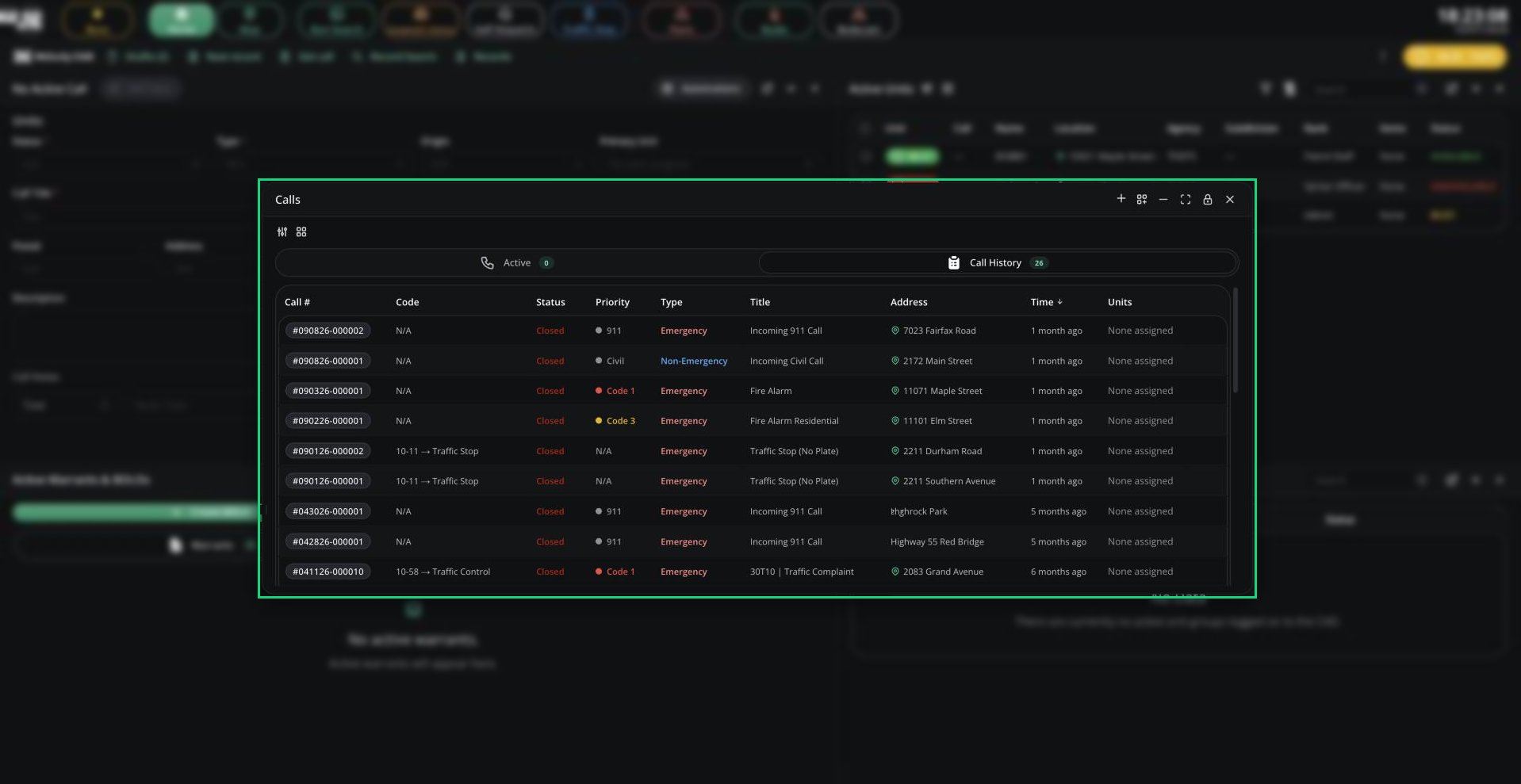 * Click **Join Call** to join a call. You need [Self Dispatch](/CAD/User/calls/self-dispatching) on and no current call. Joining a closed call reopens it.
* Right-click a call to end it, view it on the map, add a note, merge calls or add it to a timer or tone. Most actions need self dispatching or supervisor access.
***
## Finding Calls
* **Get call** in the top bar (or Records Centre) opens any call by its incident number.
* **Call history** in the CAD menu lists every call your unit was assigned to, for the last 7 days by default.
***
## Incoming Call Alerts
When no dispatcher is online, units get an alert tone for new 911, in-game and system calls in their jurisdiction and sent to their panel.
Police units also get alerts for civilians waiting on a 911 or 311 voice call, with **Join call** to talk to them. See [Emergency call channels](/CAD/User/radio#emergency-call-channels).
***
Still have questions? Join our Discord server for support from the Melonly Team.
This documentation is built and hosted on [Mintlify](https://mintlify.com), a developer documentation platform.
* Click **Join Call** to join a call. You need [Self Dispatch](/CAD/User/calls/self-dispatching) on and no current call. Joining a closed call reopens it.
* Right-click a call to end it, view it on the map, add a note, merge calls or add it to a timer or tone. Most actions need self dispatching or supervisor access.
***
## Finding Calls
* **Get call** in the top bar (or Records Centre) opens any call by its incident number.
* **Call history** in the CAD menu lists every call your unit was assigned to, for the last 7 days by default.
***
## Incoming Call Alerts
When no dispatcher is online, units get an alert tone for new 911, in-game and system calls in their jurisdiction and sent to their panel.
Police units also get alerts for civilians waiting on a 911 or 311 voice call, with **Join call** to talk to them. See [Emergency call channels](/CAD/User/radio#emergency-call-channels).
***
Still have questions? Join our Discord server for support from the Melonly Team.
This documentation is built and hosted on [Mintlify](https://mintlify.com), a developer documentation platform.