> ## Documentation Index
> Fetch the complete documentation index at: https://docs.melonly.com/llms.txt
> Use this file to discover all available pages before exploring further.
# Dispatch Panel
> Take calls, assign units and run tones, signals and radio from the Melonly CAD Dispatch panel.
***
## What is the Dispatch Panel?
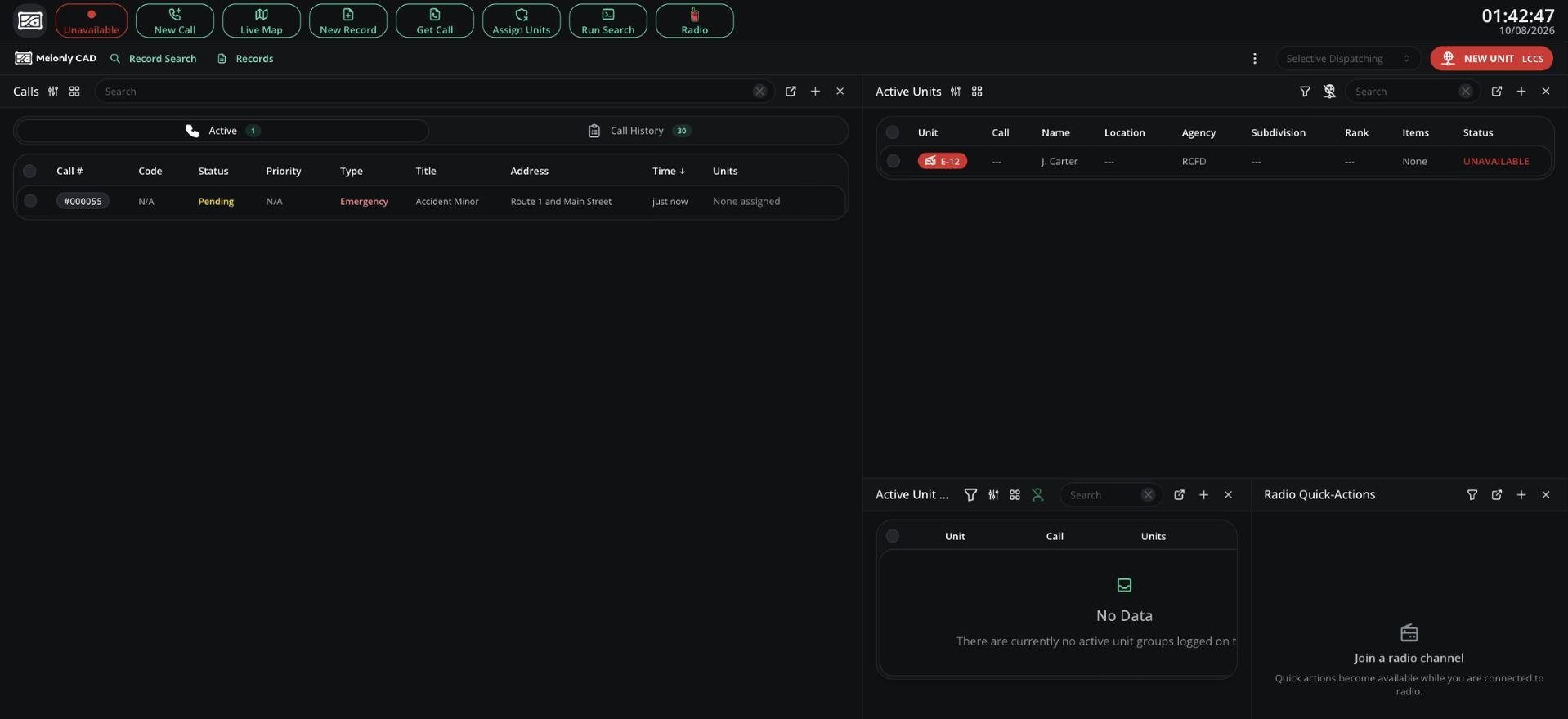
The Dispatch panel is your dispatchers' console. It shows every call and every unit across Police, Fire, EMS and DOT in one place, so you can create calls, assign units and keep everyone informed. Instead of tabs, the whole screen is a workspace you arrange from panels.
 ***
## 🧭 Quick Navigation
Build your console from panels, apply presets and use Selective Dispatching.
The calls board, Call Editor, 911 calls, ER:LC calls and call history.
Set statuses, assign calls and build groups for any unit.
The live map, notepad, shortcuts, Command Bar and BOLOs.
### Related Pages
Play tones and put signals into effect.
Search records, run checks and send results to units.
Channels, push-to-talk and Dispatch radio extras.
***
## Access
You need the dispatch panel permission, given on a rank in a Dispatch department. See [Permissions](/CAD/Intro/permissions).
Like every panel, you need a unit before you can do anything. See [Units](/CAD/User/units). Dispatcher units can't be put on calls or in groups, and they don't need a bodycam. The small radio icon on the Dispatcher tile opens a radio-only page.
Several automatic features only kick in when no dispatcher is online, such as service units hearing incoming call alerts and ER:LC auto-dispatch. Being on the panel with a unit counts as online.
***
## Top Bar
The top bar works like other panels, with Dispatch-only buttons instead of Self Dispatch, Panic, Traffic Stop and Bodycam.
| Button | What it does |
| - | - |
| New Call | Opens a blank [Call Editor](/CAD/User/dispatch/calls#call-editor) |
| Assign Units | Pick a call and the units or groups to put on it |
| Get Call | Find any call by its incident number |
| Live Map | Opens the [live map](/CAD/User/dispatch/live-map-tools#live-map) |
| New Record | Create a [BOLO](/CAD/User/dispatch/live-map-tools#bolos) from one of your BOLO templates |
| Status | Set your own status: Available, Busy or Unavailable. A custom status sets you to Unavailable. |
***
Still have questions? Join our Discord server for support from the Melonly Team.
This documentation is built and hosted on [Mintlify](https://mintlify.com), a developer documentation platform.
***
## 🧭 Quick Navigation
Build your console from panels, apply presets and use Selective Dispatching.
The calls board, Call Editor, 911 calls, ER:LC calls and call history.
Set statuses, assign calls and build groups for any unit.
The live map, notepad, shortcuts, Command Bar and BOLOs.
### Related Pages
Play tones and put signals into effect.
Search records, run checks and send results to units.
Channels, push-to-talk and Dispatch radio extras.
***
## Access
You need the dispatch panel permission, given on a rank in a Dispatch department. See [Permissions](/CAD/Intro/permissions).
Like every panel, you need a unit before you can do anything. See [Units](/CAD/User/units). Dispatcher units can't be put on calls or in groups, and they don't need a bodycam. The small radio icon on the Dispatcher tile opens a radio-only page.
Several automatic features only kick in when no dispatcher is online, such as service units hearing incoming call alerts and ER:LC auto-dispatch. Being on the panel with a unit counts as online.
***
## Top Bar
The top bar works like other panels, with Dispatch-only buttons instead of Self Dispatch, Panic, Traffic Stop and Bodycam.
| Button | What it does |
| - | - |
| New Call | Opens a blank [Call Editor](/CAD/User/dispatch/calls#call-editor) |
| Assign Units | Pick a call and the units or groups to put on it |
| Get Call | Find any call by its incident number |
| Live Map | Opens the [live map](/CAD/User/dispatch/live-map-tools#live-map) |
| New Record | Create a [BOLO](/CAD/User/dispatch/live-map-tools#bolos) from one of your BOLO templates |
| Status | Set your own status: Available, Busy or Unavailable. A custom status sets you to Unavailable. |
***
Still have questions? Join our Discord server for support from the Melonly Team.
This documentation is built and hosted on [Mintlify](https://mintlify.com), a developer documentation platform.