> ## Documentation Index
> Fetch the complete documentation index at: https://docs.melonly.com/llms.txt
> Use this file to discover all available pages before exploring further.
# Law Enforcement Panel
> Run traffic stops, suspend licences, respond to alerts and track warrants and BOLOs from the Police panel.
***
## What is the Law Enforcement Panel?
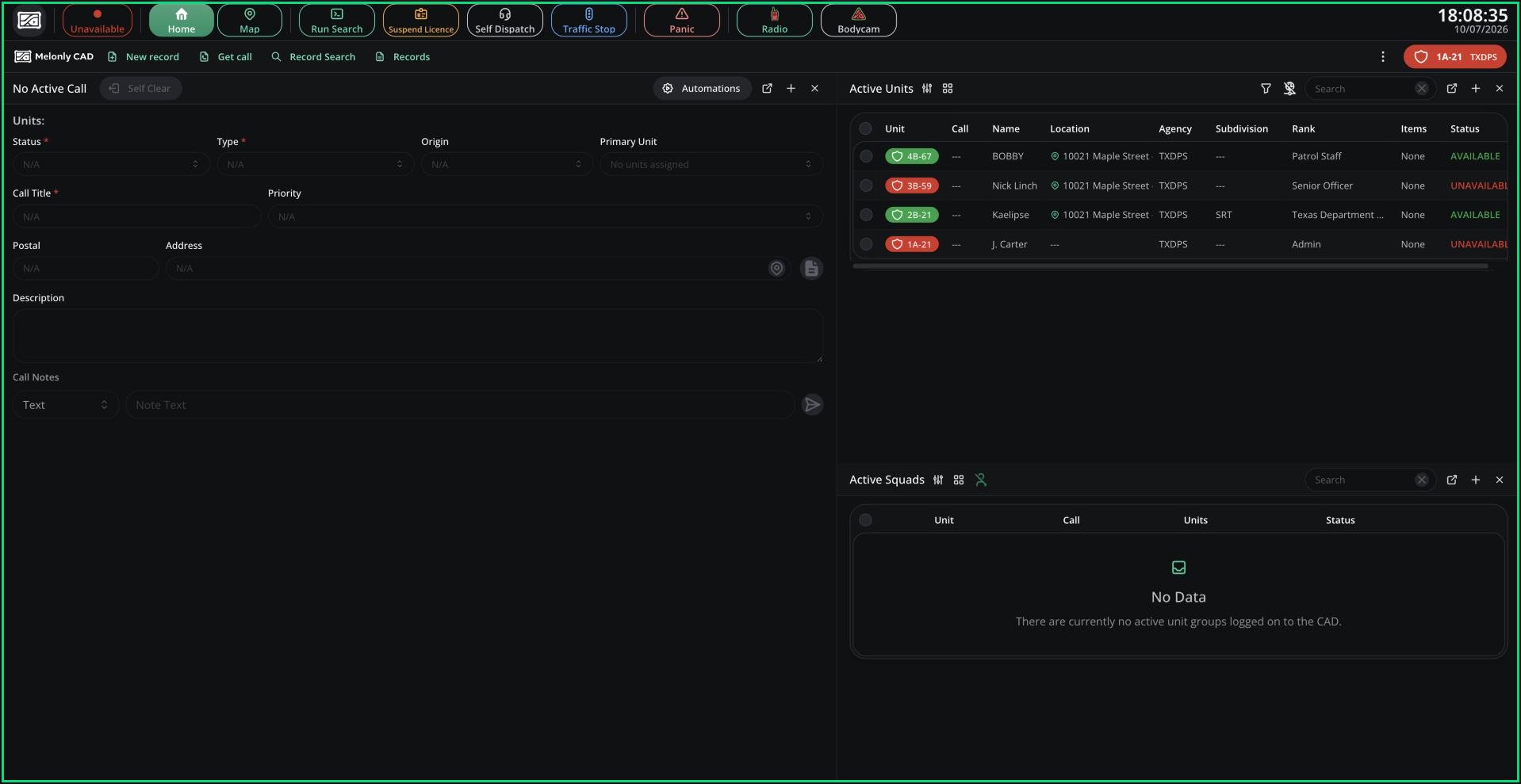
The Law Enforcement (Police) panel is where officers work their shift. You run plates and names, start traffic stops and write citations and arrest reports. You also keep track of warrants and BOLOs.
Most tools are shared with the other service panels and have their own pages: [Units](/CAD/User/units), [Calls](/CAD/User/calls), [Records](/CAD/User/records), [Lookups](/CAD/User/lookups) and [Radio](/CAD/User/radio).
 ***
## 🧭 Quick Navigation
Run a plate and create a traffic stop call in one step.
Suspend a licence or end a suspension without writing a record.
Create, track and close warrants and BOLOs.
Get alerted when a civilian leaves an area you draw.
***
## Access
You need the police panel permission, given on a rank in a Police department. If the panel is limited to certain agencies, your unit must be in one of them. See [Permissions](/CAD/Intro/permissions).
| Permission | Allows |
| - | - |
| police panel | Open the Police panel |
| police panel create | Create Police Records, Police Reports, BOLOs and warrants, and assign ankle monitors |
| police panel edit | Edit Police Records, Police Reports, BOLOs and warrants, and close BOLOs |
| police panel delete | Delete Police Records, Police Reports, BOLOs and warrants |
| police panel close warrant | Close active warrants |
| police panel suspend licence | Suspend licences and end suspensions |
| police panel supervisor | Supervisor tools, listed below |
On Police, unit groups are called squads. A squad holds up to 4 units.
* Self dispatch, start traffic stops and join calls even when your server turns self dispatch off.
* Fill in supervisor-only fields and review records in the Supervisor Centre.
* See who wrote a record with **View Author**.
* View other units' bodycams and edit their identifiers.
* Open **Dispatch Tools** from the CAD menu.
* Send records to other units.
Warrant supervisor fields, including the warrant status, use the Law supervisor permission instead.
***
## Flagged Lookups
When your run or search finds an alert, such as an active warrant, dispatchers are told automatically. Warnings like an expired licence stay with you. See [Lookups](/CAD/User/lookups).
If a civilian calls 911 by voice while no dispatcher is online, you get the call instead. Click **Join call** to talk to them.
***
## Falcon ALPR
If your server has [Falcon cameras](/CAD/Admin/config/falcon-cameras), Police and Dispatch get an alert when a vehicle passes one. The alert shows the camera, driver and vehicle, with buttons to view the location, civilian or vehicle.
The alert stays open until you close it, and plays the lookup tone with a spoken "Falcon camera detection". Radio-only and overlay windows don't show it.
***
## Licence Scan
With the Melonly desktop app, you can scan a civilian's licence in Roblox instead of typing it. Set a **Scan License** keybind in **Preferences**. Then, with the licence showing in Roblox, press the keybind and the result opens in your most recent Run window.
If scanning fails, check the app has screen recording permission, and that the player has linked their Roblox account and picked a civilian in this CAD.
***
Still have questions? Join our Discord server for support from the Melonly Team.
This documentation is built and hosted on [Mintlify](https://mintlify.com), a developer documentation platform.
***
## 🧭 Quick Navigation
Run a plate and create a traffic stop call in one step.
Suspend a licence or end a suspension without writing a record.
Create, track and close warrants and BOLOs.
Get alerted when a civilian leaves an area you draw.
***
## Access
You need the police panel permission, given on a rank in a Police department. If the panel is limited to certain agencies, your unit must be in one of them. See [Permissions](/CAD/Intro/permissions).
| Permission | Allows |
| - | - |
| police panel | Open the Police panel |
| police panel create | Create Police Records, Police Reports, BOLOs and warrants, and assign ankle monitors |
| police panel edit | Edit Police Records, Police Reports, BOLOs and warrants, and close BOLOs |
| police panel delete | Delete Police Records, Police Reports, BOLOs and warrants |
| police panel close warrant | Close active warrants |
| police panel suspend licence | Suspend licences and end suspensions |
| police panel supervisor | Supervisor tools, listed below |
On Police, unit groups are called squads. A squad holds up to 4 units.
* Self dispatch, start traffic stops and join calls even when your server turns self dispatch off.
* Fill in supervisor-only fields and review records in the Supervisor Centre.
* See who wrote a record with **View Author**.
* View other units' bodycams and edit their identifiers.
* Open **Dispatch Tools** from the CAD menu.
* Send records to other units.
Warrant supervisor fields, including the warrant status, use the Law supervisor permission instead.
***
## Flagged Lookups
When your run or search finds an alert, such as an active warrant, dispatchers are told automatically. Warnings like an expired licence stay with you. See [Lookups](/CAD/User/lookups).
If a civilian calls 911 by voice while no dispatcher is online, you get the call instead. Click **Join call** to talk to them.
***
## Falcon ALPR
If your server has [Falcon cameras](/CAD/Admin/config/falcon-cameras), Police and Dispatch get an alert when a vehicle passes one. The alert shows the camera, driver and vehicle, with buttons to view the location, civilian or vehicle.
The alert stays open until you close it, and plays the lookup tone with a spoken "Falcon camera detection". Radio-only and overlay windows don't show it.
***
## Licence Scan
With the Melonly desktop app, you can scan a civilian's licence in Roblox instead of typing it. Set a **Scan License** keybind in **Preferences**. Then, with the licence showing in Roblox, press the keybind and the result opens in your most recent Run window.
If scanning fails, check the app has screen recording permission, and that the player has linked their Roblox account and picked a civilian in this CAD.
***
Still have questions? Join our Discord server for support from the Melonly Team.
This documentation is built and hosted on [Mintlify](https://mintlify.com), a developer documentation platform.