> ## Documentation Index
> Fetch the complete documentation index at: https://docs.melonly.com/llms.txt
> Use this file to discover all available pages before exploring further.
# Shifts
> Manage shifts, shift types, shift logging rules and shift reports for your staff.
***
## What are Shifts?
Shifts are how staff log their activity. Each shift records its start and end time, duration and shift type.
Shifts show you how your staff are performing and whether they meet your requirements. You can also create shifts yourself when staff forget to clock in.
***
## How Shifts Work
Staff start and end shifts from the Mod Panel or with the Discord command. Melonly tracks online time, break time and shift duration automatically.
Shift types sort shifts into groups, and shift reports let staff add notes about a shift. Administrators can edit or delete any shift.
***
## Configuration Options
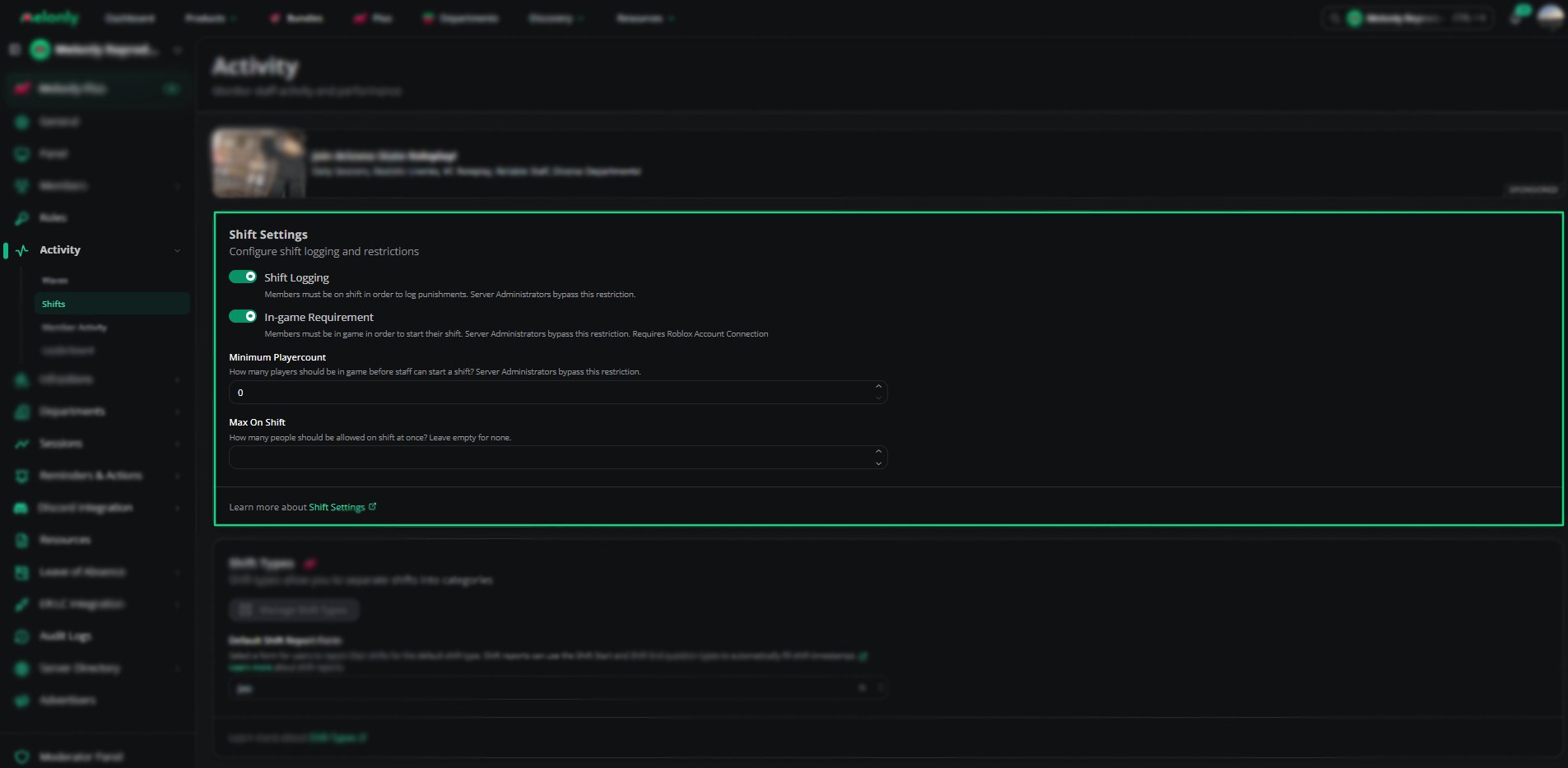 | Setting | Description |
| - | - |
| Shift Logging | Staff must be on shift to log punishments. Administrators bypass this |
| In-game Requirement | Staff must be in your ER:LC server to start a shift. Needs a connected Roblox account. Administrators bypass this |
| Minimum Playercount | How many players (0 to 50) must be in game before staff can start a shift. Administrators bypass this |
| Max On Shift | The most staff allowed on shift at once. Leave empty for no limit |
In-game Requirement and Minimum Playercount only appear once the [ER:LC integration](/Dashboard/erlcintegration/home) is set up.
***
## Shift Types
| Setting | Description |
| - | - |
| Shift Logging | Staff must be on shift to log punishments. Administrators bypass this |
| In-game Requirement | Staff must be in your ER:LC server to start a shift. Needs a connected Roblox account. Administrators bypass this |
| Minimum Playercount | How many players (0 to 50) must be in game before staff can start a shift. Administrators bypass this |
| Max On Shift | The most staff allowed on shift at once. Leave empty for no limit |
In-game Requirement and Minimum Playercount only appear once the [ER:LC integration](/Dashboard/erlcintegration/home) is set up.
***
## Shift Types
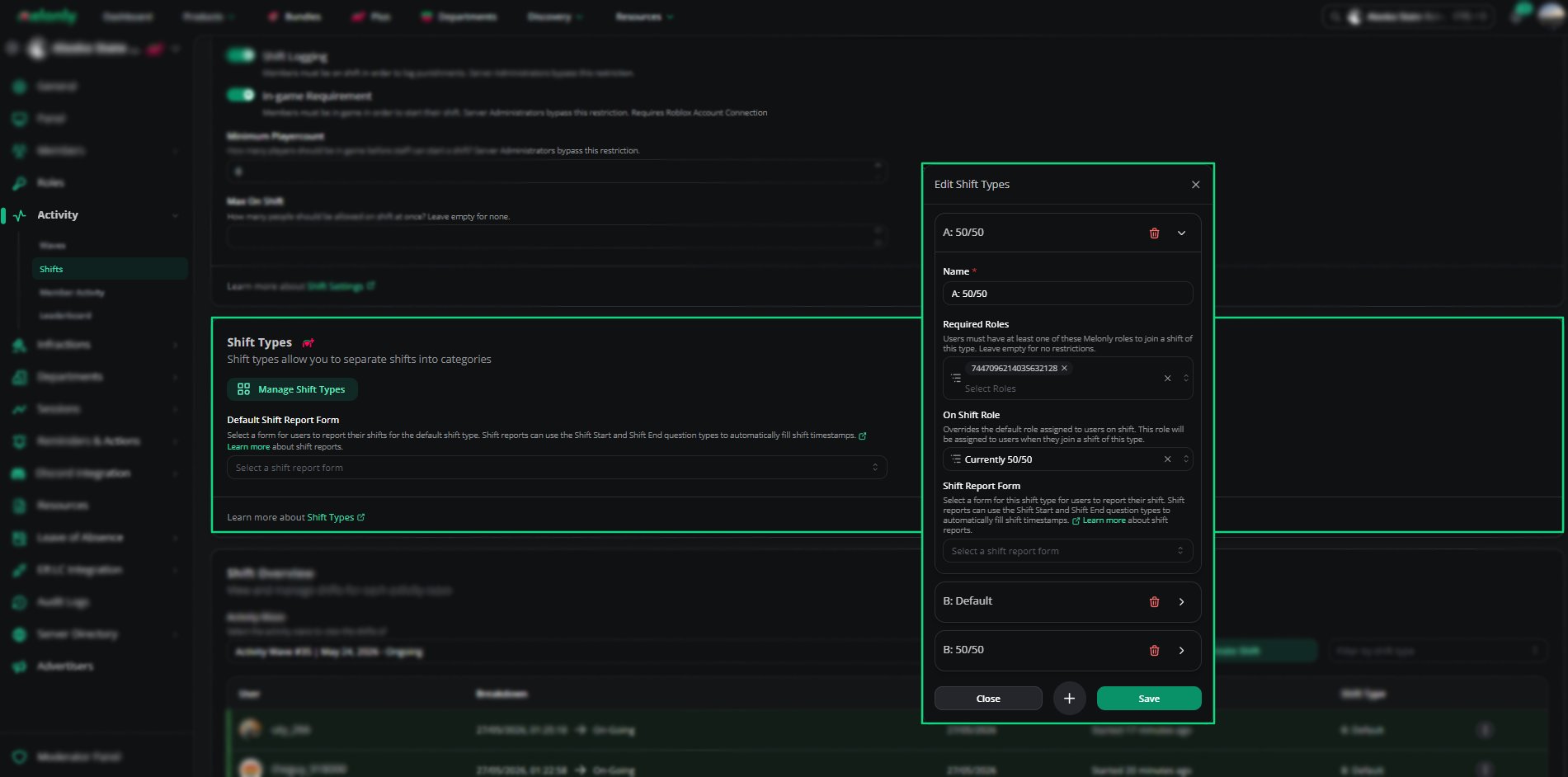 Shift types sort shifts into groups such as Support, Admin or 50/50, so they're easier to filter. They need [Melonly Plus](https://melonly.xyz/plus).
Click **Manage shift types** to add, edit or delete them.
| Setting | Description |
| - | - |
| Name | The shift type's name |
| Required Roles | Staff need at least one of these Melonly roles to start this type of shift. Leave empty for no restriction |
| On Shift Role | The Discord role given while on this type of shift. Overrides the default on-shift role. Shown when your Discord server is linked |
| Shift Report Form | The form staff fill in to report this type of shift |
When you delete a shift type, its shifts move to the default type. Turn on **Delete related shifts** to delete them instead.
***
## Default Shift Report Form
The **Default Shift Report Form** is the form staff fill in to report shifts of the default type. Each custom shift type has its own **Shift Report Form** setting.
Shift reports can use the Shift Start and Shift End question types to capture timestamps automatically.
Create the form on the [Resources](/Dashboard/resources/resourceshome) page first. If you have no forms yet, click **Create one** in the dropdown.
***
## Shift Overview
Shift types sort shifts into groups such as Support, Admin or 50/50, so they're easier to filter. They need [Melonly Plus](https://melonly.xyz/plus).
Click **Manage shift types** to add, edit or delete them.
| Setting | Description |
| - | - |
| Name | The shift type's name |
| Required Roles | Staff need at least one of these Melonly roles to start this type of shift. Leave empty for no restriction |
| On Shift Role | The Discord role given while on this type of shift. Overrides the default on-shift role. Shown when your Discord server is linked |
| Shift Report Form | The form staff fill in to report this type of shift |
When you delete a shift type, its shifts move to the default type. Turn on **Delete related shifts** to delete them instead.
***
## Default Shift Report Form
The **Default Shift Report Form** is the form staff fill in to report shifts of the default type. Each custom shift type has its own **Shift Report Form** setting.
Shift reports can use the Shift Start and Shift End question types to capture timestamps automatically.
Create the form on the [Resources](/Dashboard/resources/resourceshome) page first. If you have no forms yet, click **Create one** in the dropdown.
***
## Shift Overview
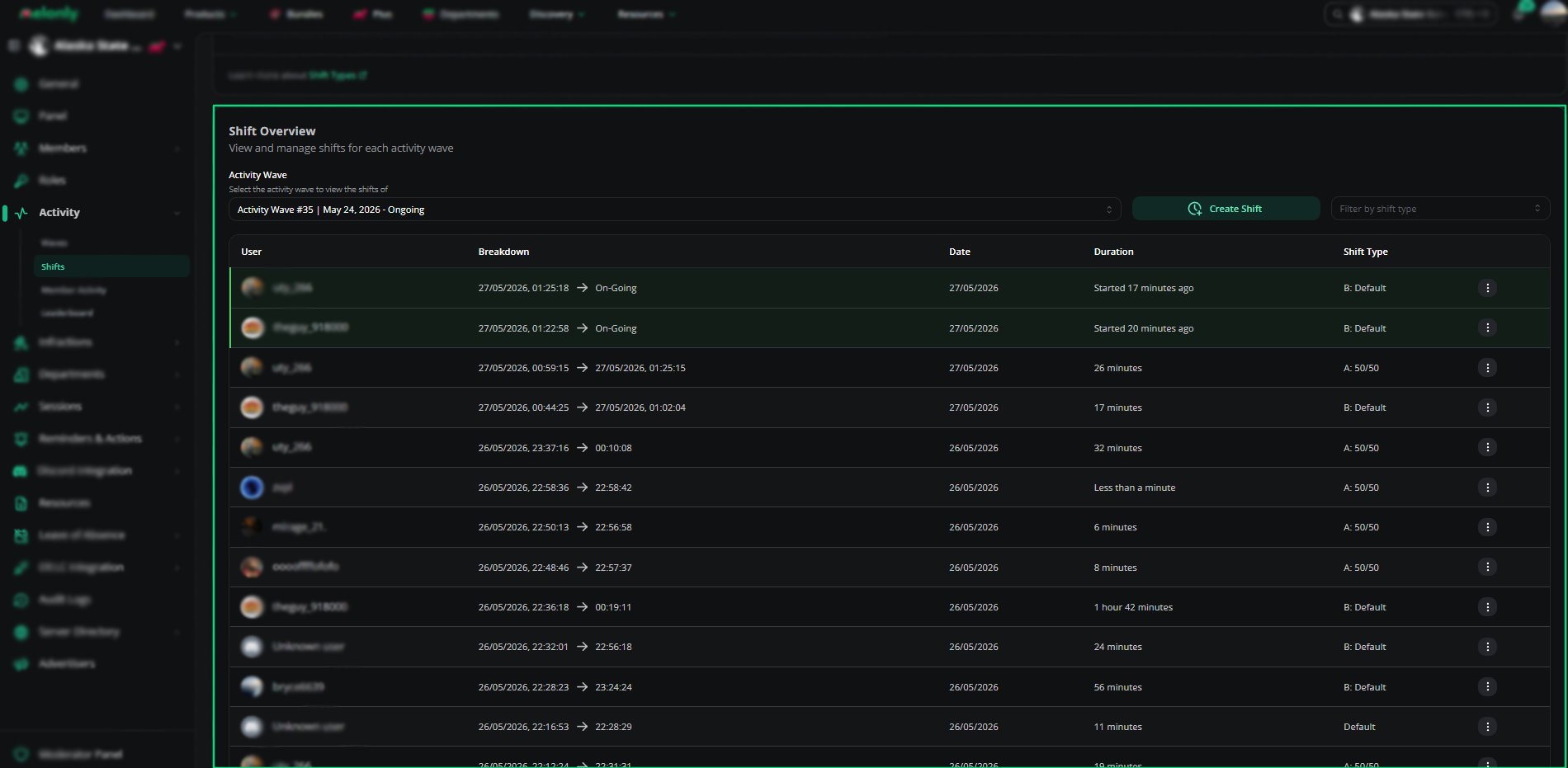 | Action | Description |
| - | - |
| Activity Wave | View shifts from a specific wave |
| Filter by shift type | Only show shifts of one shift type (or Default) |
| Create Shift | Log a shift by hand with start and end times |
| Shift Reports | View the report attached to a shift |
| Edit Shift | Change the timestamps, duration or wave |
| Delete Shift | Permanently delete a shift |
***
## How to Configure
Set shift logging, the in-game requirement and the minimum playercount in the shift settings.
Add shift types to sort staff activity, and set a report form for each one (Plus).
Create a form on the Resources page, then pick it as the **Default Shift Report Form**.
***
## Example Use Cases
* Sorting shifts by type
* Requiring staff to be in game before starting a shift
* Limiting how many staff can be on shift at once
* Using shift reports to note activity or server status
***
Still have questions? Join our Discord server for support from the Melonly Team.
This documentation is built and hosted on [Mintlify](https://mintlify.com), a developer documentation platform.
| Action | Description |
| - | - |
| Activity Wave | View shifts from a specific wave |
| Filter by shift type | Only show shifts of one shift type (or Default) |
| Create Shift | Log a shift by hand with start and end times |
| Shift Reports | View the report attached to a shift |
| Edit Shift | Change the timestamps, duration or wave |
| Delete Shift | Permanently delete a shift |
***
## How to Configure
Set shift logging, the in-game requirement and the minimum playercount in the shift settings.
Add shift types to sort staff activity, and set a report form for each one (Plus).
Create a form on the Resources page, then pick it as the **Default Shift Report Form**.
***
## Example Use Cases
* Sorting shifts by type
* Requiring staff to be in game before starting a shift
* Limiting how many staff can be on shift at once
* Using shift reports to note activity or server status
***
Still have questions? Join our Discord server for support from the Melonly Team.
This documentation is built and hosted on [Mintlify](https://mintlify.com), a developer documentation platform.