> ## Documentation Index
> Fetch the complete documentation index at: https://docs.melonly.com/llms.txt
> Use this file to discover all available pages before exploring further.
# Waves
> Configure activity waves to track staff activity, hour requirements and inactivity.
***
## What are Waves?
An activity wave is a set period of time, such as a week or a month, that Melonly tracks staff activity over. Each wave records online time, break time and shifts for every staff member.
Waves let you set hour requirements, review past activity and spot inactive staff.
***
## How Waves Work
A wave ends automatically based on the duration you set, and the next wave starts straight away. Melonly keeps the results of every past wave.
You can also end or delete a wave yourself from the timeline.
***
## Configuration Options
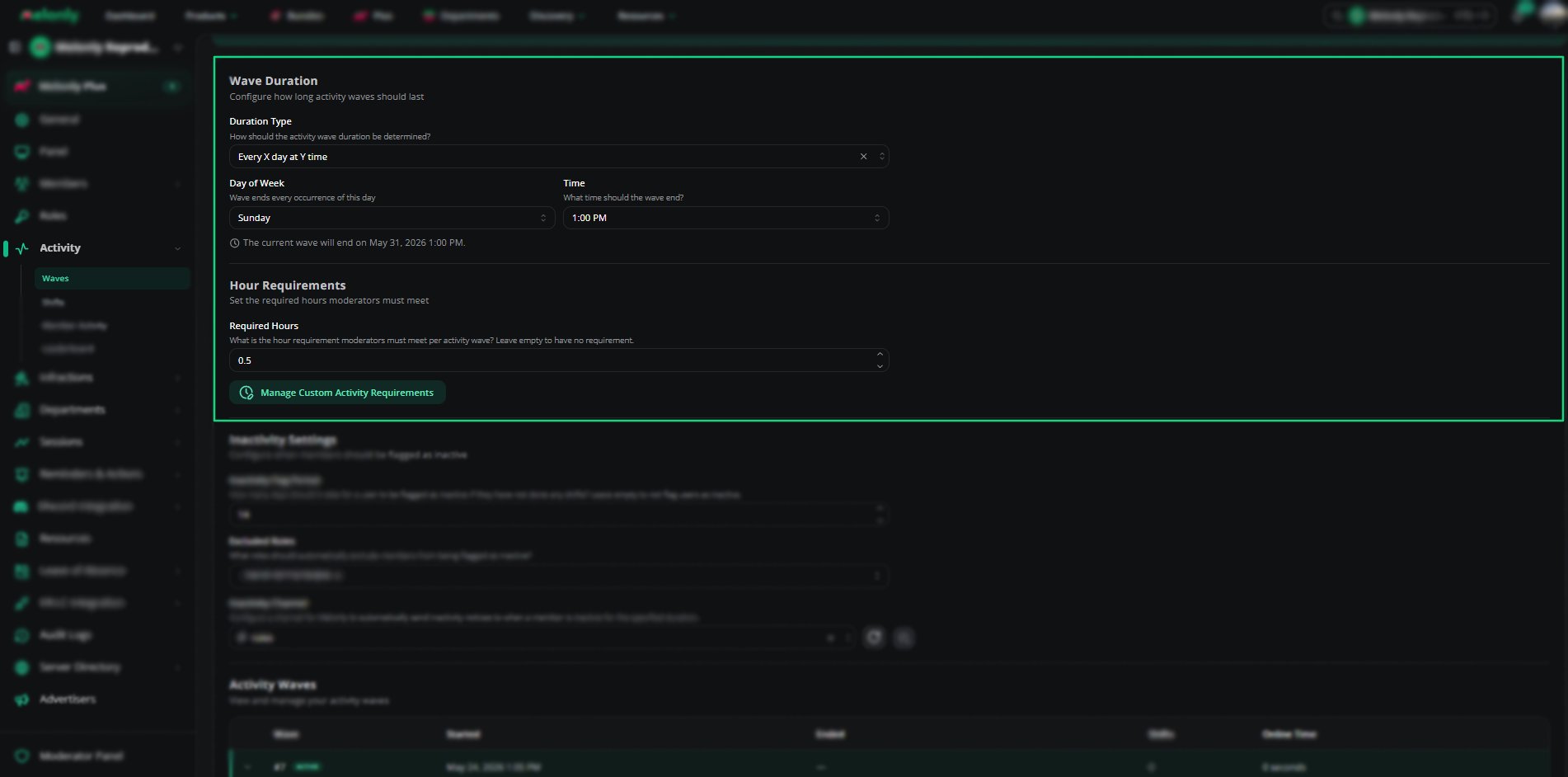 | Setting | Description |
| - | - |
| Duration Type | How long each wave lasts: a number of days, end of month, end of week, end of every other week, every X day at Y time, or every other X day at Y time |
| Duration in Days | How many days each wave lasts, when you pick that duration type |
| Day of Week | The day the wave ends, for the day-and-time duration types |
| Time | The time the wave ends |
| Required Hours | The minimum hours staff must reach each wave. Leave empty for no requirement |
| Custom Requirements | Set different hour requirements for each role |
***
## How to Configure
Pick how long each wave should last.
For the day-and-time duration types, choose the day and time the wave should end.
Enter the hours staff must reach. Click **Custom activity requirements** to set different quotas per role.
***
## Inactivity Settings
Melonly can flag staff who haven't done any shifts for a set number of days. You can exclude roles from this and pick a channel for Melonly to send inactivity notices to.
| Setting | Description |
| - | - |
| Duration Type | How long each wave lasts: a number of days, end of month, end of week, end of every other week, every X day at Y time, or every other X day at Y time |
| Duration in Days | How many days each wave lasts, when you pick that duration type |
| Day of Week | The day the wave ends, for the day-and-time duration types |
| Time | The time the wave ends |
| Required Hours | The minimum hours staff must reach each wave. Leave empty for no requirement |
| Custom Requirements | Set different hour requirements for each role |
***
## How to Configure
Pick how long each wave should last.
For the day-and-time duration types, choose the day and time the wave should end.
Enter the hours staff must reach. Click **Custom activity requirements** to set different quotas per role.
***
## Inactivity Settings
Melonly can flag staff who haven't done any shifts for a set number of days. You can exclude roles from this and pick a channel for Melonly to send inactivity notices to.
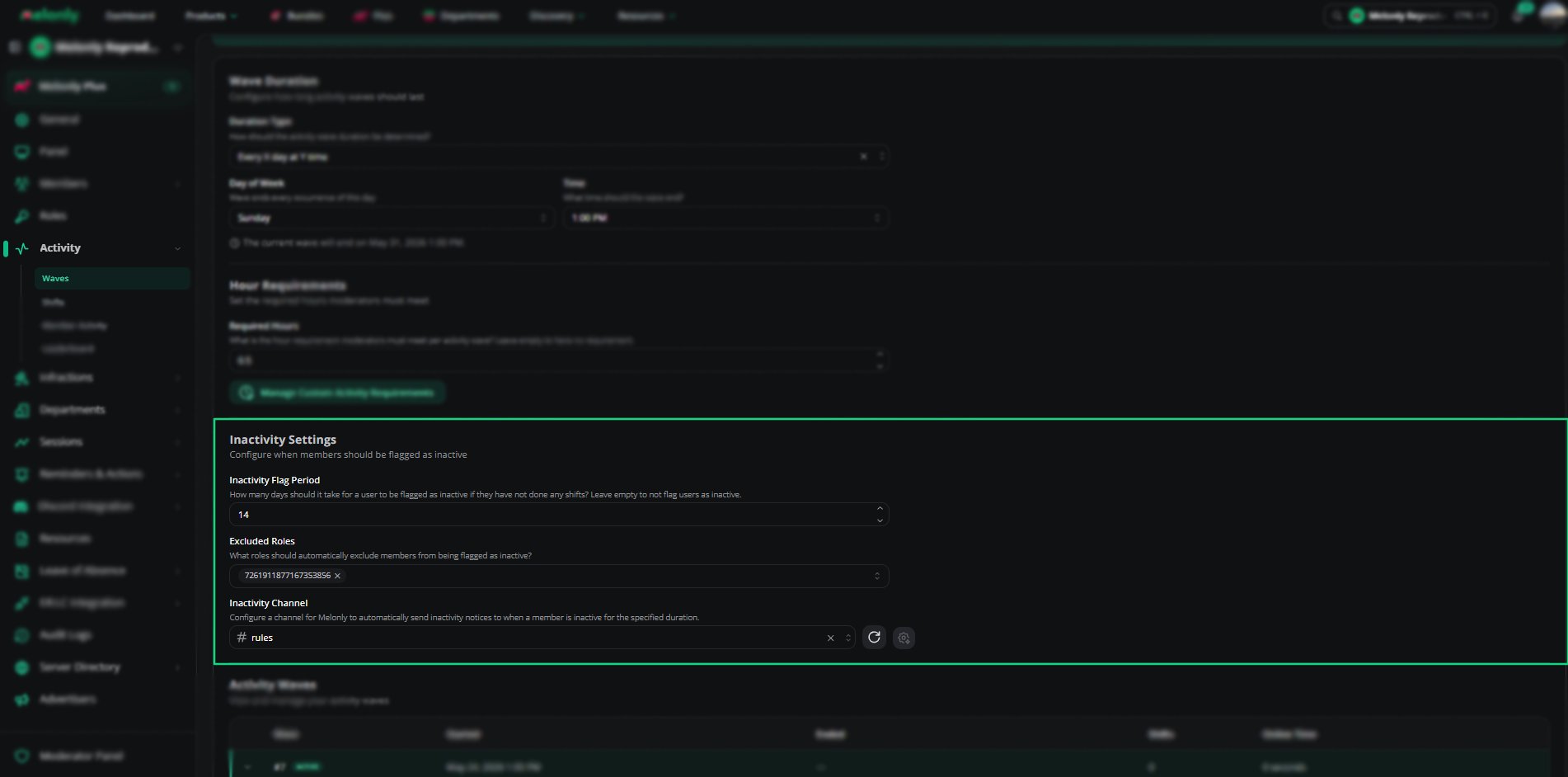 | Setting | Description |
| - | - |
| Inactivity Flag Period | Days without a shift before a member is flagged as inactive. Leave empty to turn off inactivity checks |
| Excluded Roles | Roles that are never flagged as inactive, such as leadership |
| Inactivity Channel | The channel Melonly sends inactivity notices to |
***
## Example Use Cases
* Weekly activity tracking
* Monthly performance reviews
* Different hour requirements for each role
* Automatic wave scheduling
***
Still have questions? Join our Discord server for support from the Melonly Team.
This documentation is built and hosted on [Mintlify](https://mintlify.com), a developer documentation platform.
| Setting | Description |
| - | - |
| Inactivity Flag Period | Days without a shift before a member is flagged as inactive. Leave empty to turn off inactivity checks |
| Excluded Roles | Roles that are never flagged as inactive, such as leadership |
| Inactivity Channel | The channel Melonly sends inactivity notices to |
***
## Example Use Cases
* Weekly activity tracking
* Monthly performance reviews
* Different hour requirements for each role
* Automatic wave scheduling
***
Still have questions? Join our Discord server for support from the Melonly Team.
This documentation is built and hosted on [Mintlify](https://mintlify.com), a developer documentation platform.