> ## Documentation Index
> Fetch the complete documentation index at: https://docs.melonly.com/llms.txt
> Use this file to discover all available pages before exploring further.
# Channels
> Configure which Discord channels Melonly uses for logs, events, and notifications.
***
## What are Discord Channels?
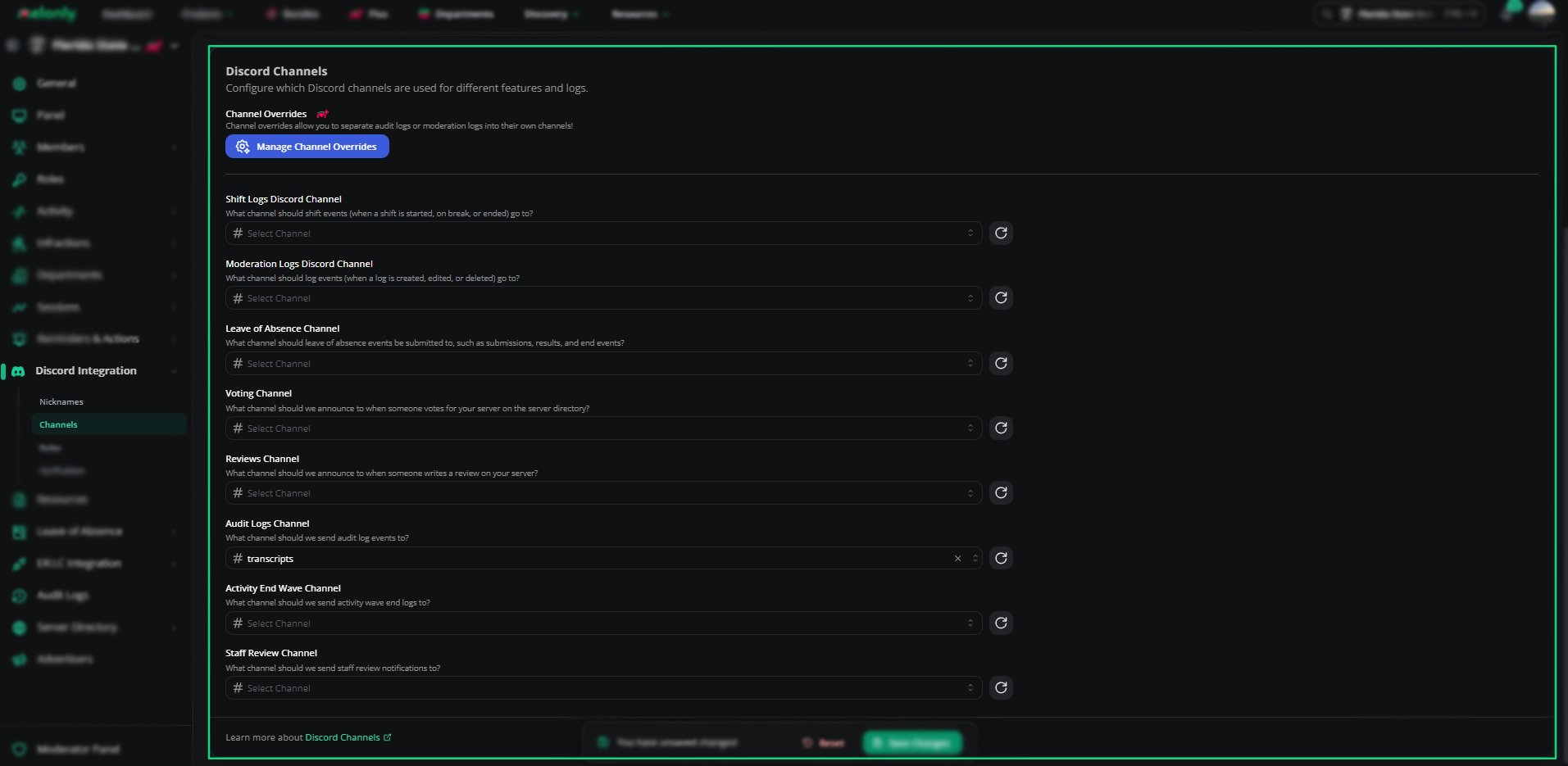
The Channels section allows you to choose where Melonly sends different types of logs, updates, and notifications.\
Each feature can be assigned to a specific Discord channel, giving you full control over how information is organized in your server.
You can configure all channels globally or override them for specific event types.
***
# Available Channels
| Channel | What gets sent |
| - | - |
| **Shift Logs Discord Channel** | Shift events: shift started, break started, break ended, and shift ended |
| **Moderation Logs Discord Channel** | Moderation log created, edited, and deleted, plus ban bolo completed or denied |
| **Leave of Absence Channel** | LOA submissions, results (approved, denied, cancelled), start and end events, and extension requests |
| **Voting Channel** | An announcement when someone votes for your server on the server directory |
| **Reviews Channel** | An announcement when someone writes or updates a review of your server on the server directory |
| **Audit Logs Channel** | Audit log events (administrative actions in the Melonly panel) |
| **Activity End Wave Channel** | A summary when an activity wave ends |
| **Staff Review Channel** | A notification when a profile review is created for one of your linked experiences |
| **Promotion Logs Channel** | A log when a member is promoted |
| **Demotion Logs Channel** | A log when a member is demoted |
Every channel is optional. Clear a dropdown to stop sending that type of message.
***
## Channel Configuration
Each channel option includes a dropdown where you can select the Discord channel you want Melonly to use.
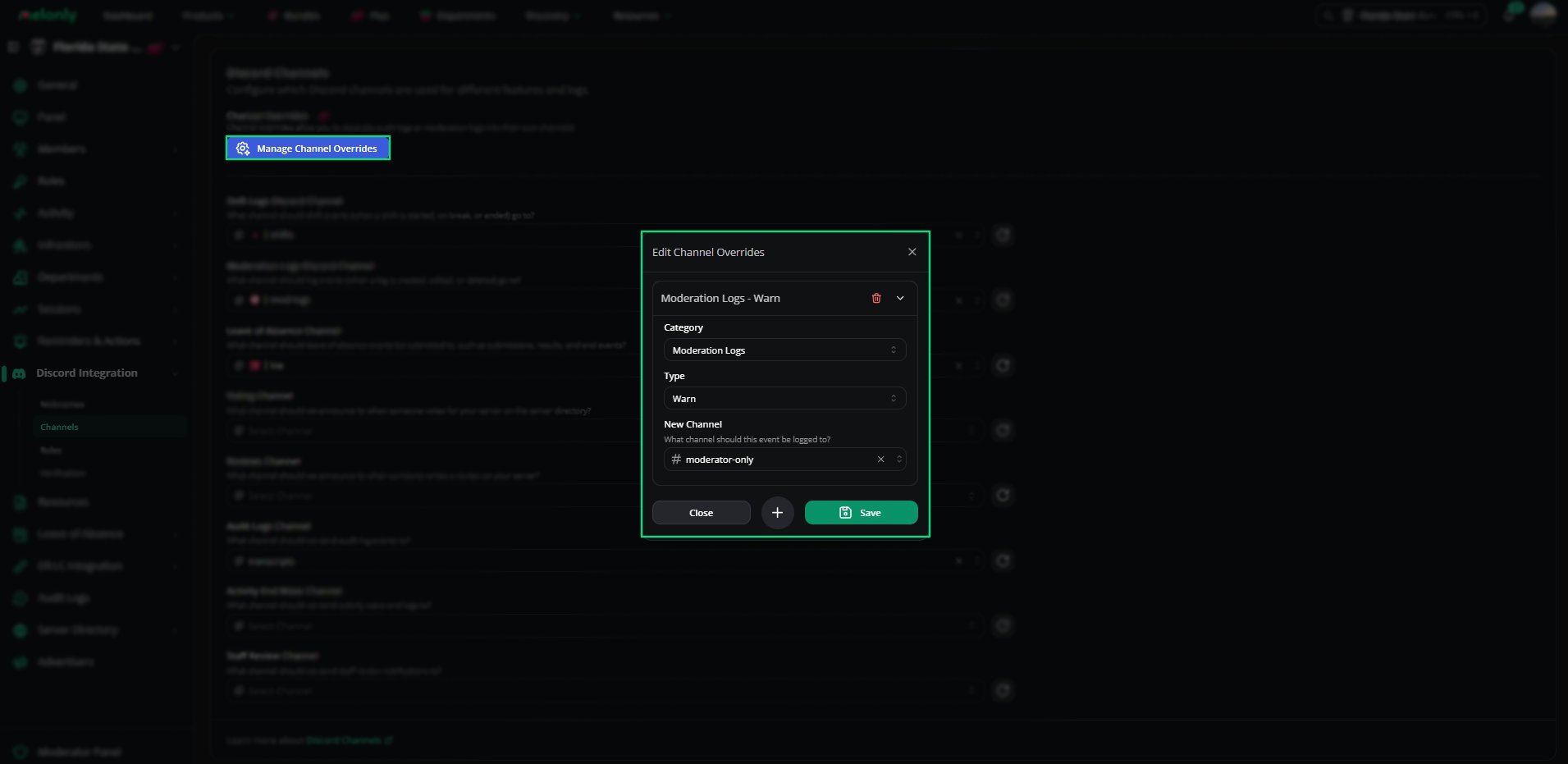
You can also open **Channel Overrides** to configure specific event types individually, such as warnings, bans, settings updates, or role changes.
This gives you full flexibility over how logs are organised in your server.
 This feature requires Melonly Plus. You can find out more about what Plus offers [**here**](https://melonly.xyz/plus?referer=page_header_pc).
***
## Channel Overrides
Channel overrides send one specific event type to its own channel instead of the main channel. This requires [Melonly Plus](https://melonly.xyz/plus).
Click **Manage channel overrides** at the top of the **Discord Channels** card.
Click the **+** button to add a new override.
Choose a **Category**, then a **Type**, then the **New Channel** the event should be logged to.
Click **Save**. Every override needs a category, type, and channel before it can be saved.
| Category | Available types |
| - | - |
| **Moderation Logs** | Warn, Kick, Ban, Ban Bolo, Note |
| **Audit Logs** | Any audit log event type. If ER:LC is enabled, you can also pick ER:LC Command Ran, ER:LC Member Check, and ER:LC Vehicle Check. |
Each type can only have one override. Types that already have an override are greyed out.
***
## Custom Messages
Each channel has a **Customize Discord Messages** button next to its dropdown. Use it to change the message Melonly sends to that channel. This requires [Melonly Plus](https://melonly.xyz/plus).
| Channel | Messages you can customize |
| - | - |
| **Shift Logs Discord Channel** | Shift Started, Break Started, Break Ended, Shift Ended |
| **Moderation Logs Discord Channel** | Log Created, Log Edited, Log Deleted, Ban Bolo Denied |
| **Leave of Absence Channel** | LOA Submission, LOA Approved, LOA Denied, LOA Cancelled, LOA Ended, LOA Started, LOA Extension Submitted, LOA Extension Approved, LOA Extension Denied |
| **Voting Channel** | Vote Message |
| **Reviews Channel** | Review Message |
| **Audit Logs Channel** | Audit Log Message |
| **Activity End Wave Channel** | Activity Wave End Message |
| **Staff Review Channel** | Staff Review Message |
| **Promotion Logs Channel** | Promotion Log Message |
| **Demotion Logs Channel** | Demotion Log Message |
Each editor lists the variables you can use, such as `{user}` or `{reason}`, and has an option to show the related user as the embed author.
***
## Required Discord Permissions
Melonly needs the correct permissions to send messages to your selected channels.
| Requirement | Description |
| - | - |
| Send Messages | Melonly must be able to send messages in the selected channels. |
| View Channel | Melonly must be able to see the channel to post logs. |
If these permissions are missing, Melonly will not be able to send logs or notifications.
The dashboard will also refuse to save a channel Melonly cannot manage, and tells you which channel is the problem.
***
Still have questions? Join our Discord server for support from the Melonly Team.
This documentation is built and hosted on [Mintlify](https://mintlify.com), a developer documentation platform.
This feature requires Melonly Plus. You can find out more about what Plus offers [**here**](https://melonly.xyz/plus?referer=page_header_pc).
***
## Channel Overrides
Channel overrides send one specific event type to its own channel instead of the main channel. This requires [Melonly Plus](https://melonly.xyz/plus).
Click **Manage channel overrides** at the top of the **Discord Channels** card.
Click the **+** button to add a new override.
Choose a **Category**, then a **Type**, then the **New Channel** the event should be logged to.
Click **Save**. Every override needs a category, type, and channel before it can be saved.
| Category | Available types |
| - | - |
| **Moderation Logs** | Warn, Kick, Ban, Ban Bolo, Note |
| **Audit Logs** | Any audit log event type. If ER:LC is enabled, you can also pick ER:LC Command Ran, ER:LC Member Check, and ER:LC Vehicle Check. |
Each type can only have one override. Types that already have an override are greyed out.
***
## Custom Messages
Each channel has a **Customize Discord Messages** button next to its dropdown. Use it to change the message Melonly sends to that channel. This requires [Melonly Plus](https://melonly.xyz/plus).
| Channel | Messages you can customize |
| - | - |
| **Shift Logs Discord Channel** | Shift Started, Break Started, Break Ended, Shift Ended |
| **Moderation Logs Discord Channel** | Log Created, Log Edited, Log Deleted, Ban Bolo Denied |
| **Leave of Absence Channel** | LOA Submission, LOA Approved, LOA Denied, LOA Cancelled, LOA Ended, LOA Started, LOA Extension Submitted, LOA Extension Approved, LOA Extension Denied |
| **Voting Channel** | Vote Message |
| **Reviews Channel** | Review Message |
| **Audit Logs Channel** | Audit Log Message |
| **Activity End Wave Channel** | Activity Wave End Message |
| **Staff Review Channel** | Staff Review Message |
| **Promotion Logs Channel** | Promotion Log Message |
| **Demotion Logs Channel** | Demotion Log Message |
Each editor lists the variables you can use, such as `{user}` or `{reason}`, and has an option to show the related user as the embed author.
***
## Required Discord Permissions
Melonly needs the correct permissions to send messages to your selected channels.
| Requirement | Description |
| - | - |
| Send Messages | Melonly must be able to send messages in the selected channels. |
| View Channel | Melonly must be able to see the channel to post logs. |
If these permissions are missing, Melonly will not be able to send logs or notifications.
The dashboard will also refuse to save a channel Melonly cannot manage, and tells you which channel is the problem.
***
Still have questions? Join our Discord server for support from the Melonly Team.
This documentation is built and hosted on [Mintlify](https://mintlify.com), a developer documentation platform.