> ## Documentation Index
> Fetch the complete documentation index at: https://docs.melonly.com/llms.txt
> Use this file to discover all available pages before exploring further.
# Roles
> Configure automated role assignment and management for your Discord server.
***
## What are Roles?
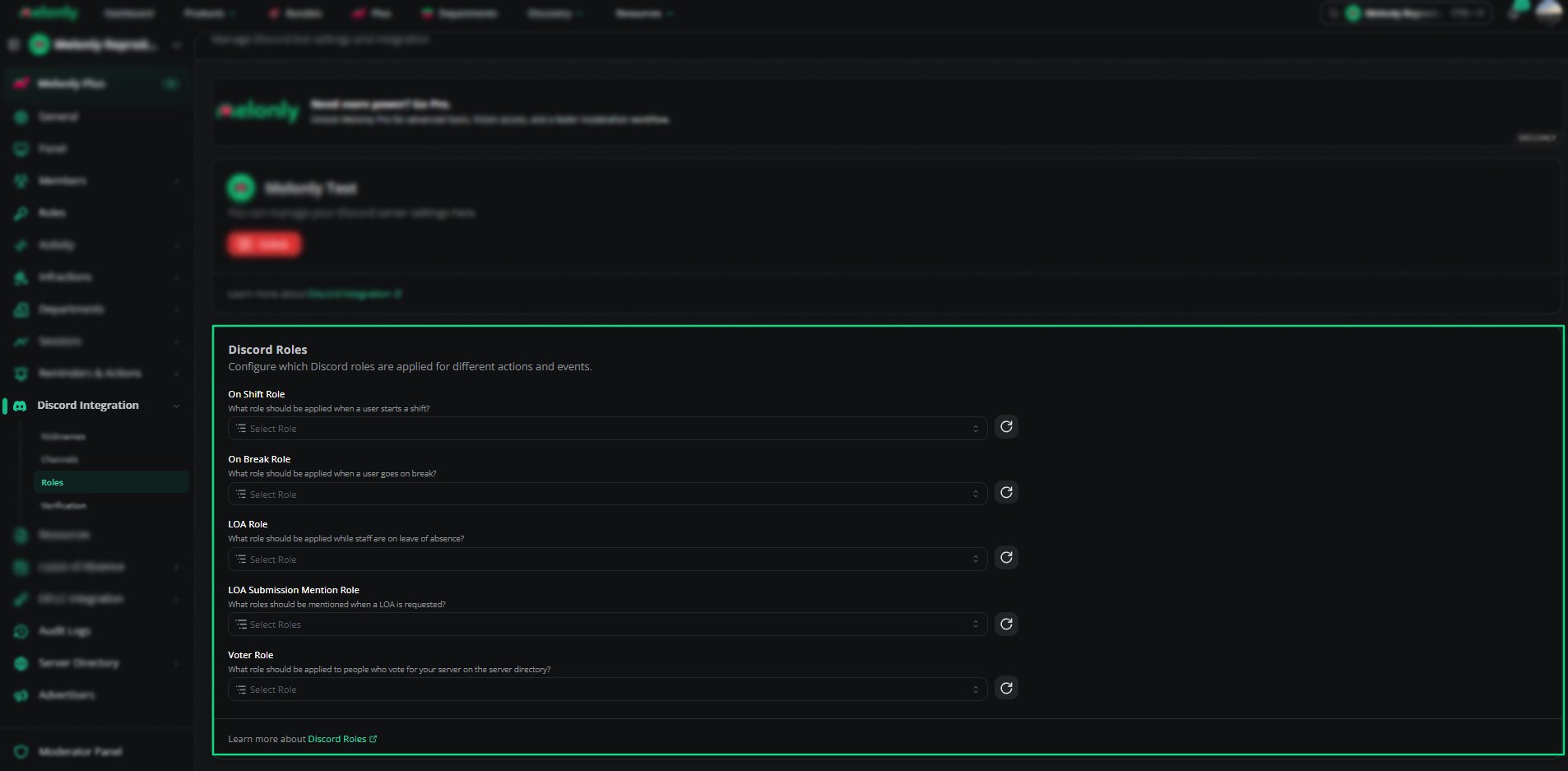
The Roles section allows you to automate role assignment based on member activity or actions.
These roles help your staff quickly identify member status.
You can enable or disable each role type depending on how your server operates.
***
## Available Roles
| Role | When it is assigned |
| - | - |
| **On Shift Role** | Given while a member is on shift |
| **On Break Role** | Given while a member is on break |
| **LOA Role** | Given while a member is on leave |
| **Voter Role** | Given to users who vote for your server on the server directory |
The role pinged when an LOA is submitted is set with **LOA Submission Mention Role** in [LOA Settings](/Dashboard/loa/settings), not on this page.
***
## Discord Role Protection
The **Restrict Discord role selection** toggle limits role assignment to roles below a person's highest Discord role. Administrators and server owners are exempt. Role requirements and mentions can still use any role.
Only administrators and the server owner can change this setting.
***
## Required Discord Permissions
For Melonly to manage roles correctly, the Melonly Bot must have the proper Discord permissions and role hierarchy.
| Requirement | Description |
| - | - |
| Manage Roles | Melonly must have the Manage Roles permission enabled in your server. |
| Role Positioning | The Melonly Bot's role must be placed **above** every role you want it to assign or remove. |
If these requirements are not met, Melonly will not be able to update member roles.
***
## How Roles Work
When a member performs an action such as starting a shift, going on break, or submitting an LOA, Melonly automatically updates their roles in Discord.
This ensures your staff always know who is active, or unavailable.
 ***
Still have questions? Join our Discord server for support from the Melonly Team.
This documentation is built and hosted on [Mintlify](https://mintlify.com), a developer documentation platform.
***
Still have questions? Join our Discord server for support from the Melonly Team.
This documentation is built and hosted on [Mintlify](https://mintlify.com), a developer documentation platform.