> ## Documentation Index
> Fetch the complete documentation index at: https://docs.melonly.com/llms.txt
> Use this file to discover all available pages before exploring further.
# Server Configuration
> Connect your ER:LC private server, view its live info and manage your linked servers.
***
## What is Server Configuration?
Server Configuration is where you connect your ER:LC private server to Melonly with an API key. Once linked, it shows live server info and lets you switch between linked servers.
***
## How to Connect Your Server
Join your ER:LC private server and open **Private Server Settings → ER:LC API**. Copy your unique API key.
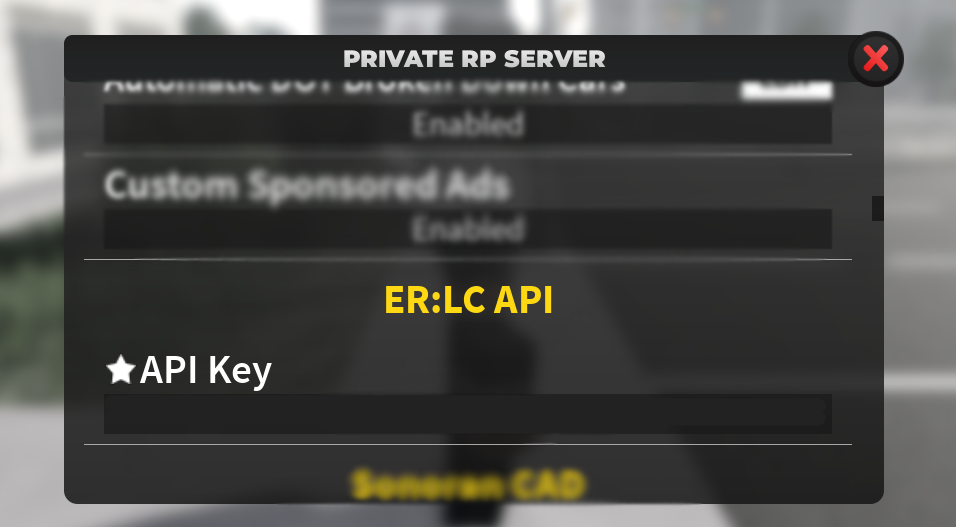 On the **ER:LC Integration → API** page, click **Manage linked servers**. Paste your key into **ER:LC API Key**, add a label for the server and click **Add Server**.
 ***
## Server Information
Once linked, this section shows your server name, current player count and join code. It also shows your [Events Webhook](/Dashboard/erlcintegration/webhook/eventwebhook) status.
| Action | Description |
| - | - |
| Run Command | Run an ER:LC command from the dashboard, just like in the [Mod Panel](/Modpanel/erlc/home) |
| Join Server | Join your private server directly with a unique link, without joining a public server first |
| View Staff | Shows all staff members currently in game |
If PRC has banned your API key, the dashboard shows an **API Key Invalid** alert. Contact PRC support for help.
***
## Managing Your Linked Servers
Click **Set Active** on a linked server to make it the one your dashboard and the Mod Panel use. Click the red **X** to remove a key from your server.
Free servers can link up to 2 ER:LC servers, and [Melonly Plus](https://melonly.xyz/plus) raises this to 100. API keys must be at least 15 characters and contain a dash.
ER:LC settings are saved per API key. Switching to another linked server replaces the ER:LC settings on your dashboard with that server's settings.
***
## Server Information
Once linked, this section shows your server name, current player count and join code. It also shows your [Events Webhook](/Dashboard/erlcintegration/webhook/eventwebhook) status.
| Action | Description |
| - | - |
| Run Command | Run an ER:LC command from the dashboard, just like in the [Mod Panel](/Modpanel/erlc/home) |
| Join Server | Join your private server directly with a unique link, without joining a public server first |
| View Staff | Shows all staff members currently in game |
If PRC has banned your API key, the dashboard shows an **API Key Invalid** alert. Contact PRC support for help.
***
## Managing Your Linked Servers
Click **Set Active** on a linked server to make it the one your dashboard and the Mod Panel use. Click the red **X** to remove a key from your server.
Free servers can link up to 2 ER:LC servers, and [Melonly Plus](https://melonly.xyz/plus) raises this to 100. API keys must be at least 15 characters and contain a dash.
ER:LC settings are saved per API key. Switching to another linked server replaces the ER:LC settings on your dashboard with that server's settings.
 ***
Still have questions? Join our Discord server for support from the Melonly Team.
This documentation is built and hosted on [Mintlify](https://mintlify.com), a developer documentation platform.
***
Still have questions? Join our Discord server for support from the Melonly Team.
This documentation is built and hosted on [Mintlify](https://mintlify.com), a developer documentation platform.