> ## Documentation Index
> Fetch the complete documentation index at: https://docs.melonly.com/llms.txt
> Use this file to discover all available pages before exploring further.
# Appeals
> Review pending appeals, view appeal history and process staff infraction appeals.
***
## What are Appeals?
Appeals let staff ask for an infraction or suspension to be reviewed. Each appeal holds the original punishment, the staff member's answers and the reviewer's decision.
They keep your disciplinary system fair and give disputes a clear process.
***
## How Appeals Work
New appeals show in the **Pending Appeals** tab. Administrators open an appeal, read the answers and approve or deny it.
Once resolved, the appeal moves to the **Appeal History** tab with the original infraction, the answers and the final decision. You write the appeal questions on the [Infraction Settings](/Dashboard/infractions/settings#appeals) page, and they apply to every new appeal.
***
## Appeal Tabs
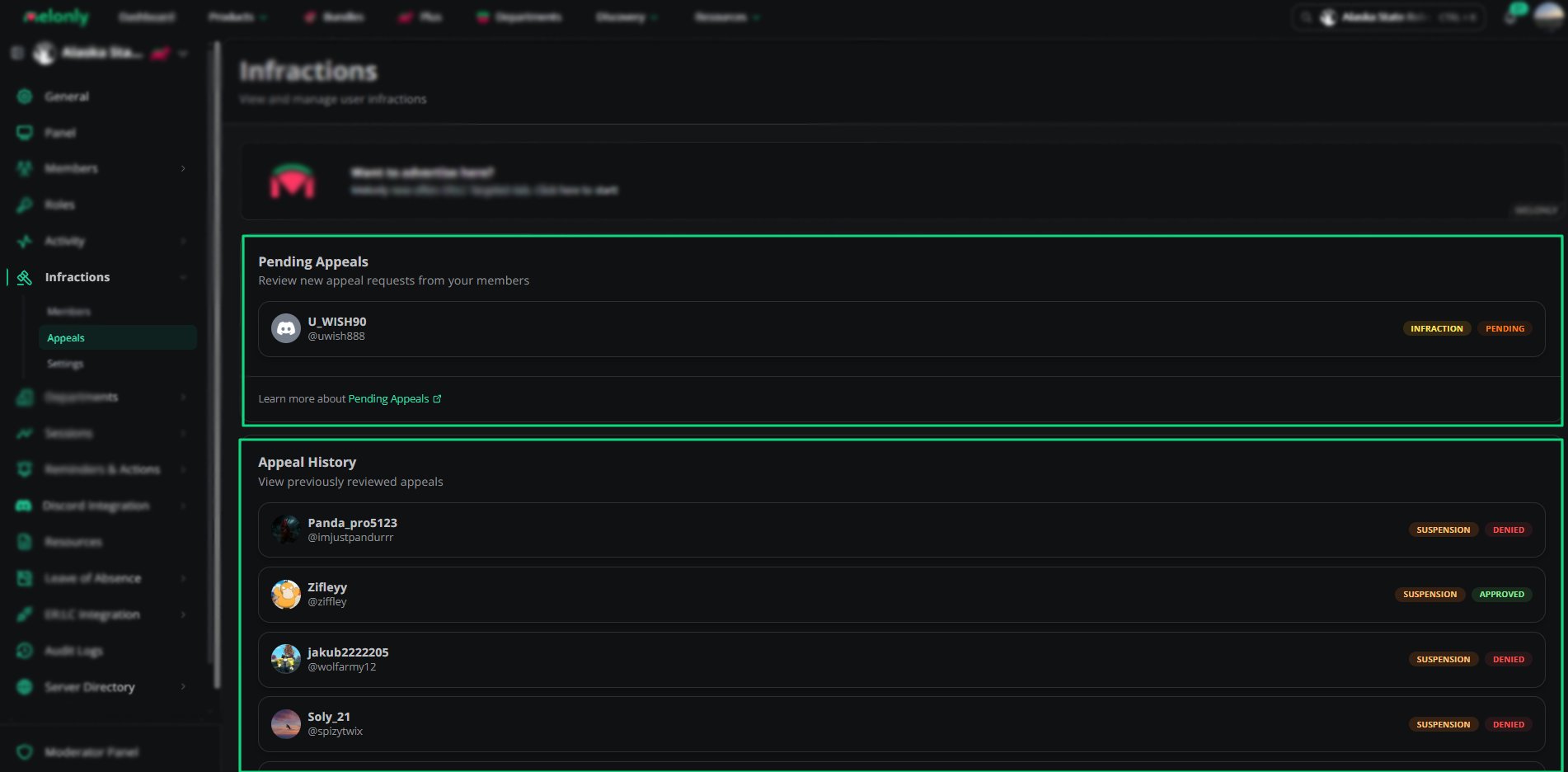 | Tab | Contents |
| - | - |
| Pending Appeals | Appeals waiting for review |
| Appeal History | Past appeals with the original infraction and the staff member's answers |
***
## Pending Appeals
Each pending appeal shows the member's name and handle, the type of punishment and its status. Click an appeal to open the review form.
***
## Appeal History
Appeal History lists every resolved appeal with:
* Member name
* Punishment type
* Final decision
* Review date
* Reviewer
***
## Reviewing an Appeal
| Tab | Contents |
| - | - |
| Pending Appeals | Appeals waiting for review |
| Appeal History | Past appeals with the original infraction and the staff member's answers |
***
## Pending Appeals
Each pending appeal shows the member's name and handle, the type of punishment and its status. Click an appeal to open the review form.
***
## Appeal History
Appeal History lists every resolved appeal with:
* Member name
* Punishment type
* Final decision
* Review date
* Reviewer
***
## Reviewing an Appeal
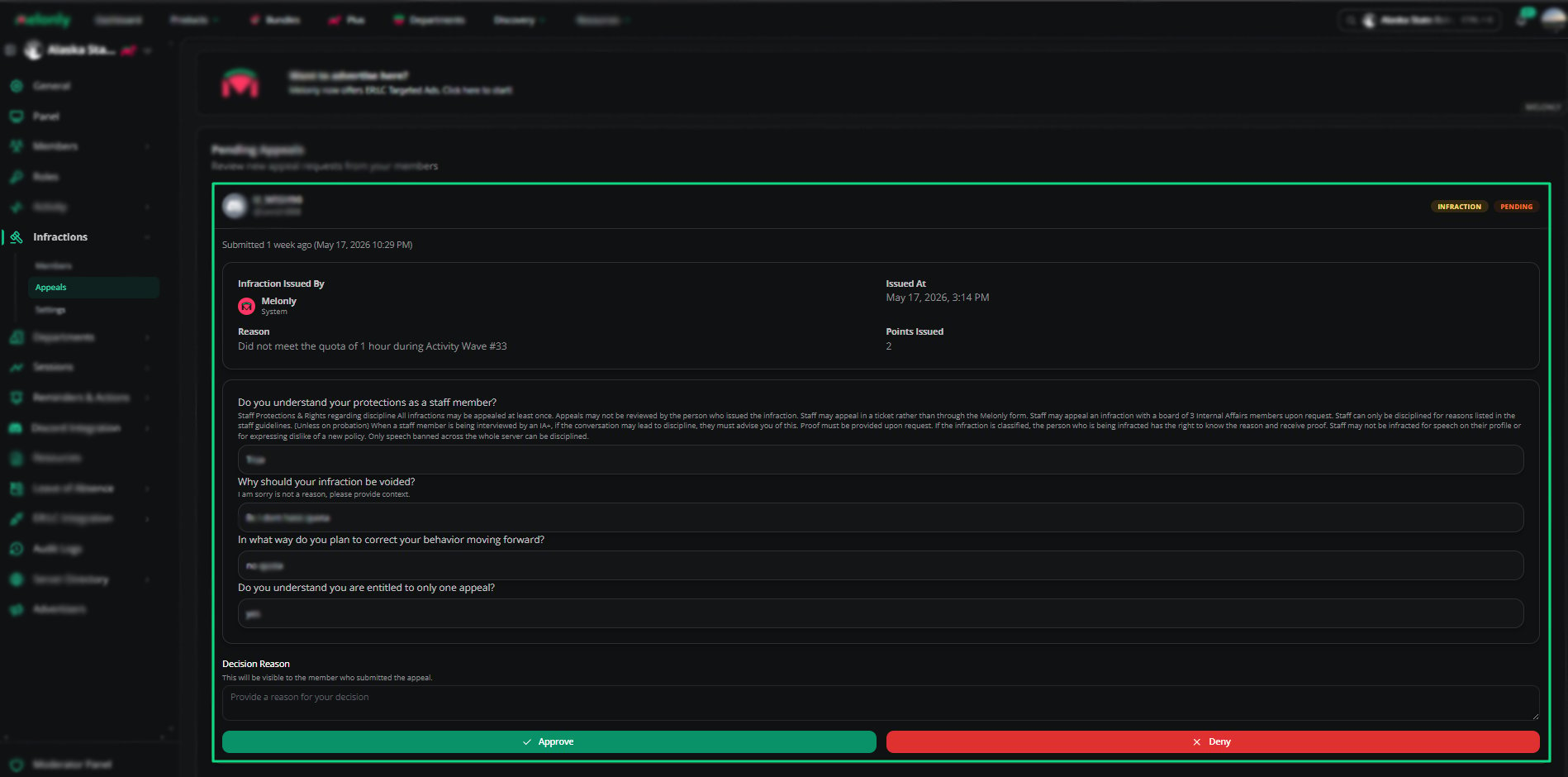 The review form shows:
* The original infraction
* Points issued
* The reason for the punishment
* The staff member's answers to your appeal questions
* A field for your decision reason
* **Approve** and **Deny** buttons
***
## How to Configure
On the Settings page, write the questions staff must answer when they appeal.
Open the Pending Appeals tab and pick an appeal.
Read the answers, enter a decision reason, and click **Approve** or **Deny**.
***
## Example Use Cases
* Reviewing suspensions for mistakes
* Letting staff dispute unfair infractions
* Keeping your disciplinary process transparent
* Checking past decisions for consistency
***
Still have questions? Join our Discord server for support from the Melonly Team.
This documentation is built and hosted on [Mintlify](https://mintlify.com), a developer documentation platform.
The review form shows:
* The original infraction
* Points issued
* The reason for the punishment
* The staff member's answers to your appeal questions
* A field for your decision reason
* **Approve** and **Deny** buttons
***
## How to Configure
On the Settings page, write the questions staff must answer when they appeal.
Open the Pending Appeals tab and pick an appeal.
Read the answers, enter a decision reason, and click **Approve** or **Deny**.
***
## Example Use Cases
* Reviewing suspensions for mistakes
* Letting staff dispute unfair infractions
* Keeping your disciplinary process transparent
* Checking past decisions for consistency
***
Still have questions? Join our Discord server for support from the Melonly Team.
This documentation is built and hosted on [Mintlify](https://mintlify.com), a developer documentation platform.