> ## Documentation Index
> Fetch the complete documentation index at: https://docs.melonly.com/llms.txt
> Use this file to discover all available pages before exploring further.

# Member Management

> Add, remove, promote and demote members of your server from the dashboard.

***

## What is Member Management?

Member Management is how you control who is in your server and which roles they hold. You can add and remove members, assign roles, and promote or demote staff, all from the **Members** page.

***

## Managing Members

Open **Members** on your dashboard to get started.

### Available Actions

<Steps>
  <Step title="Add Member">
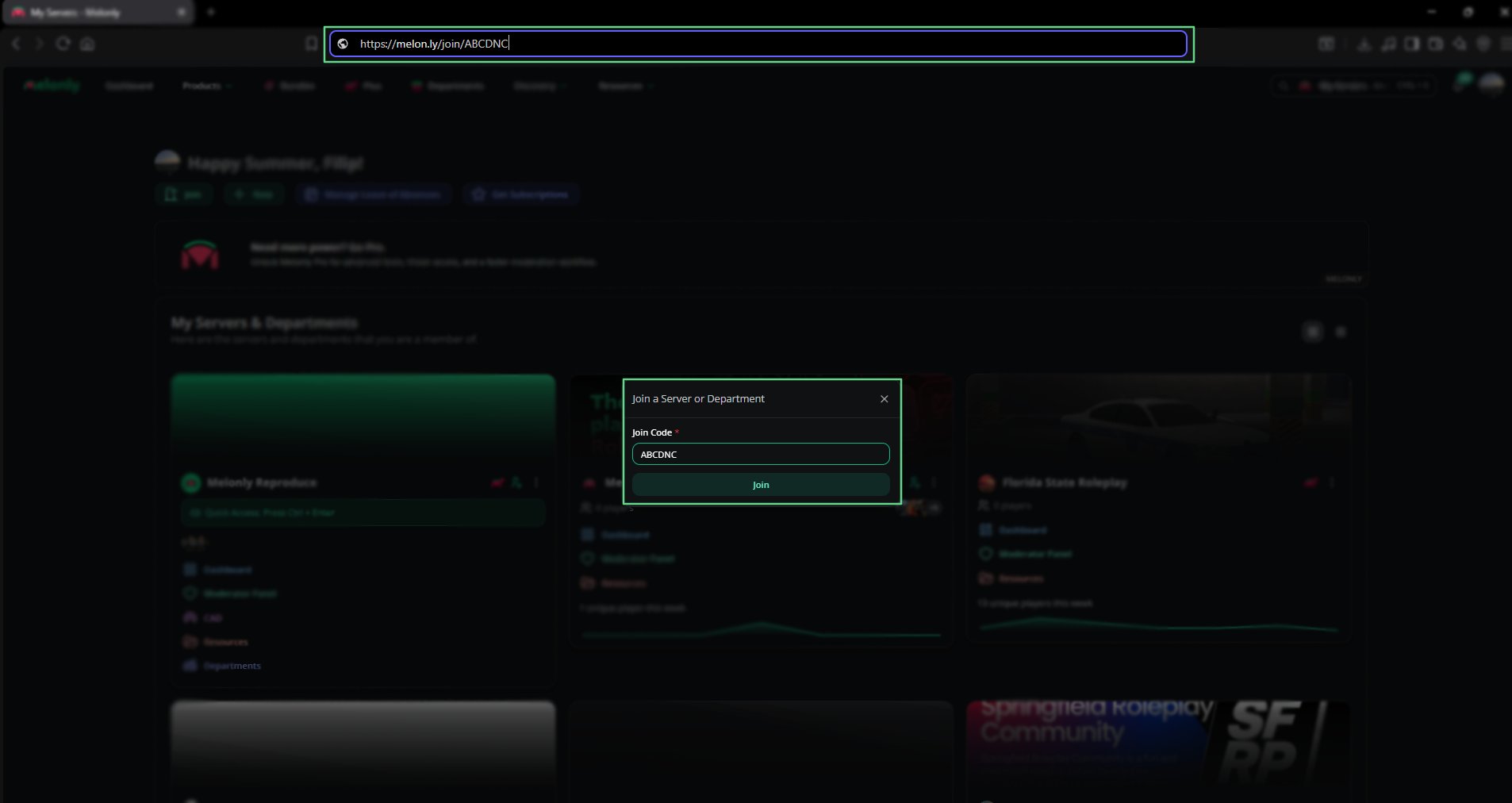
    New members join with your join code or link, which you'll find on the [General Settings](/Dashboard/settings#join-code) page. See the [joining guide](/Guides/dashboard/joining) for how they use it.

    <img className="block" src="https://mintcdn.com/melonly/92EnpMacWCKDg1g9/images/Dashboard/Members/extras/joinlinkimg.png?fit=max&auto=format&n=92EnpMacWCKDg1g9&q=85&s=a1a726f44c4f149196f66fd228c1737b" alt="The join code and link" style={{ borderRadius: '0.75rem' }} width="1906" height="1012" data-path="images/Dashboard/Members/extras/joinlinkimg.png" />
  </Step>

  <Step title="Remove Member">
    Hover over a member and click the remove icon. Hold Shift while you click to skip the confirmation.

    <img className="block" src="https://mintcdn.com/melonly/zAP3OyEjj4sSnJvB/images/Dashboard/Members/removemember.png?fit=max&auto=format&n=zAP3OyEjj4sSnJvB&q=85&s=0c7bfe8768d660e33790afa55fce08f7" alt="Removing a member" style={{ borderRadius: '0.75rem' }} width="1624" height="246" data-path="images/Dashboard/Members/removemember.png" />
  </Step>

  <Step title="Assign Roles">
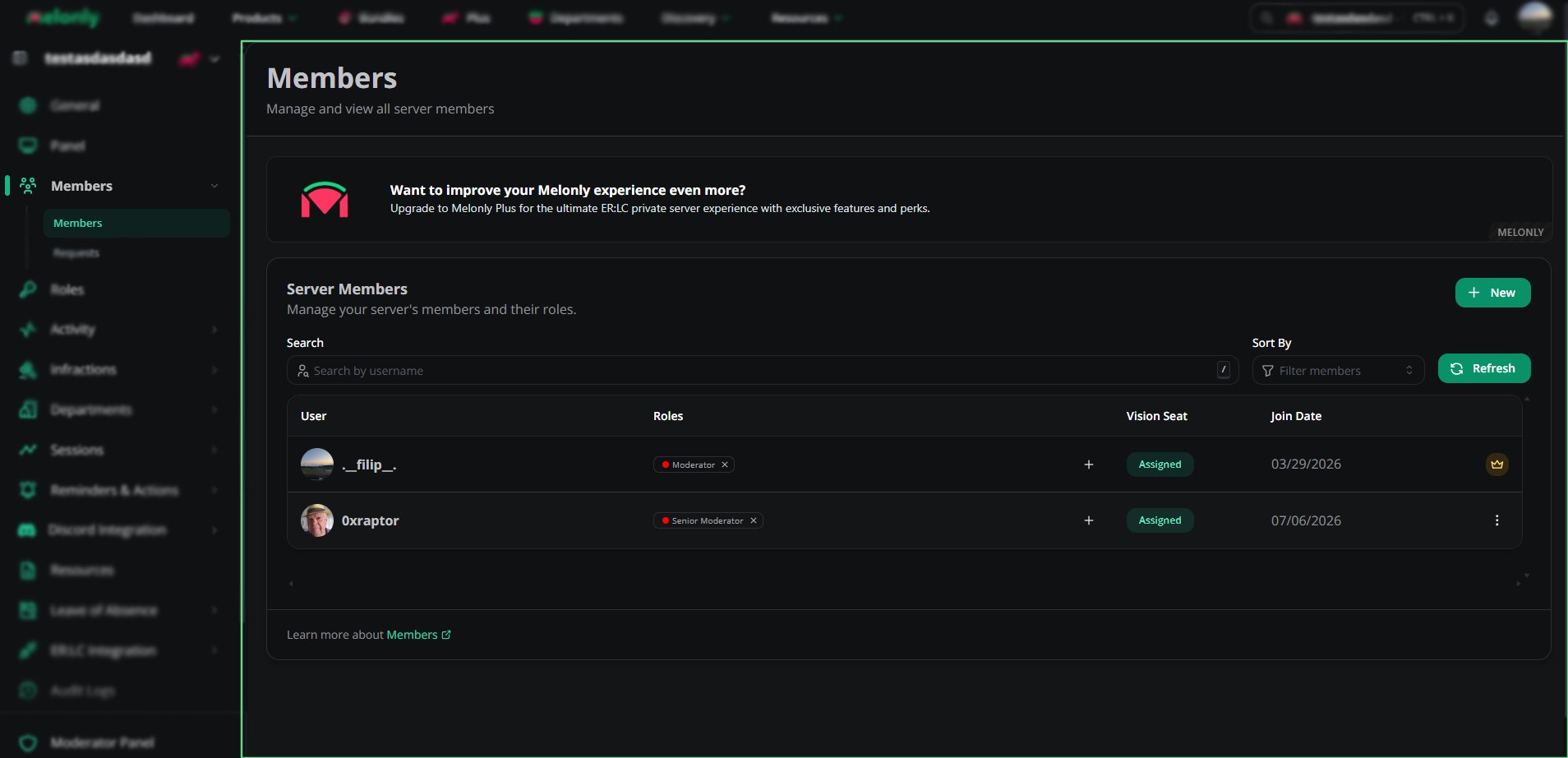
    Use the dropdown next to a member to give or remove roles. A member can have several roles.

    <img className="block" src="https://mintcdn.com/melonly/92EnpMacWCKDg1g9/images/Dashboard/Members/membersoverview.png?fit=max&auto=format&n=92EnpMacWCKDg1g9&q=85&s=a881ec7386d0617fef6b8a152e3a8173" alt="The role dropdown on the Members page" style={{ borderRadius: '0.75rem' }} width="1908" height="922" data-path="images/Dashboard/Members/membersoverview.png" />
  </Step>

  <Step title="Sort and Filter">
    Sort members by rank or join date, and filter by role or status to find someone quickly.

    <img className="block" src="https://mintcdn.com/melonly/92EnpMacWCKDg1g9/images/Dashboard/Members/membersoverview.png?fit=max&auto=format&n=92EnpMacWCKDg1g9&q=85&s=a881ec7386d0617fef6b8a152e3a8173" alt="Sorting and filtering members" style={{ borderRadius: '0.75rem' }} width="1908" height="922" data-path="images/Dashboard/Members/membersoverview.png" />
  </Step>

  <Step title="Vision Seat Management">
    Give or remove Vision Seats straight from the table. A Vision Seat lets that member use the Melonly Vision app on this server.

    <img className="block" src="https://mintcdn.com/melonly/92EnpMacWCKDg1g9/images/Dashboard/Members/membersoverview.png?fit=max&auto=format&n=92EnpMacWCKDg1g9&q=85&s=a881ec7386d0617fef6b8a152e3a8173" alt="The Vision Seat column" style={{ borderRadius: '0.75rem' }} width="1908" height="922" data-path="images/Dashboard/Members/membersoverview.png" />
  </Step>
</Steps>

<Frame caption="Member Overview">
  <img className="block" src="https://mintcdn.com/melonly/92EnpMacWCKDg1g9/images/Dashboard/Members/membersoverview.png?fit=max&auto=format&n=92EnpMacWCKDg1g9&q=85&s=a881ec7386d0617fef6b8a152e3a8173" alt="The Members page" style={{ borderRadius: '0.75rem' }} width="1908" height="922" data-path="images/Dashboard/Members/membersoverview.png" />
</Frame>

***

## Promotions and Demotions

Promote or demote staff, and optionally announce it with a shout or a DM.

<Steps>
  <Step title="Start a New Action">
    Click **New** in the top right of the Members page, then pick **Promotion** or **Demotion**. You can also open a member's menu (⋮) and pick it from there.
  </Step>

  <Step title="Pick the Members">
    Choose who to promote or demote. Their current role shows automatically. You can pick several members to move to the same role at once.
  </Step>

  <Step title="Choose From and To Roles">
    Pick their current role (**From**) and their new role (**To**).
  </Step>

  <Step title="Set the Optional Settings">
    Choose whether to:

    * Create a shout
    * DM the member
    * Schedule the action
    * Pick an announcement channel
    * Add GIFs, stickers or emojis
  </Step>

  <Step title="Confirm the Action">
    Check the details and click **Confirm**.
  </Step>
</Steps>

<Frame caption="Promoting a member">
  <video width="640" height="360" controls controlslist="nodownload" style={{ border: 0 }}>
    <source src="https://mintcdn.com/melonly/92EnpMacWCKDg1g9/images/Dashboard/Members/promotionexample.mp4?fit=max&auto=format&n=92EnpMacWCKDg1g9&q=85&s=1a5947cf01681d06e01491d5d6f2ce2f" type="video/mp4" data-path="images/Dashboard/Members/promotionexample.mp4" />
  </video>
</Frame>

***

## Member Icons Explained

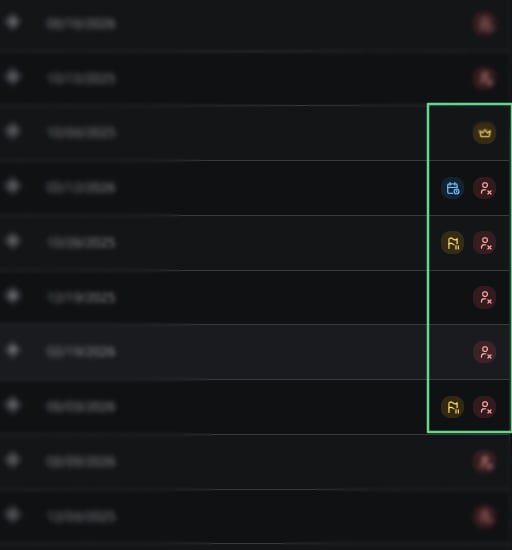
Icons in the members table show special statuses at a glance.

| Icon | Meaning |
| - | - |
| Crown | The Server Owner, who has full control of the server |
| Chat bubble | Melonly support staff |
| Flag with pause | An inactive member, who hasn't done any shifts recently |
| Blue calendar | The member is on an approved LOA |

<Frame caption="Member Icons">
  <img className="block" src="https://mintcdn.com/melonly/92EnpMacWCKDg1g9/images/Dashboard/Members/membericonsimg.png?fit=max&auto=format&n=92EnpMacWCKDg1g9&q=85&s=cd802c54c63e62956ce6154d3d8fa752" alt="The member status icons" style={{ borderRadius: '0.75rem' }} width="512" height="550" data-path="images/Dashboard/Members/membericonsimg.png" />
</Frame>

***

<Card title="Need help?" icon="headset" href="https://melonly.xyz/discord">
  Still have questions? Join our Discord server for support from the Melonly Team.
</Card>


This documentation is built and hosted on [Mintlify](https://mintlify.com), a developer documentation platform.