> ## Documentation Index
> Fetch the complete documentation index at: https://docs.melonly.com/llms.txt
> Use this file to discover all available pages before exploring further.
# Requests
> Review and manage join requests from people who used your server's join link or code.
***
## What are Requests?
When someone uses your join link or join code, they send a request to join your server. You can accept or deny each request from the **Requests** page, and accepted members appear in your members list.
Members with a linked Discord role can skip the request and join straight away. See [Discord Roles](/Dashboard/discordintegration/roles).
***
## Managing Requests
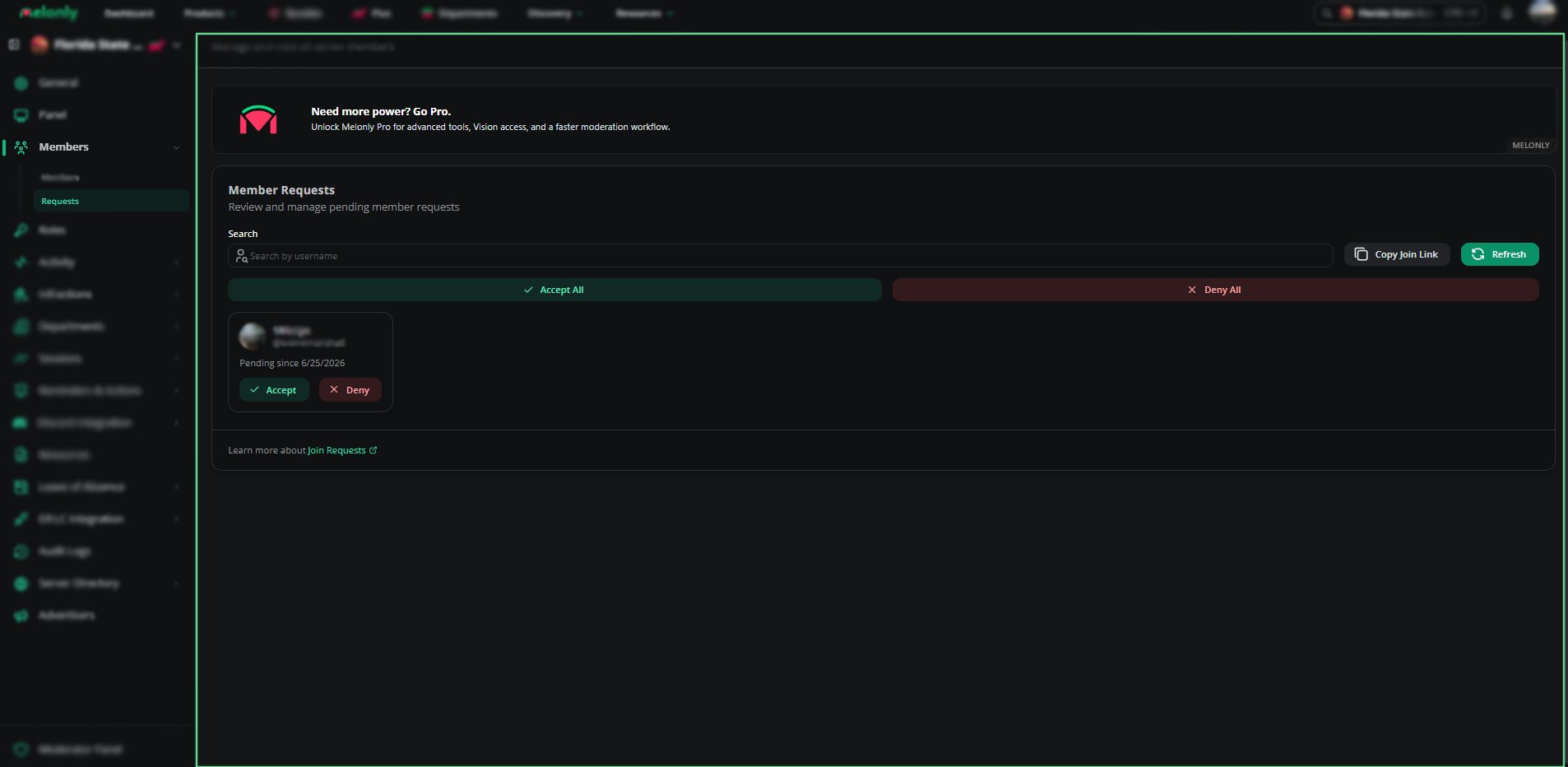
Open **Members**, then **Requests**, on your dashboard.
Use the search bar to find a pending request by username or Discord tag.
Click **Accept** to let someone in or **Deny** to reject them. Use **Accept All** or **Deny All** to handle every request at once.
Click **Copy Join Link** to share your server's join link.
Click **Refresh** to load any new requests.
 If your members need help joining, send them the [joining guide](/Guides/dashboard/joining).
***
Still have questions? Join our Discord server for support from the Melonly Team.
This documentation is built and hosted on [Mintlify](https://mintlify.com), a developer documentation platform.
If your members need help joining, send them the [joining guide](/Guides/dashboard/joining).
***
Still have questions? Join our Discord server for support from the Melonly Team.
This documentation is built and hosted on [Mintlify](https://mintlify.com), a developer documentation platform.