> ## Documentation Index
> Fetch the complete documentation index at: https://docs.melonly.com/llms.txt
> Use this file to discover all available pages before exploring further.
# Discord Actions
> Learn what each Discord action block does, what it needs and what it outputs.
***
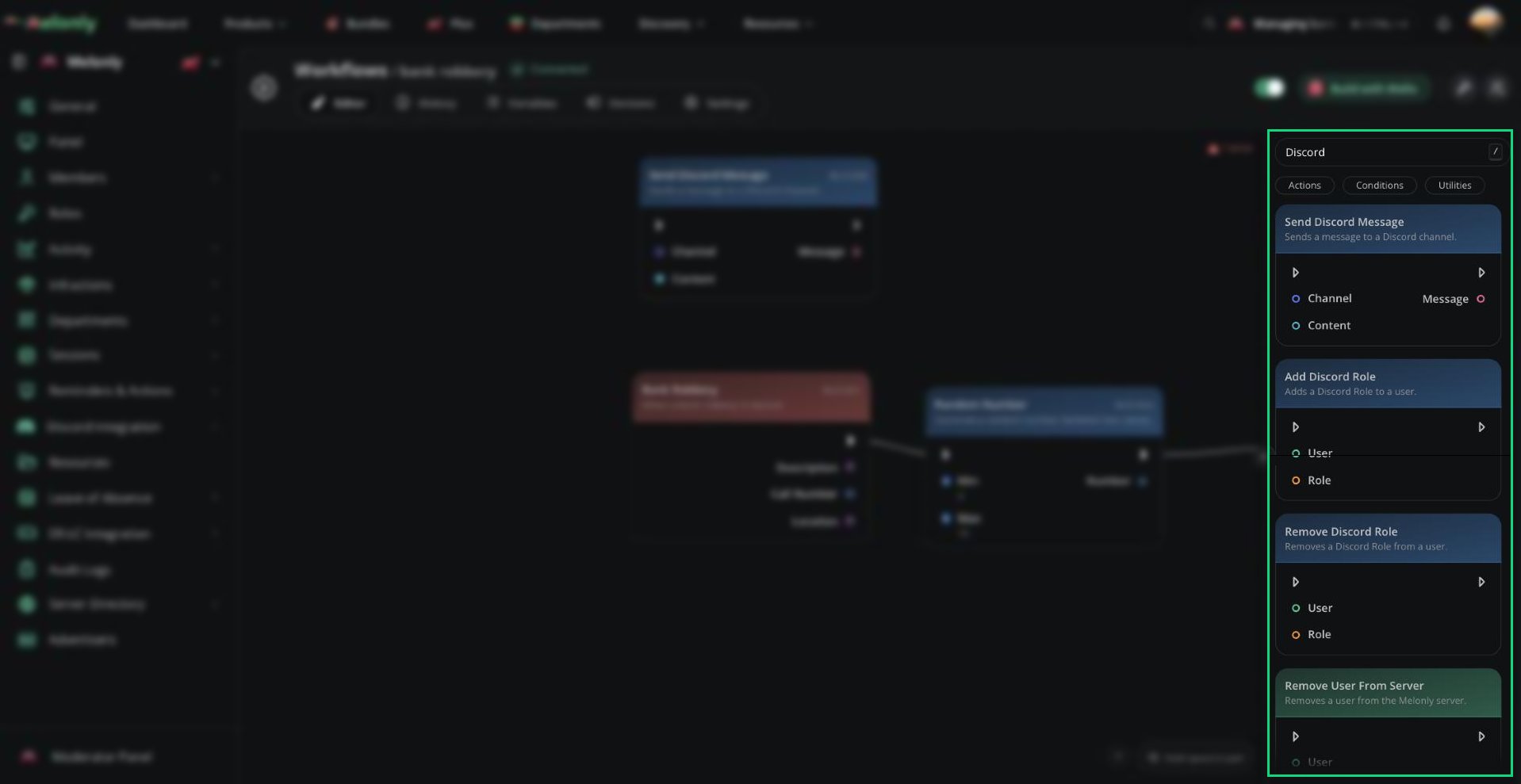
Discord Actions let workflows interact with your connected Discord server.\
They can send messages, manage roles, moderate Discord members and respond to slash commands.
 ***
## Blocks
## Send Discord Message
The Send Discord Message block sends a message to a Discord channel.
### What Does It Do?
The Send Discord Message block posts a message in the selected Discord channel when the workflow reaches it. It can be used for staff alerts, moderation logs, workflow updates or automated announcements.
**Input**
* **Channel**: The Discord channel where the message should be sent. Channels are selected from a searchable channel dropdown.
* **Content**: The message content. This can be manually typed or use output from another block.
**Output**
* **Message**: The message that was sent. This includes the message ID and channel ID as string values.
### Example
A workflow can post to a management channel when a staff member removes someone from a department.
`Filip removed RadicalVision from the Training Department.`
### Notes
* This action sends messages to Discord channels, not Discord direct messages.
* The connected Melonly Discord bot needs access to the selected channel.
* If the workflow was started by a slash command and you want to reply to the command user, use [Respond to Slash Command](#respond-to-slash-command) instead.
## Respond to Slash Command
The Respond to Slash Command block replies to a custom slash command.
### What Does It Do?
The Respond to Slash Command block sends the response message for the slash command that triggered the workflow. It is used to confirm that a command ran or show the result of the workflow.
**Input**
* **Content**: The response message shown to the slash command user.
* **Ephemeral**: Whether only the command user can see the response. Set it directly on the block instead of connecting another block. Off by default.
**Output**
* **Message**: The slash command response message.
### Example
A workflow can confirm that a staff command finished.
`Done. RadicalVision was removed from the Training Department.`
### Notes
* This block should be used with custom slash command workflows.
* Turn on Ephemeral if only the command user should see the response.
* This does not send a normal Discord channel message. Use [Send Discord Message](#send-discord-message) if you want to post in a channel.
* Slash command workflows should respond quickly so Discord does not show an interaction timeout.
## Add Discord Role
The Add Discord Role block adds a Discord role to a user.
### What Does It Do?
The Add Discord Role block gives the selected Discord user the selected Discord role. It is useful for role syncing, staff onboarding, temporary access or automated permission changes.
**Input**
* **User**: The Discord user who should receive the role.
* **Role**: The Discord role that should be added.
**Output**
* No direct output. The workflow continues after the role is added.
### Example
A workflow can give RadicalVision an Event Ping role after they use a slash command to opt into event notifications.
### Notes
* The Melonly Discord bot needs the Manage Roles permission.
* The selected role must be below the bot's highest Discord role.
* The action may fail if the user already has the role, if the bot cannot manage the role or if the user cannot be found.
## Remove Discord Role
The Remove Discord Role block removes a Discord role from a user.
### What Does It Do?
The Remove Discord Role block removes the selected Discord role from the selected Discord user. It is useful for removing access when staff roles change, punishments expire or a user leaves a department.
**Input**
* **User**: The Discord user who should lose the role.
* **Role**: The Discord role that should be removed.
**Output**
* No direct output. The workflow continues after the role is removed.
### Example
A workflow can remove RadicalVision's Event Ping role after they use a slash command to opt out of event notifications.
### Notes
* The Melonly Discord bot needs the Manage Roles permission.
* The selected role must be below the bot's highest Discord role.
* This action only removes the role from the selected user. It does not delete the role from the Discord server.
## Kick From Discord
The Kick From Discord block kicks a user from the Discord server.
### What Does It Do?
The Kick From Discord block removes the selected Discord user from the connected Discord server. The user is removed, but they may be able to rejoin later if they have a valid invite.
**Input**
* **User**: The Discord user who should be kicked.
**Output**
* No direct output. The workflow continues after the user is kicked.
### Example
A workflow can kick RadicalVision from the Discord server after a staff command runs.
### Notes
* The Melonly Discord bot needs permission to kick members.
* The bot cannot kick users with a higher or equal Discord role.
* Use this action carefully in workflows that can run automatically or from staff commands.
## Ban From Discord
The Ban From Discord block bans a user from the Discord server.
### What Does It Do?
The Ban From Discord block bans the selected Discord user from the connected Discord server. A banned user is removed from the server and cannot rejoin unless they are unbanned.
**Input**
* **User**: The Discord user who should be banned.
**Output**
* No direct output. The workflow continues after the user is banned.
### Example
A workflow can ban RadicalVision from the Discord server after a ban command runs.
### Notes
* The Melonly Discord bot needs permission to ban members.
* The bot cannot ban users with a higher or equal Discord role.
* Use this action carefully because banned users cannot rejoin the Discord server unless they are unbanned.
***
## Working With Discord Actions
Discord actions usually need data from a trigger or an earlier block. For example, a slash command can provide the invoking user, selected channel, command options or target user.
Before using Discord actions, link your Discord server from the Discord Integration module. For setup instructions, see [Linking Your Server](/Dashboard/discordintegration/home#linking-your-server).
When using Discord actions, keep in mind:
* Bot Permissions: Make sure the bot can send messages, has Manage Roles when using role actions and can kick or ban members when using moderation actions.
* Role Order: For role actions, the bot's highest role must be higher than the role it is adding or removing. For kick and ban actions, the bot's highest role must be higher than the target user's highest role.
* Connected Server: Discord actions require the Discord integration to be connected.
* User Feedback: Slash command workflows should normally include a response so the command user knows what happened.
### Example Workflow Flow
1. A staff member runs a custom slash command.
2. The workflow checks if the staff member has the required role.
3. If allowed, the workflow sends a message to a Discord staff channel.
4. The workflow responds to the slash command with a confirmation message.
***
Still have questions? Join our Discord server for support from the Melonly Team.
This documentation is built and hosted on [Mintlify](https://mintlify.com), a developer documentation platform.
***
## Blocks
## Send Discord Message
The Send Discord Message block sends a message to a Discord channel.
### What Does It Do?
The Send Discord Message block posts a message in the selected Discord channel when the workflow reaches it. It can be used for staff alerts, moderation logs, workflow updates or automated announcements.
**Input**
* **Channel**: The Discord channel where the message should be sent. Channels are selected from a searchable channel dropdown.
* **Content**: The message content. This can be manually typed or use output from another block.
**Output**
* **Message**: The message that was sent. This includes the message ID and channel ID as string values.
### Example
A workflow can post to a management channel when a staff member removes someone from a department.
`Filip removed RadicalVision from the Training Department.`
### Notes
* This action sends messages to Discord channels, not Discord direct messages.
* The connected Melonly Discord bot needs access to the selected channel.
* If the workflow was started by a slash command and you want to reply to the command user, use [Respond to Slash Command](#respond-to-slash-command) instead.
## Respond to Slash Command
The Respond to Slash Command block replies to a custom slash command.
### What Does It Do?
The Respond to Slash Command block sends the response message for the slash command that triggered the workflow. It is used to confirm that a command ran or show the result of the workflow.
**Input**
* **Content**: The response message shown to the slash command user.
* **Ephemeral**: Whether only the command user can see the response. Set it directly on the block instead of connecting another block. Off by default.
**Output**
* **Message**: The slash command response message.
### Example
A workflow can confirm that a staff command finished.
`Done. RadicalVision was removed from the Training Department.`
### Notes
* This block should be used with custom slash command workflows.
* Turn on Ephemeral if only the command user should see the response.
* This does not send a normal Discord channel message. Use [Send Discord Message](#send-discord-message) if you want to post in a channel.
* Slash command workflows should respond quickly so Discord does not show an interaction timeout.
## Add Discord Role
The Add Discord Role block adds a Discord role to a user.
### What Does It Do?
The Add Discord Role block gives the selected Discord user the selected Discord role. It is useful for role syncing, staff onboarding, temporary access or automated permission changes.
**Input**
* **User**: The Discord user who should receive the role.
* **Role**: The Discord role that should be added.
**Output**
* No direct output. The workflow continues after the role is added.
### Example
A workflow can give RadicalVision an Event Ping role after they use a slash command to opt into event notifications.
### Notes
* The Melonly Discord bot needs the Manage Roles permission.
* The selected role must be below the bot's highest Discord role.
* The action may fail if the user already has the role, if the bot cannot manage the role or if the user cannot be found.
## Remove Discord Role
The Remove Discord Role block removes a Discord role from a user.
### What Does It Do?
The Remove Discord Role block removes the selected Discord role from the selected Discord user. It is useful for removing access when staff roles change, punishments expire or a user leaves a department.
**Input**
* **User**: The Discord user who should lose the role.
* **Role**: The Discord role that should be removed.
**Output**
* No direct output. The workflow continues after the role is removed.
### Example
A workflow can remove RadicalVision's Event Ping role after they use a slash command to opt out of event notifications.
### Notes
* The Melonly Discord bot needs the Manage Roles permission.
* The selected role must be below the bot's highest Discord role.
* This action only removes the role from the selected user. It does not delete the role from the Discord server.
## Kick From Discord
The Kick From Discord block kicks a user from the Discord server.
### What Does It Do?
The Kick From Discord block removes the selected Discord user from the connected Discord server. The user is removed, but they may be able to rejoin later if they have a valid invite.
**Input**
* **User**: The Discord user who should be kicked.
**Output**
* No direct output. The workflow continues after the user is kicked.
### Example
A workflow can kick RadicalVision from the Discord server after a staff command runs.
### Notes
* The Melonly Discord bot needs permission to kick members.
* The bot cannot kick users with a higher or equal Discord role.
* Use this action carefully in workflows that can run automatically or from staff commands.
## Ban From Discord
The Ban From Discord block bans a user from the Discord server.
### What Does It Do?
The Ban From Discord block bans the selected Discord user from the connected Discord server. A banned user is removed from the server and cannot rejoin unless they are unbanned.
**Input**
* **User**: The Discord user who should be banned.
**Output**
* No direct output. The workflow continues after the user is banned.
### Example
A workflow can ban RadicalVision from the Discord server after a ban command runs.
### Notes
* The Melonly Discord bot needs permission to ban members.
* The bot cannot ban users with a higher or equal Discord role.
* Use this action carefully because banned users cannot rejoin the Discord server unless they are unbanned.
***
## Working With Discord Actions
Discord actions usually need data from a trigger or an earlier block. For example, a slash command can provide the invoking user, selected channel, command options or target user.
Before using Discord actions, link your Discord server from the Discord Integration module. For setup instructions, see [Linking Your Server](/Dashboard/discordintegration/home#linking-your-server).
When using Discord actions, keep in mind:
* Bot Permissions: Make sure the bot can send messages, has Manage Roles when using role actions and can kick or ban members when using moderation actions.
* Role Order: For role actions, the bot's highest role must be higher than the role it is adding or removing. For kick and ban actions, the bot's highest role must be higher than the target user's highest role.
* Connected Server: Discord actions require the Discord integration to be connected.
* User Feedback: Slash command workflows should normally include a response so the command user knows what happened.
### Example Workflow Flow
1. A staff member runs a custom slash command.
2. The workflow checks if the staff member has the required role.
3. If allowed, the workflow sends a message to a Discord staff channel.
4. The workflow responds to the slash command with a confirmation message.
***
Still have questions? Join our Discord server for support from the Melonly Team.
This documentation is built and hosted on [Mintlify](https://mintlify.com), a developer documentation platform.