> ## Documentation Index
> Fetch the complete documentation index at: https://docs.melonly.com/llms.txt
> Use this file to discover all available pages before exploring further.
# Melonly Actions
> Learn what each Melonly action block does, what it needs and what it outputs.
***
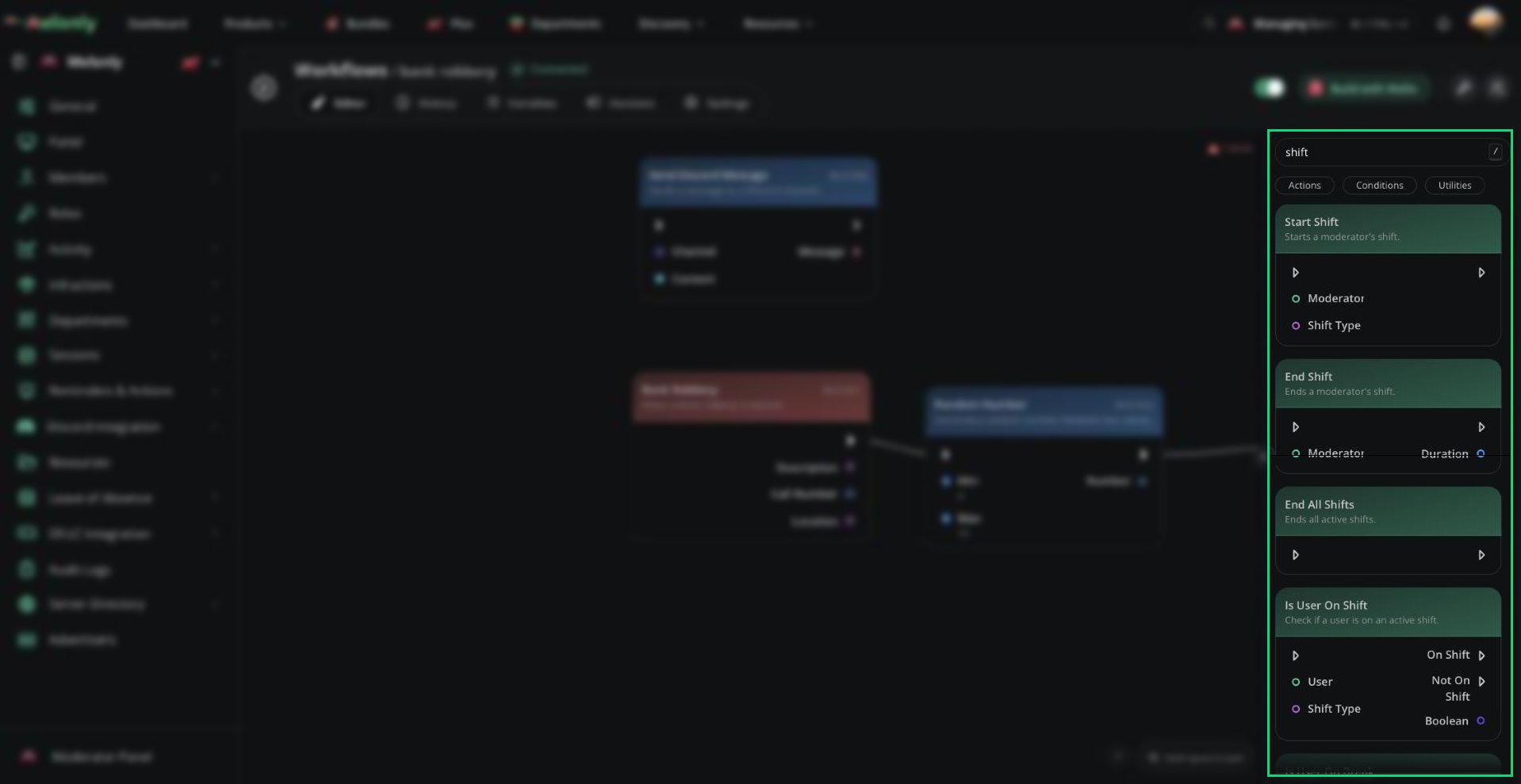
Melonly Actions let workflows update Melonly resources and server systems.\
They can create logs, manage shifts and breaks, send session messages, update Melonly roles and remove users from servers or departments.
 ***
## Blocks
Melonly action blocks usually work with Melonly users, moderators, roles, sessions or moderation records. They are useful when a workflow needs to connect Discord, ER:LC, or workflow events back into Melonly.
## Logs
These blocks create or update moderation-related information inside Melonly.
Creates a punishment log.
**Input**
* **Type**: The type of log that should be created.
* **Player**: The player the log is being created for.
* **Reason**: The reason for the log.
* **Description**: Extra information that should be added to the log.
**Output**
* **Id**: The ID of the log that was created.
* **Type**: The type of log that was created.
* **Player**: The player that was punished. This output includes player properties such as ID, username, permissions, team, callsign, stars, in-game status, avatar and display name.
* **Moderator**: The moderator that created the log. For workflow-created logs, this is always System. This output includes moderator properties such as Melonly ID, Discord ID, name, avatar, Discord roles, Melonly roles, Melonly server status, nickname, join date and Discord status.
* **Reason**: The reason for the log.
* **Description**: The description of the log.
**Use it when**
* A workflow needs to automatically document a punishment or moderation action.
* A slash command or ER:LC command should create a Melonly log after it runs.
* A workflow needs to pass the created log data into another block later.
**Notes**
* Logs created by workflows use System as the moderator.
* The created log can be used later in the workflow through its output values.
* Use the Player output when later blocks need information about the punished player.
## Shifts & Breaks
These blocks update moderator shift and break state inside Melonly.
Ends a moderator's break.
**Input**
* **Moderator**: The moderator whose break should be ended.
**Output**
* **Duration**: The length of the break that was ended.
**Use it when**
* A workflow needs to automatically end a moderator's break after an event or command.
* A staff management workflow needs to make sure a moderator is no longer marked as on break.
Ends a moderator's shift.
**Input**
* **Moderator**: The moderator whose shift should be ended.
**Output**
* **Duration**: The length of the shift that was ended.
**Use it when**
* A workflow needs to clock out a specific moderator.
* A staff command or automated rule should end a moderator's active shift.
Ends all active shifts.
**Input**
* No required input.
**Output**
* No direct output. The workflow continues after all active shifts are ended.
**Use it when**
* A workflow needs to clear every active shift at the end of a session.
* A management action should reset active shift tracking for the server.
## Sessions
These blocks change session state and send the related Melonly session messages.
Starts the session and sends the session start-up message.
**Input**
* **Moderator**: The moderator starting the session.
**Output**
* No direct output. The workflow continues after the session start action runs.
**Use it when**
* A workflow should start a session from a command or automation.
* A trusted staff workflow needs to trigger the normal session start flow and update session state.
Starts an auto-starting session vote.
**Input**
* **Moderator**: The moderator starting the vote.
* **Votes Required**: The number of votes required for the session vote.
**Output**
* No direct output. The workflow continues after the vote is started.
**Use it when**
* A workflow should start a session vote based on a command, schedule or condition.
* A server wants session voting to be part of a larger automation.
Shuts down the session and sends the session shutdown message.
**Input**
* **Moderator**: The moderator shutting down the session.
**Output**
* No direct output. The workflow continues after the shutdown message is sent.
**Use it when**
* A workflow should shut down the active session.
* A session shutdown should update session state and trigger other cleanup actions.
Boosts the session and sends the session boost message.
**Input**
* **Moderator**: The moderator boosting the session.
**Output**
* No direct output. The workflow continues after the boost message is sent.
**Use it when**
* A workflow should boost an active or upcoming session.
* A staff command should trigger the normal session boost flow and update session state.
### Notes
* Session actions use the server's existing session configuration and update session state.
## Roles
These blocks add or remove Melonly roles from users.
Adds a Melonly role to a user.
**Input**
* **User**: The Melonly user who should receive the role.
* **Role**: The Melonly role that should be added.
**Output**
* No direct output. The workflow continues after the role is added.
**Use it when**
* A workflow needs to grant a Melonly role after a condition passes.
* A server wants to sync role changes from Discord or another workflow event.
Removes a Melonly role from a user.
**Input**
* **User**: The Melonly user who should lose the role.
* **Role**: The Melonly role that should be removed.
**Output**
* No direct output. The workflow continues after the role is removed.
**Use it when**
* A workflow needs to remove a Melonly role after a condition, punishment or staff action.
* A server wants to keep Melonly roles in sync with another system.
## Users
These blocks remove users from a Melonly server or department.
Removes a user from the Melonly server.
**Input**
* **User**: The Melonly user who should be removed from the server.
* **Remove From Discord**: A true or false value that controls whether the user should also be removed from the connected Discord server.
**Output**
* No direct output. The workflow continues after the user is removed.
**Use it when**
* A workflow needs to remove a user from the Melonly server after a serious action or staff decision.
* A removal should optionally also remove the user from the linked Discord server.
Removes a user from a department.
**Input**
* **User**: The Melonly user who should be removed from the department.
* **Remove From Discord**: A true or false value that controls whether the user should also be removed from the connected Discord server.
**Output**
* No direct output. The workflow continues after the user is removed.
**Use it when**
* A workflow needs to remove a user from a department after a role change, resignation or staff action.
* A department removal should optionally also remove the user from the linked Discord server.
***
## Working With Melonly Actions
Melonly actions work with Melonly users, roles, shifts, sessions, logs and departments. They are often used after a trigger or condition decides that something should be updated inside Melonly.
When using Melonly actions, keep in mind:
* User Selection: Make sure the user, player or moderator value points to the correct person before running the action.
* Linked Systems: Some actions can connect to Discord behavior, such as removing a user from Discord during a Melonly removal.
* Data Flow: Use outputs such as created log information or shift duration when later blocks need that data.
### Example Workflow Flow
1. A staff member runs a custom slash command with a player and reason.
2. The workflow checks if the staff member has permission to use the command.
3. If allowed, the workflow creates a Melonly log.
4. The workflow sends a confirmation response to the staff member.
***
Still have questions? Join our Discord server for support from the Melonly Team.
This documentation is built and hosted on [Mintlify](https://mintlify.com), a developer documentation platform.
***
## Blocks
Melonly action blocks usually work with Melonly users, moderators, roles, sessions or moderation records. They are useful when a workflow needs to connect Discord, ER:LC, or workflow events back into Melonly.
## Logs
These blocks create or update moderation-related information inside Melonly.
Creates a punishment log.
**Input**
* **Type**: The type of log that should be created.
* **Player**: The player the log is being created for.
* **Reason**: The reason for the log.
* **Description**: Extra information that should be added to the log.
**Output**
* **Id**: The ID of the log that was created.
* **Type**: The type of log that was created.
* **Player**: The player that was punished. This output includes player properties such as ID, username, permissions, team, callsign, stars, in-game status, avatar and display name.
* **Moderator**: The moderator that created the log. For workflow-created logs, this is always System. This output includes moderator properties such as Melonly ID, Discord ID, name, avatar, Discord roles, Melonly roles, Melonly server status, nickname, join date and Discord status.
* **Reason**: The reason for the log.
* **Description**: The description of the log.
**Use it when**
* A workflow needs to automatically document a punishment or moderation action.
* A slash command or ER:LC command should create a Melonly log after it runs.
* A workflow needs to pass the created log data into another block later.
**Notes**
* Logs created by workflows use System as the moderator.
* The created log can be used later in the workflow through its output values.
* Use the Player output when later blocks need information about the punished player.
## Shifts & Breaks
These blocks update moderator shift and break state inside Melonly.
Ends a moderator's break.
**Input**
* **Moderator**: The moderator whose break should be ended.
**Output**
* **Duration**: The length of the break that was ended.
**Use it when**
* A workflow needs to automatically end a moderator's break after an event or command.
* A staff management workflow needs to make sure a moderator is no longer marked as on break.
Ends a moderator's shift.
**Input**
* **Moderator**: The moderator whose shift should be ended.
**Output**
* **Duration**: The length of the shift that was ended.
**Use it when**
* A workflow needs to clock out a specific moderator.
* A staff command or automated rule should end a moderator's active shift.
Ends all active shifts.
**Input**
* No required input.
**Output**
* No direct output. The workflow continues after all active shifts are ended.
**Use it when**
* A workflow needs to clear every active shift at the end of a session.
* A management action should reset active shift tracking for the server.
## Sessions
These blocks change session state and send the related Melonly session messages.
Starts the session and sends the session start-up message.
**Input**
* **Moderator**: The moderator starting the session.
**Output**
* No direct output. The workflow continues after the session start action runs.
**Use it when**
* A workflow should start a session from a command or automation.
* A trusted staff workflow needs to trigger the normal session start flow and update session state.
Starts an auto-starting session vote.
**Input**
* **Moderator**: The moderator starting the vote.
* **Votes Required**: The number of votes required for the session vote.
**Output**
* No direct output. The workflow continues after the vote is started.
**Use it when**
* A workflow should start a session vote based on a command, schedule or condition.
* A server wants session voting to be part of a larger automation.
Shuts down the session and sends the session shutdown message.
**Input**
* **Moderator**: The moderator shutting down the session.
**Output**
* No direct output. The workflow continues after the shutdown message is sent.
**Use it when**
* A workflow should shut down the active session.
* A session shutdown should update session state and trigger other cleanup actions.
Boosts the session and sends the session boost message.
**Input**
* **Moderator**: The moderator boosting the session.
**Output**
* No direct output. The workflow continues after the boost message is sent.
**Use it when**
* A workflow should boost an active or upcoming session.
* A staff command should trigger the normal session boost flow and update session state.
### Notes
* Session actions use the server's existing session configuration and update session state.
## Roles
These blocks add or remove Melonly roles from users.
Adds a Melonly role to a user.
**Input**
* **User**: The Melonly user who should receive the role.
* **Role**: The Melonly role that should be added.
**Output**
* No direct output. The workflow continues after the role is added.
**Use it when**
* A workflow needs to grant a Melonly role after a condition passes.
* A server wants to sync role changes from Discord or another workflow event.
Removes a Melonly role from a user.
**Input**
* **User**: The Melonly user who should lose the role.
* **Role**: The Melonly role that should be removed.
**Output**
* No direct output. The workflow continues after the role is removed.
**Use it when**
* A workflow needs to remove a Melonly role after a condition, punishment or staff action.
* A server wants to keep Melonly roles in sync with another system.
## Users
These blocks remove users from a Melonly server or department.
Removes a user from the Melonly server.
**Input**
* **User**: The Melonly user who should be removed from the server.
* **Remove From Discord**: A true or false value that controls whether the user should also be removed from the connected Discord server.
**Output**
* No direct output. The workflow continues after the user is removed.
**Use it when**
* A workflow needs to remove a user from the Melonly server after a serious action or staff decision.
* A removal should optionally also remove the user from the linked Discord server.
Removes a user from a department.
**Input**
* **User**: The Melonly user who should be removed from the department.
* **Remove From Discord**: A true or false value that controls whether the user should also be removed from the connected Discord server.
**Output**
* No direct output. The workflow continues after the user is removed.
**Use it when**
* A workflow needs to remove a user from a department after a role change, resignation or staff action.
* A department removal should optionally also remove the user from the linked Discord server.
***
## Working With Melonly Actions
Melonly actions work with Melonly users, roles, shifts, sessions, logs and departments. They are often used after a trigger or condition decides that something should be updated inside Melonly.
When using Melonly actions, keep in mind:
* User Selection: Make sure the user, player or moderator value points to the correct person before running the action.
* Linked Systems: Some actions can connect to Discord behavior, such as removing a user from Discord during a Melonly removal.
* Data Flow: Use outputs such as created log information or shift duration when later blocks need that data.
### Example Workflow Flow
1. A staff member runs a custom slash command with a player and reason.
2. The workflow checks if the staff member has permission to use the command.
3. If allowed, the workflow creates a Melonly log.
4. The workflow sends a confirmation response to the staff member.
***
Still have questions? Join our Discord server for support from the Melonly Team.
This documentation is built and hosted on [Mintlify](https://mintlify.com), a developer documentation platform.