> ## Documentation Index
> Fetch the complete documentation index at: https://docs.melonly.com/llms.txt
> Use this file to discover all available pages before exploring further.
# Utility Actions
> Learn what each utility action block does, what it needs and what it outputs.
***
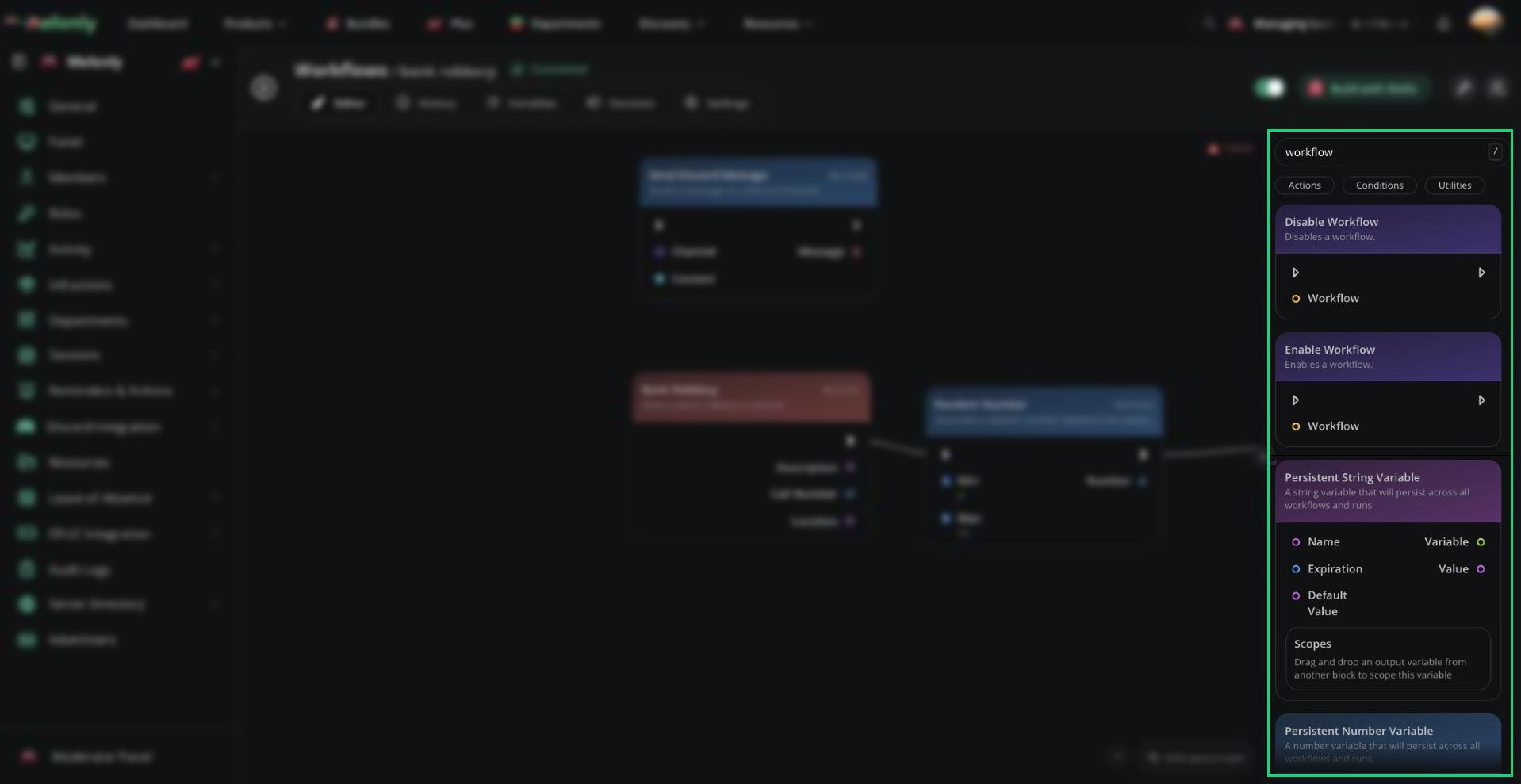
Utility Actions control how a workflow behaves while it is running.\
They can pause a workflow, disable a workflow or enable another workflow.
 ***
## Blocks
Utility action blocks do not directly interact with Discord, ER:LC, or Melonly users. They are used to control the workflow itself.
## Delay
The Delay block waits for a set amount of time before continuing the workflow.
### What Does It Do?
The Delay block pauses the workflow for the duration you provide. After the delay finishes, the workflow continues to the next connected block.
**Input**
* **Duration**: The amount of time to wait, in whole seconds.
**Output**
* No direct output. The workflow continues after the delay finishes.
### Example
A workflow can wait 10 seconds before sending a follow-up message.
### Notes
* Duration is measured in whole seconds. Decimals are not supported.
* Use delays carefully in slash command workflows, because Discord may time out if the workflow waits too long before responding.
* Delay is useful when one action should happen shortly after another action, instead of immediately.
## Disable Workflow
The Disable Workflow block turns off a selected workflow.
### What Does It Do?
The Disable Workflow block disables the workflow you select. Once disabled, that workflow will not run again until it is enabled.
**Input**
* **Workflow**: The workflow that should be disabled.
**Output**
* No direct output. The workflow continues after the selected workflow is disabled.
### Example
A workflow can disable an emergency automation after the emergency has ended.
### Notes
* This action affects the selected workflow, not just the current run.
* Be careful when disabling the same workflow that is currently running, since future triggers will not start it again until it is enabled.
* Use permission checks before allowing users to disable workflows from commands.
## Enable Workflow
The Enable Workflow block turns on a selected workflow.
### What Does It Do?
The Enable Workflow block enables the workflow you select. Once enabled, that workflow can run again when its trigger occurs.
**Input**
* **Workflow**: The workflow that should be enabled.
**Output**
* No direct output. The workflow continues after the selected workflow is enabled.
### Example
A workflow can re-enable a session automation after another workflow finishes setup.
### Notes
* This action affects the selected workflow globally.
* Enable Workflow is useful when workflows are temporarily disabled during setup, cooldowns or emergency modes.
* Use permission checks before allowing users to enable workflows from commands.
***
## Working With Utility Actions
Utility actions are used to control workflow timing and availability. They are most useful when a workflow needs to wait before continuing or manage whether another workflow can run.
When using utility actions, keep in mind:
* Timing: Delay pauses the workflow for a set whole number of seconds before the next block runs.
* Workflow State: Enable and Disable Workflow change whether the selected workflow can be triggered again.
* Permissions: Workflows that enable or disable other workflows should be protected with permission checks.
* Slash Commands: Avoid long delays before responding to slash commands, because Discord expects a quick response.
### Example Workflow Flow
1. A staff member runs a command to start an emergency mode.
2. The workflow disables a normal automation workflow.
3. The workflow sends an alert message.
4. After a delay, another workflow can be enabled again when the server is ready.
***
Still have questions? Join our Discord server for support from the Melonly Team.
This documentation is built and hosted on [Mintlify](https://mintlify.com), a developer documentation platform.
***
## Blocks
Utility action blocks do not directly interact with Discord, ER:LC, or Melonly users. They are used to control the workflow itself.
## Delay
The Delay block waits for a set amount of time before continuing the workflow.
### What Does It Do?
The Delay block pauses the workflow for the duration you provide. After the delay finishes, the workflow continues to the next connected block.
**Input**
* **Duration**: The amount of time to wait, in whole seconds.
**Output**
* No direct output. The workflow continues after the delay finishes.
### Example
A workflow can wait 10 seconds before sending a follow-up message.
### Notes
* Duration is measured in whole seconds. Decimals are not supported.
* Use delays carefully in slash command workflows, because Discord may time out if the workflow waits too long before responding.
* Delay is useful when one action should happen shortly after another action, instead of immediately.
## Disable Workflow
The Disable Workflow block turns off a selected workflow.
### What Does It Do?
The Disable Workflow block disables the workflow you select. Once disabled, that workflow will not run again until it is enabled.
**Input**
* **Workflow**: The workflow that should be disabled.
**Output**
* No direct output. The workflow continues after the selected workflow is disabled.
### Example
A workflow can disable an emergency automation after the emergency has ended.
### Notes
* This action affects the selected workflow, not just the current run.
* Be careful when disabling the same workflow that is currently running, since future triggers will not start it again until it is enabled.
* Use permission checks before allowing users to disable workflows from commands.
## Enable Workflow
The Enable Workflow block turns on a selected workflow.
### What Does It Do?
The Enable Workflow block enables the workflow you select. Once enabled, that workflow can run again when its trigger occurs.
**Input**
* **Workflow**: The workflow that should be enabled.
**Output**
* No direct output. The workflow continues after the selected workflow is enabled.
### Example
A workflow can re-enable a session automation after another workflow finishes setup.
### Notes
* This action affects the selected workflow globally.
* Enable Workflow is useful when workflows are temporarily disabled during setup, cooldowns or emergency modes.
* Use permission checks before allowing users to enable workflows from commands.
***
## Working With Utility Actions
Utility actions are used to control workflow timing and availability. They are most useful when a workflow needs to wait before continuing or manage whether another workflow can run.
When using utility actions, keep in mind:
* Timing: Delay pauses the workflow for a set whole number of seconds before the next block runs.
* Workflow State: Enable and Disable Workflow change whether the selected workflow can be triggered again.
* Permissions: Workflows that enable or disable other workflows should be protected with permission checks.
* Slash Commands: Avoid long delays before responding to slash commands, because Discord expects a quick response.
### Example Workflow Flow
1. A staff member runs a command to start an emergency mode.
2. The workflow disables a normal automation workflow.
3. The workflow sends an alert message.
4. After a delay, another workflow can be enabled again when the server is ready.
***
Still have questions? Join our Discord server for support from the Melonly Team.
This documentation is built and hosted on [Mintlify](https://mintlify.com), a developer documentation platform.