> ## Documentation Index
> Fetch the complete documentation index at: https://docs.melonly.com/llms.txt
> Use this file to discover all available pages before exploring further.
# Utility Triggers
> Learn what starts each utility trigger and what data it provides.
***
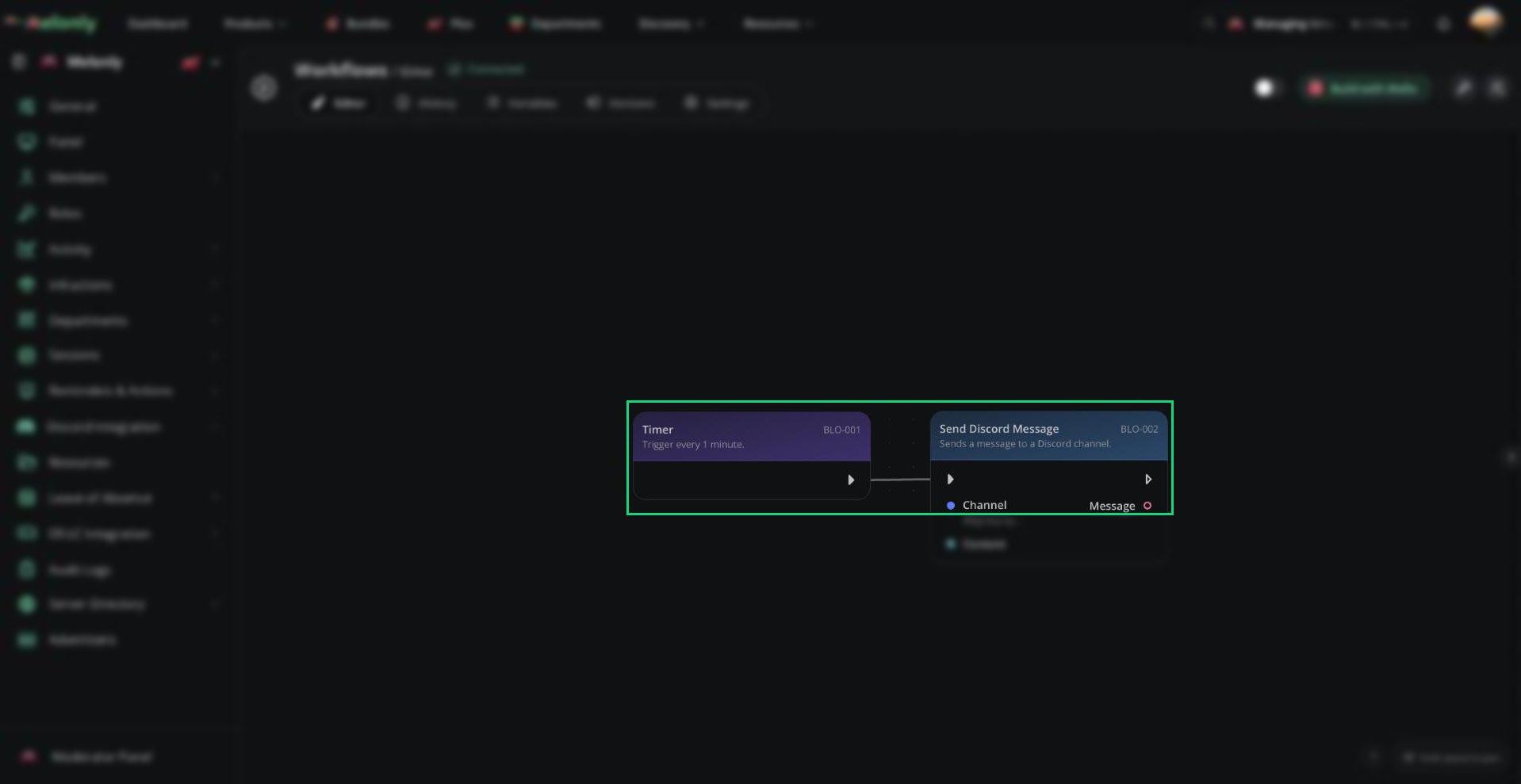
Utility Triggers start workflows from workflow events rather than Discord, ER:LC or Melonly activity.\
They can run on a fixed schedule or when an external application calls the workflow.
 ***
## Blocks
Starts the workflow repeatedly after the configured number of minutes.
**Configuration**
* **Minutes**: A whole number from `1` to `10080`.
The timer does not require any other event or condition to run.
**Use it when**
* A workflow should run repeatedly on a fixed schedule.
Starts the workflow when an external application sends a request to the workflow's webhook URL.
**Configuration**
* **Webhook URL**: The URL your application calls. Copy it from the trigger settings and keep it private. Click **Rotate token** if the URL is ever shared by mistake.
**Use it when**
* A website, bot or other external tool should start a workflow.
***
## Working With Utility Triggers
Timer workflows run automatically at the configured interval once the workflow is enabled. Webhook workflows run each time the webhook URL is called.
### Example Workflow Flow
1. The Timer trigger is configured to run every `60` minutes.
2. The workflow starts automatically once each hour.
3. The workflow checks the current ER:LC player count.
4. If the server is active, it posts an hourly status message in the staff Discord channel.
***
Still have questions? Join our Discord server for support from the Melonly Team.
This documentation is built and hosted on [Mintlify](https://mintlify.com), a developer documentation platform.
***
## Blocks
Starts the workflow repeatedly after the configured number of minutes.
**Configuration**
* **Minutes**: A whole number from `1` to `10080`.
The timer does not require any other event or condition to run.
**Use it when**
* A workflow should run repeatedly on a fixed schedule.
Starts the workflow when an external application sends a request to the workflow's webhook URL.
**Configuration**
* **Webhook URL**: The URL your application calls. Copy it from the trigger settings and keep it private. Click **Rotate token** if the URL is ever shared by mistake.
**Use it when**
* A website, bot or other external tool should start a workflow.
***
## Working With Utility Triggers
Timer workflows run automatically at the configured interval once the workflow is enabled. Webhook workflows run each time the webhook URL is called.
### Example Workflow Flow
1. The Timer trigger is configured to run every `60` minutes.
2. The workflow starts automatically once each hour.
3. The workflow checks the current ER:LC player count.
4. If the server is active, it posts an hourly status message in the staff Discord channel.
***
Still have questions? Join our Discord server for support from the Melonly Team.
This documentation is built and hosted on [Mintlify](https://mintlify.com), a developer documentation platform.