> ## Documentation Index
> Fetch the complete documentation index at: https://docs.melonly.xyz/llms.txt
> Use this file to discover all available pages before exploring further.
# Introduction
> Run your roleplay departments in Melonly, each with its own roster, ranks, shouts, activity and CAD access.
***
***
## What are Departments?
Departments give each team in your community, like police, fire, EMS, DOT, dispatch or civilian, its own space in Melonly. Each one has its own members, ranks, announcements, activity tracking and settings, and it can have its own Discord server.
Every department belongs to a parent server: the main Melonly server for your ER:LC community.
***
## Key Features
Ordered ranks with their own colors, permissions and linked Discord roles.
Announcements you can schedule and sync with a Discord channel.
Shifts, activity waves, quotas and a leaderboard.
Members request time off and managers review it.
Warnings, suspensions and terminations with points and appeals.
Documents, applications and forms for your members.
Shift logs, on-shift and LOA roles, nicknames and verification in the department's own Discord.
Members open your CAD on the panel that matches their department type.
Features that need [Melonly Plus](https://melonly.xyz/plus) on a normal server, such as a custom join code and custom Discord messages, are included in every department.
***
## How Departments Relate to the Main Server
You pick the parent server when you create a department, and it can't be changed later. The parent server:
* Provides department slots through its Departments subscription. See [Plans & Billing](/Department/plans).
* Gives full control of every department to its owner, its Administrators and anyone with its Departments dashboard permission. These people are super administrators, and only they can delete a department.
* Shares its Melonly CAD with all its departments.
* Enables ER:LC shift automation in departments, which needs the parent server's ER:LC integration.
* Handles Discord role syncing and kick or ban syncing across department Discords. See [Managing from the Main Server](/Dashboard/department).
Deleting the parent server also deletes all of its departments and their data.
***
## Who Can Access What
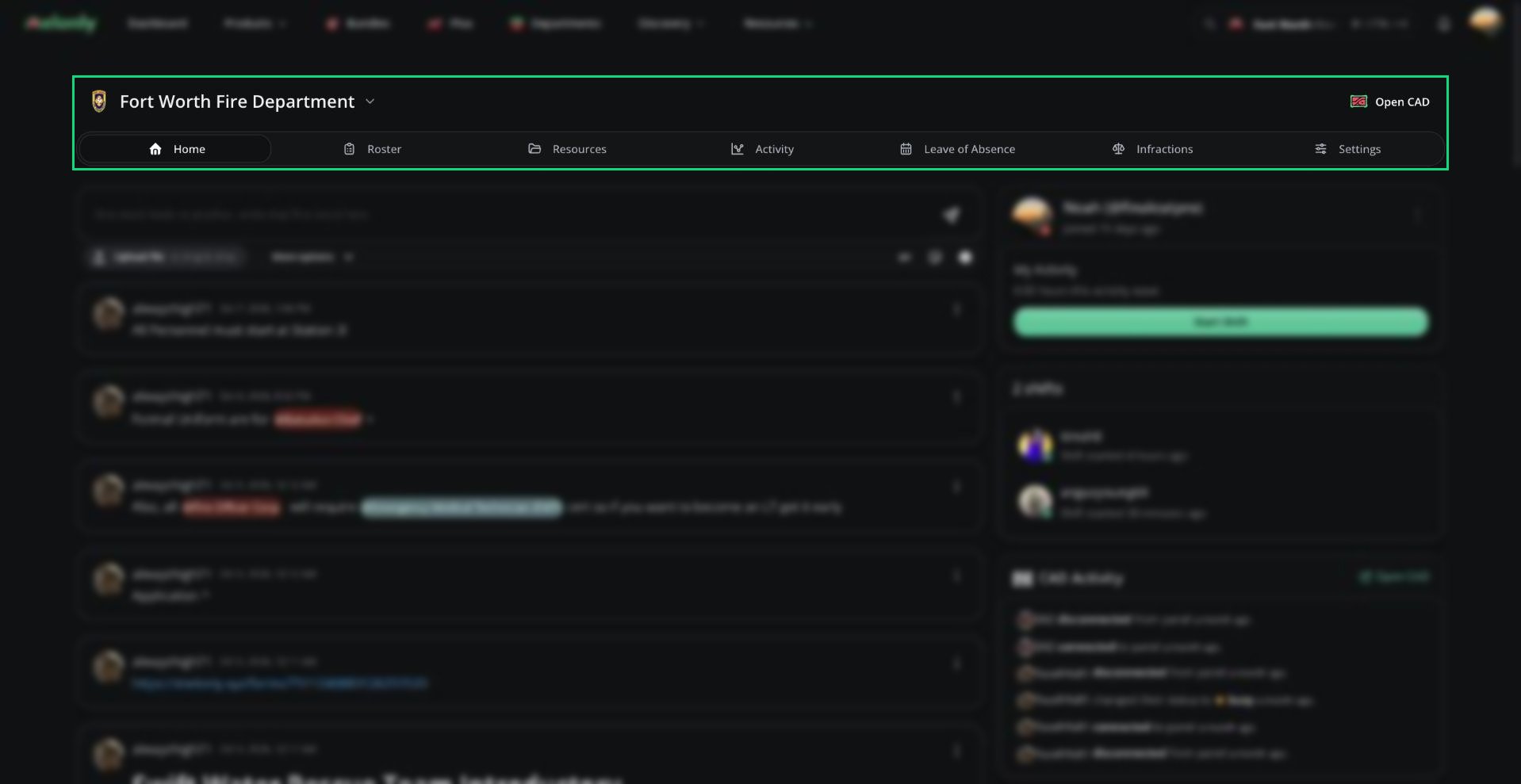
You need to be a member to open a department. Everyone sees **Home**, **Roster** and **Resources**. The other tabs appear only if your rank or department roles have the matching permission.
| Tab | Permission needed |
| - | - |
| Activity | Activity Manager |
| Leave of Absence | Loa Manager |
| Infractions | Infractions Administrator or Issue Infractions |
| Settings | Administrator |
You can only act on members ranked below you. See [Permissions](/Department/permissions) for the full list.
If a super administrator opens a department they aren't in, they're added to its lowest rank automatically.
***
## Department Types
Each department has a type, picked during setup and changeable in [General Settings](/Department/settings/general#department-name-and-type). The type decides which CAD panel members use: Law Enforcement (Police), Fire, EMS, DOT, Dispatch or Civilian.
Changing the type removes CAD permissions that don't fit the new type from every rank.
***
## 🧭 Quick Navigation
Create a department and run the setup wizard.
Join links, codes, requests and auto-join.
Turn an existing Melonly server into a department.
Slots, prices and activating a subscription.
Slots, activation, CAD, role and punishment syncing.
Quick answers to common questions.
***
Still have questions? Join our Discord server for support from the Melonly Team.
This documentation is built and hosted on [Mintlify](https://mintlify.com), a developer documentation platform.
 ***
## Key Features
***
## Key Features