> ## Documentation Index
> Fetch the complete documentation index at: https://docs.melonly.com/llms.txt
> Use this file to discover all available pages before exploring further.
# Resources
> Create and share documents, forms, applications, workspaces and workflows for your department.
***
## What are Department Resources?
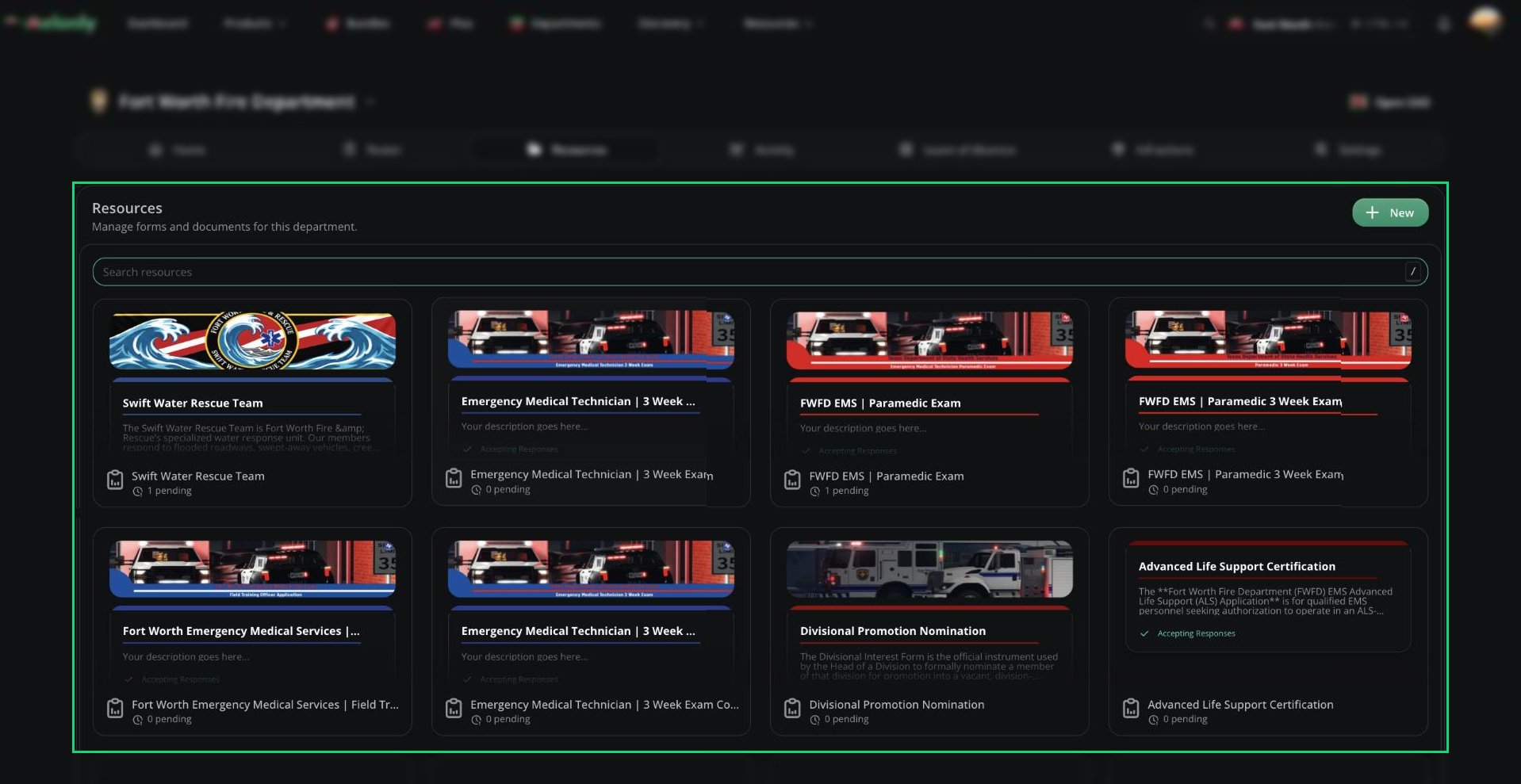
Resources is your department's library for documents (like SOPs), forms, applications, folders, workspaces and workflows. They use the same editors as server resources, so this page only covers what's different in a department.
 ***
## 🧭 Quick Navigation
The document editor, menus and sharing.
Organize resources and build workspaces.
Questions, response types and reviewing responses.
Join on approval, rank on approval, quiz and Discord settings.
Automate tasks with triggers and blocks.
***
## Access and Sharing
Every member can open Resources, but you only see what's been shared with you. You need a Discord account linked to Melonly to open it.
Creating resources, and full access to every resource, needs the Manage Resources permission.
Click **New** to create a resource. In a department, you can share resources with people, department ranks or Discord roles from the department's linked Discord server. See [Documents](/Dashboard/resources/documents) for how sharing works.
Pin important documents and forms to Home with [Pinned Buttons](/Department/settings/general#pinned-buttons), or attach them to a [shout](/Department/shouts/writing#attachments).
***
## Application Settings
Department applications can add approved applicants to the department and give them a rank. [Full details](/Department/Resources/applications).
### General
Form type, responses, Roblox requirements, cooldowns, plus Join Department on Approval and Give Rank on Approval. [More](/Department/Resources/applications#general).
### Quiz
Turn a form into a graded quiz with auto-accept and auto-deny thresholds. [More](/Department/Resources/applications#quiz).
### Discord Integration
Discord requirements, roles on approval or denial and result channels, using the department's own linked Discord server. [More](/Department/Resources/applications#discord-integration).
### Advanced
Duplicate the form, view its audit log or delete its responses or the form itself. [More](/Department/Resources/applications#advanced).
***
## Workflows
Workflows use the same editor as on a server, see [Workflows](/Dashboard/resources/workflows/overview). Some triggers and blocks differ in a department.
* Rank Assigned and Rank Removed
* New Promotion and New Demotion
* Shout Created, Shout Edited and Shout Deleted
* Joined Department and Left Department
* Remove User From Department (block)
* ER:LC triggers and blocks, such as custom commands, player joins, kills and mod calls
* Punishment log and session triggers
* Joined Melonly Server and Left Melonly Server
* Online Staff Count
* Blocks that manage departments from a server, such as adding ranks or promoting members
CAD blocks need Melonly CAD on the parent server. Discord blocks need the department to have its own linked Discord server.
***
Still have questions? Join our Discord server for support from the Melonly Team.
This documentation is built and hosted on [Mintlify](https://mintlify.com), a developer documentation platform.
***
## 🧭 Quick Navigation
The document editor, menus and sharing.
Organize resources and build workspaces.
Questions, response types and reviewing responses.
Join on approval, rank on approval, quiz and Discord settings.
Automate tasks with triggers and blocks.
***
## Access and Sharing
Every member can open Resources, but you only see what's been shared with you. You need a Discord account linked to Melonly to open it.
Creating resources, and full access to every resource, needs the Manage Resources permission.
Click **New** to create a resource. In a department, you can share resources with people, department ranks or Discord roles from the department's linked Discord server. See [Documents](/Dashboard/resources/documents) for how sharing works.
Pin important documents and forms to Home with [Pinned Buttons](/Department/settings/general#pinned-buttons), or attach them to a [shout](/Department/shouts/writing#attachments).
***
## Application Settings
Department applications can add approved applicants to the department and give them a rank. [Full details](/Department/Resources/applications).
### General
Form type, responses, Roblox requirements, cooldowns, plus Join Department on Approval and Give Rank on Approval. [More](/Department/Resources/applications#general).
### Quiz
Turn a form into a graded quiz with auto-accept and auto-deny thresholds. [More](/Department/Resources/applications#quiz).
### Discord Integration
Discord requirements, roles on approval or denial and result channels, using the department's own linked Discord server. [More](/Department/Resources/applications#discord-integration).
### Advanced
Duplicate the form, view its audit log or delete its responses or the form itself. [More](/Department/Resources/applications#advanced).
***
## Workflows
Workflows use the same editor as on a server, see [Workflows](/Dashboard/resources/workflows/overview). Some triggers and blocks differ in a department.
* Rank Assigned and Rank Removed
* New Promotion and New Demotion
* Shout Created, Shout Edited and Shout Deleted
* Joined Department and Left Department
* Remove User From Department (block)
* ER:LC triggers and blocks, such as custom commands, player joins, kills and mod calls
* Punishment log and session triggers
* Joined Melonly Server and Left Melonly Server
* Online Staff Count
* Blocks that manage departments from a server, such as adding ranks or promoting members
CAD blocks need Melonly CAD on the parent server. Discord blocks need the department to have its own linked Discord server.
***
Still have questions? Join our Discord server for support from the Melonly Team.
This documentation is built and hosted on [Mintlify](https://mintlify.com), a developer documentation platform.