> ## Documentation Index
> Fetch the complete documentation index at: https://docs.melonly.com/llms.txt
> Use this file to discover all available pages before exploring further.
# Activity
> Track shifts, set activity quotas and review member activity in your department.
***
## What is Activity?
Activity tracks how much time your members spend on shift. Time is counted in activity waves: set periods, like a week or a month, that each have their own hour quota.
Requires the Activity Manager permission. Department administrators always have access.
Department Activity works like [server Activity](/Dashboard/activity/home), with a few differences:
* Quotas, exclusions and filters use your department's ranks. You can only pick or act on members ranked below you.
* Shift types are free, with no [Melonly Plus](https://melonly.xyz/plus) needed.
* The only shift limit is Max On Shift.
* Members can also clock in from Melonly CAD and through ER:LC shift automation.
 ***
## 🧭 Quick Navigation
Wave length, hour quotas and inactivity flags.
Clocking in, shift types, report forms and editing shifts.
One member's shift history, and everyone ranked by time.
***
## Activity Waves
Waves are the periods your quota is counted in. Only one runs at a time.
### Wave Duration
Choose when waves end: after a number of days, weekly, every other week, monthly or on a set day and time. [Details](/Department/activity/waves#wave-duration).
***
## Shifts
Members clock in from Home, Melonly CAD or automatically through ER:LC teams. [Details](/Department/activity/shifts#clocking-in).
### Shift Settings
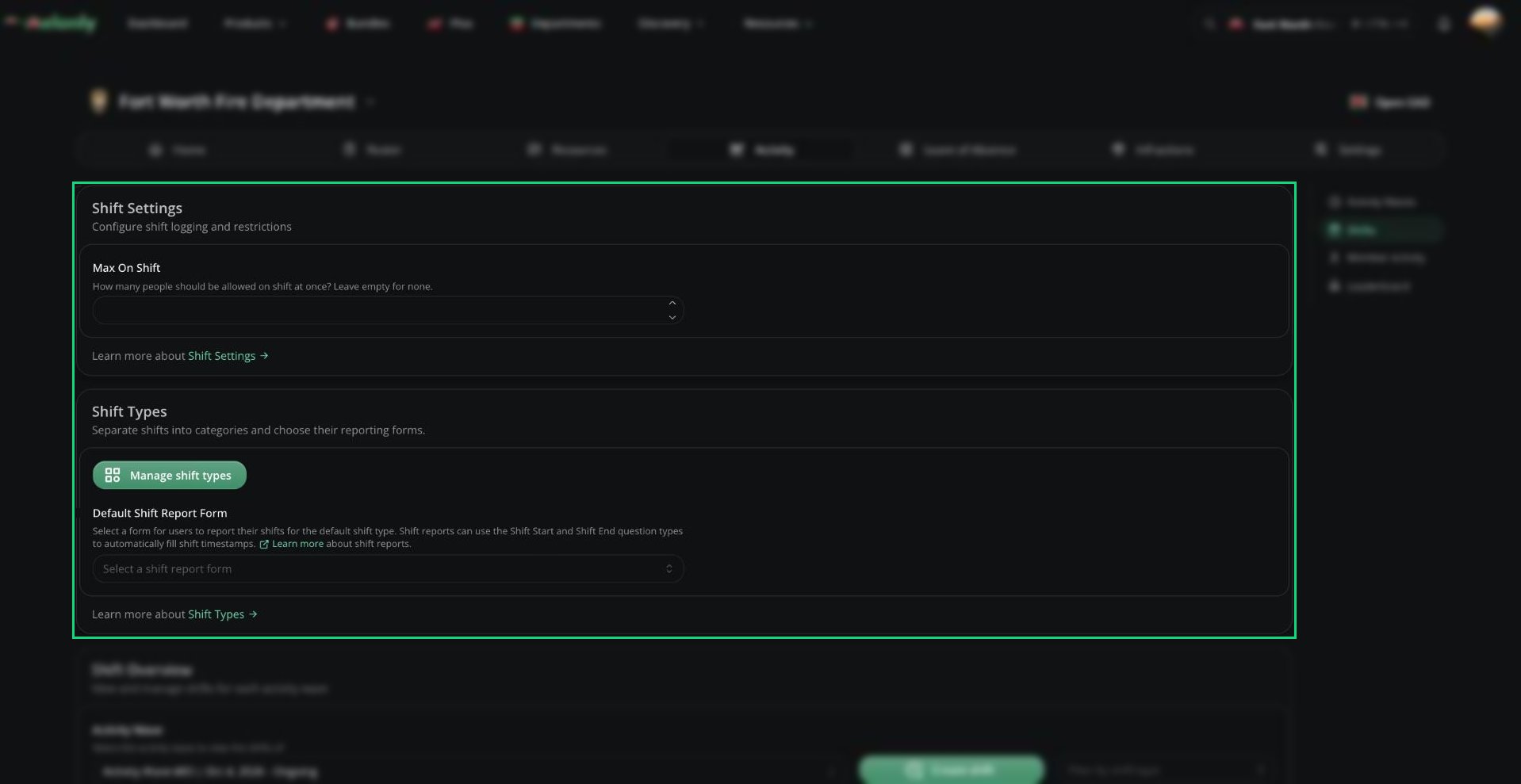
Set Max On Shift to limit how many people can be on shift at once. [Details](/Department/activity/shifts#shift-settings).
### Shift Types
Split shifts into categories like Patrol or Training, each with its own required ranks, Discord role and report form. [Details](/Department/activity/shifts#shift-types).
### Default Shift Report Form
The form members fill in after a shift with no shift type. [Details](/Department/activity/shifts#default-shift-report-form).
### Shift Overview
See, create, edit and delete shifts in a wave. [Details](/Department/activity/shifts#shift-overview).
***
## Member Activity
See one member's shifts, online time and break time for a wave. [Details](/Department/activity/members#member-activity).
***
## Leaderboard
Compare everyone's time in a wave and see who met their quota. [Details](/Department/activity/members#leaderboard).
***
Still have questions? Join our Discord server for support from the Melonly Team.
This documentation is built and hosted on [Mintlify](https://mintlify.com), a developer documentation platform.
***
## 🧭 Quick Navigation
Wave length, hour quotas and inactivity flags.
Clocking in, shift types, report forms and editing shifts.
One member's shift history, and everyone ranked by time.
***
## Activity Waves
Waves are the periods your quota is counted in. Only one runs at a time.
### Wave Duration
Choose when waves end: after a number of days, weekly, every other week, monthly or on a set day and time. [Details](/Department/activity/waves#wave-duration).
***
## Shifts
Members clock in from Home, Melonly CAD or automatically through ER:LC teams. [Details](/Department/activity/shifts#clocking-in).
### Shift Settings
Set Max On Shift to limit how many people can be on shift at once. [Details](/Department/activity/shifts#shift-settings).
### Shift Types
Split shifts into categories like Patrol or Training, each with its own required ranks, Discord role and report form. [Details](/Department/activity/shifts#shift-types).
### Default Shift Report Form
The form members fill in after a shift with no shift type. [Details](/Department/activity/shifts#default-shift-report-form).
### Shift Overview
See, create, edit and delete shifts in a wave. [Details](/Department/activity/shifts#shift-overview).
***
## Member Activity
See one member's shifts, online time and break time for a wave. [Details](/Department/activity/members#member-activity).
***
## Leaderboard
Compare everyone's time in a wave and see who met their quota. [Details](/Department/activity/members#leaderboard).
***
Still have questions? Join our Discord server for support from the Melonly Team.
This documentation is built and hosted on [Mintlify](https://mintlify.com), a developer documentation platform.