> ## Documentation Index
> Fetch the complete documentation index at: https://docs.melonly.com/llms.txt
> Use this file to discover all available pages before exploring further.
# Settings
> Configure your department's identity, Discord and ER:LC integrations, roster, actions, audit logs and verification.
***
## What is the Settings Tab?
Settings is where you set up your department: its name and look, how members join, its Discord and ER:LC connections, the roster and more.
Requires the Administrator rank permission. Super administrators (the parent server's owner, its Administrators and anyone with the Departments dashboard permission) can always open it.
***
## 🧭 Quick Navigation
Name, type, look, pinned buttons, join code, danger zone.
Link a server, set channels, roles, nicknames and messages.
Verify members' Roblox accounts in Discord.
Start and end shifts from in-game teams.
Roster columns and department roles.
***
## Department Settings
The General Settings page holds your department's identity and how people join. Most changes use the save bar. Uploads, join code changes and the Danger Zone apply straight away. [Full details](/Department/settings/general).
### Department Name
Your department's name, shown everywhere in Melonly. Next to it, the Department Type (Law Enforcement, Fire, EMS, DOT, Dispatch or Civilian) decides which CAD panel you use. Changing the type removes CAD permissions that no longer fit from your ranks. [More](/Department/settings/general#department-name-and-type).
### Department Icon
Upload an icon to show next to your department's name, and a banner for its dashboard card. [More](/Department/settings/general#banner-and-icon).
### Pinned Buttons
One-click shortcuts on the department home page for every member. Each opens a link, form, document or [action](#actions). [More](/Department/settings/general#pinned-buttons).
### Discord Autokick
Removes members from the department when they leave your linked Discord server. [More](/Department/settings/general#discord-autokick).
### Join Code
How new members join. Copy the code or link, regenerate it if it leaks, require Discord roles to join or set a custom code. [More](/Department/settings/general#join-code).
### Danger Zone
Reset activity waves, delete the department or generate a support code. These can't be undone. [More](/Department/settings/general#danger-zone).
***
## Discord Integration
Link a Discord server to sync shouts and post shift, LOA and audit logs. Melonly can also give roles and nicknames while members are on shift or on leave. You need Discord Administrator in the server. [Full details](/Department/settings/discord).
***
## ER:LC Integration
Start and end shifts automatically when members join or leave in-game teams. Needs the parent server's ER:LC integration. [Full details](/Department/settings/erlc).
***
## Roster Settings
Choose which columns your [roster](/Department/roster) shows, add custom columns and create up to 20 department roles. [Full details](/Department/settings/roster).
***
## Actions
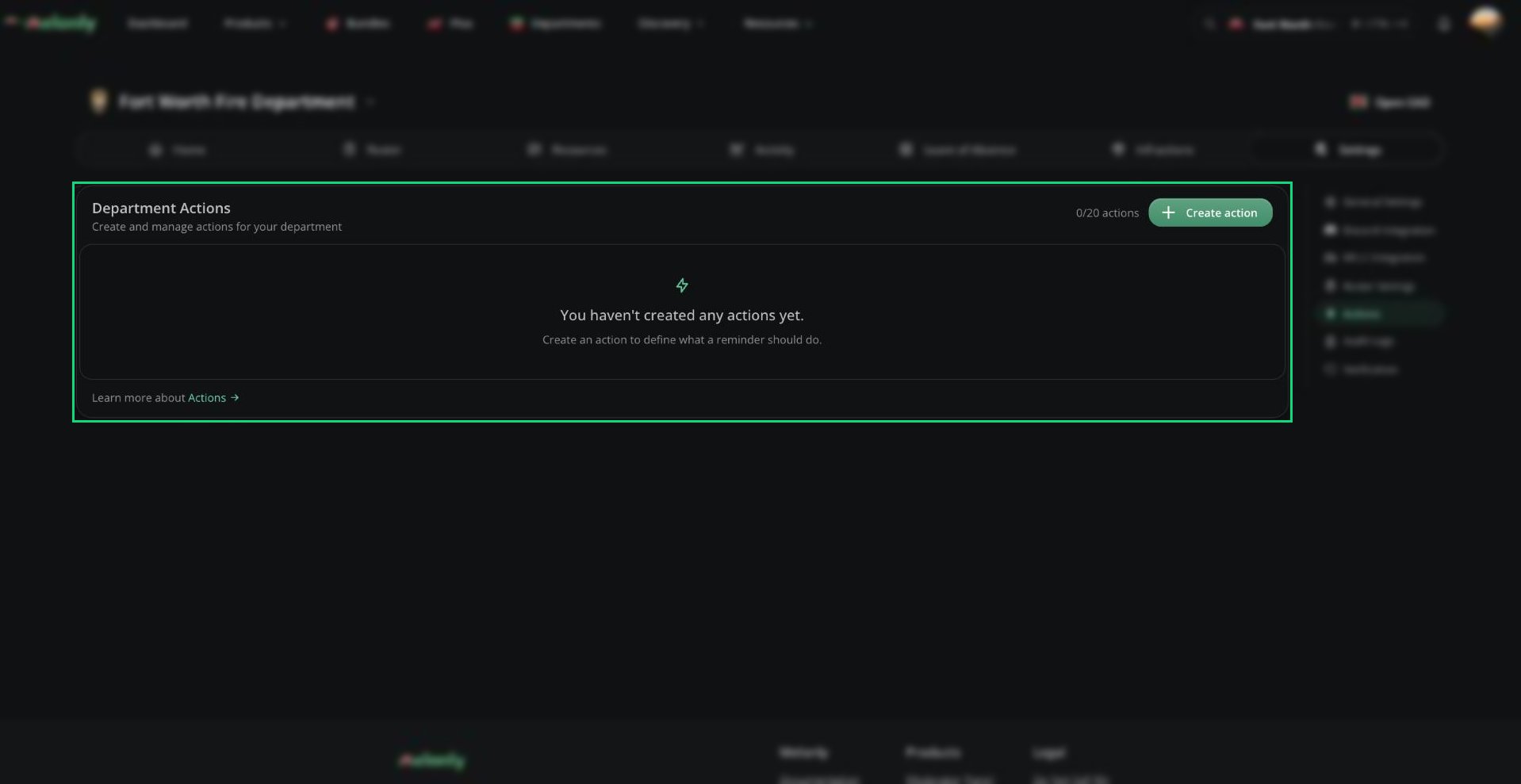
Actions are custom tasks members can run and log, optionally with a form. Members run them from the **Actions** button or a [pinned button](#pinned-buttons) on the home page. You can have up to 20.
Click **Create action** to add one. Actions work the same as on a server, so see [Actions](/Dashboard/reminders-actions/actions) for every field.
 ***
## Audit Logs
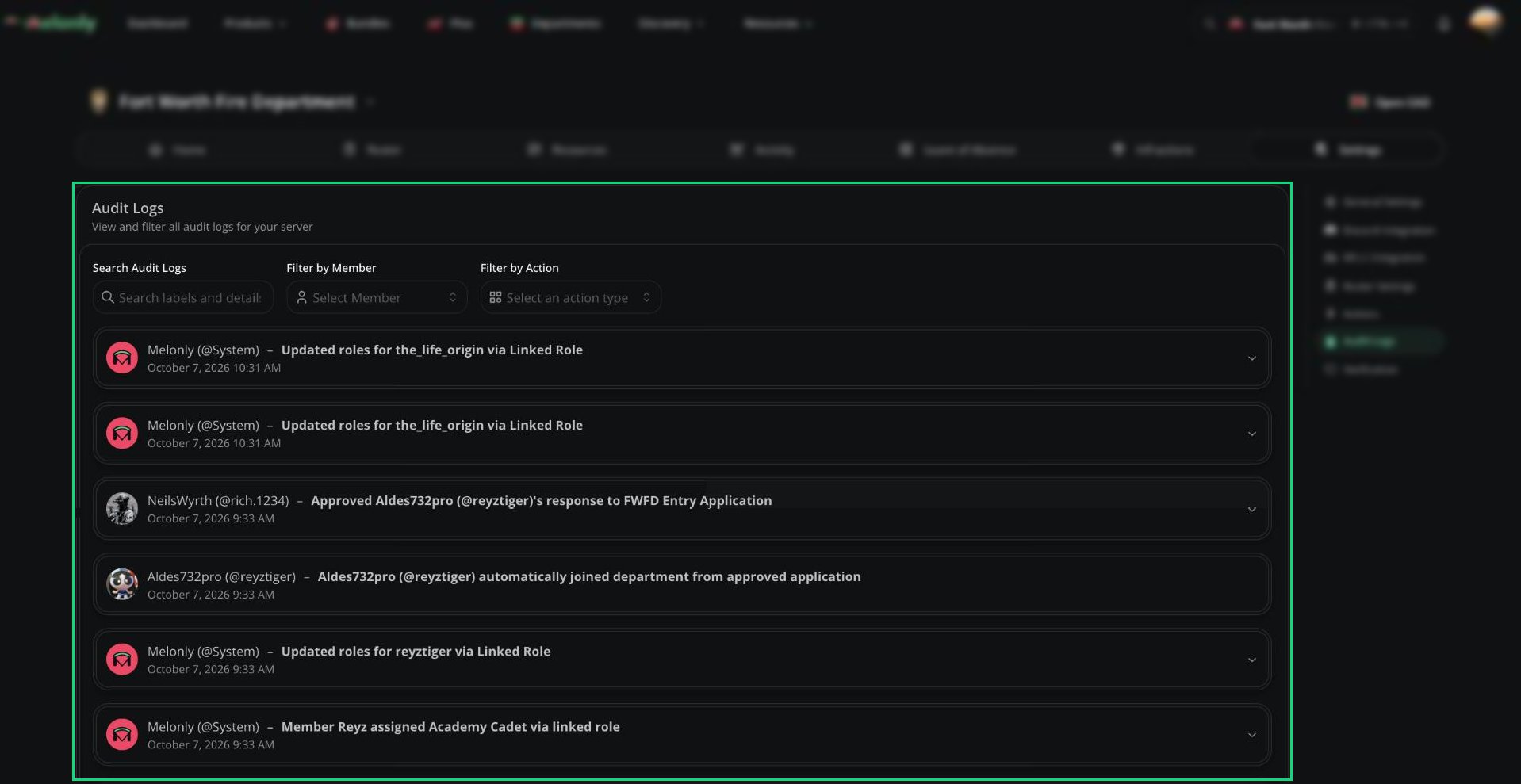
A history of every change made in your department, newest first. Search, or filter by member or type of change. To also send these to Discord, set an Audit Logs Channel in [Discord Integration](/Department/settings/discord#channels).
***
## Audit Logs
A history of every change made in your department, newest first. Search, or filter by member or type of change. To also send these to Discord, set an Audit Logs Channel in [Discord Integration](/Department/settings/discord#channels).
 ***
## Verification
Check that people in your linked Discord server own a Roblox account, and give them roles when they verify. [Full details](/Department/settings/verification).
### Configure
Turn verification on, enable auto verification and `/verify`, sync Roblox usernames to nicknames and pick a verify channel. [More](/Department/settings/verification#configure).
### Verification Types
Up to 15 types, each with its own roles, prompt (DM, button, welcome message or `/verify`) and requirements like Roblox group or account age. [More](/Department/settings/verification#verification-types).
***
Still have questions? Join our Discord server for support from the Melonly Team.
This documentation is built and hosted on [Mintlify](https://mintlify.com), a developer documentation platform.
***
## Verification
Check that people in your linked Discord server own a Roblox account, and give them roles when they verify. [Full details](/Department/settings/verification).
### Configure
Turn verification on, enable auto verification and `/verify`, sync Roblox usernames to nicknames and pick a verify channel. [More](/Department/settings/verification#configure).
### Verification Types
Up to 15 types, each with its own roles, prompt (DM, button, welcome message or `/verify`) and requirements like Roblox group or account age. [More](/Department/settings/verification#verification-types).
***
Still have questions? Join our Discord server for support from the Melonly Team.
This documentation is built and hosted on [Mintlify](https://mintlify.com), a developer documentation platform.