> ## Documentation Index
> Fetch the complete documentation index at: https://docs.melonly.com/llms.txt
> Use this file to discover all available pages before exploring further.
# Profile Directory
> Browse Melonly profiles to find staff, verify experience people claim at your server and report abuse.
***
## What is the Profile Directory?
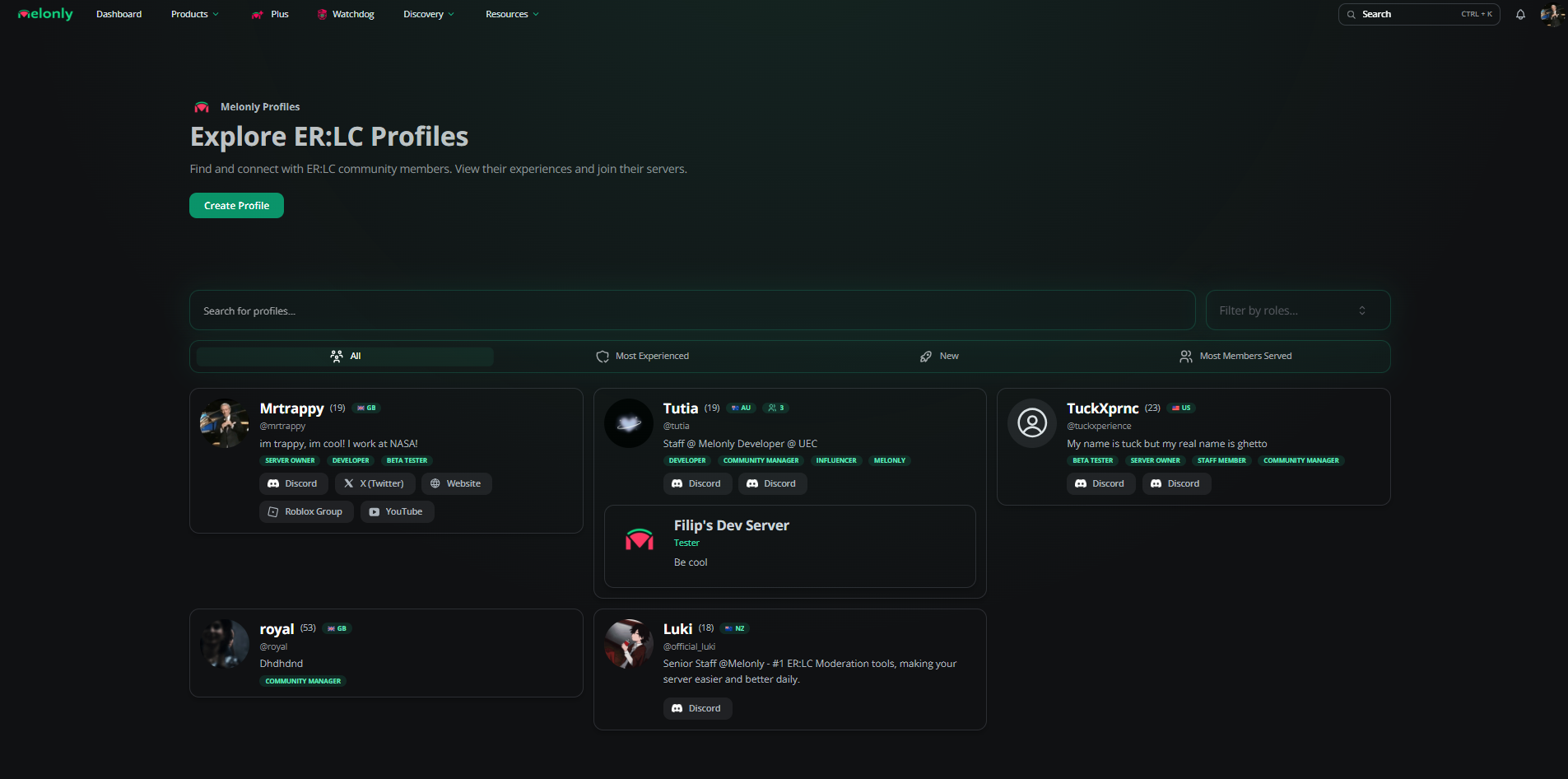
The [Profile Directory](https://melonly.xyz/profiles) lists public Melonly profiles. Players show off their roles, socials and server experience, and server owners use it to find staff.
To create or edit your own profile, click **Manage my profile** or see [Your Profile](/Guides/profile).
 ***
## Finding Profiles
Search by name or handle, filter by roles (for example Moderator, Developer or Server Owner) or switch tabs.
| Tab | Shows |
| - | - |
| All | Every public profile |
| Most Experienced | Profiles with the most verified experience |
| New | Recently created profiles |
| Most Members Served | Profiles whose verified servers have the most members in total |
Each card shows the person's name, age and country if they shared them, their roles, socials and pinned experience. Click a card to open the full profile.
***
## Profile Pages
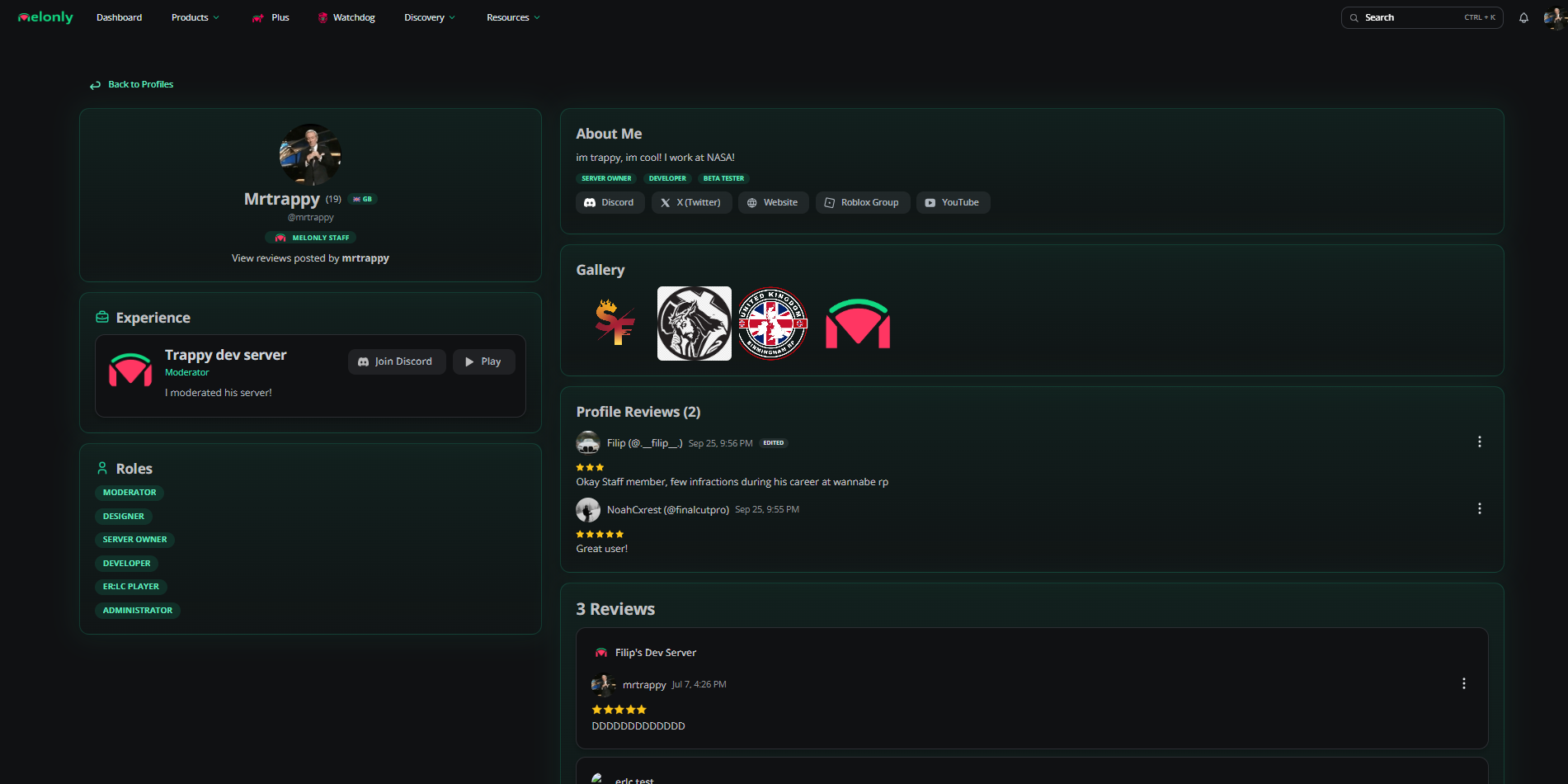
A profile page shows the person's experience, roles, About Me, socials, gallery, badges and reviews. You can also leave a profile review there. See [Public Profile](/Guides/profile/public-profile) for what each section and badge means.
***
## Finding Profiles
Search by name or handle, filter by roles (for example Moderator, Developer or Server Owner) or switch tabs.
| Tab | Shows |
| - | - |
| All | Every public profile |
| Most Experienced | Profiles with the most verified experience |
| New | Recently created profiles |
| Most Members Served | Profiles whose verified servers have the most members in total |
Each card shows the person's name, age and country if they shared them, their roles, socials and pinned experience. Click a card to open the full profile.
***
## Profile Pages
A profile page shows the person's experience, roles, About Me, socials, gallery, badges and reviews. You can also leave a profile review there. See [Public Profile](/Guides/profile/public-profile) for what each section and badge means.
 ***
## Verify Server Experience
When someone adds your server to their profile experience, it stays unverified until an admin of that server confirms it. Verified experience shows on their profile and under Staff Profiles on your directory page.
You need the Administrator permission in that Melonly server to verify or remove experience.
The member copies a verification link from their experience and sends it to you. Open it while signed in.
***
## Verify Server Experience
When someone adds your server to their profile experience, it stays unverified until an admin of that server confirms it. Verified experience shows on their profile and under Staff Profiles on your directory page.
You need the Administrator permission in that Melonly server to verify or remove experience.
The member copies a verification link from their experience and sends it to you. Open it while signed in.
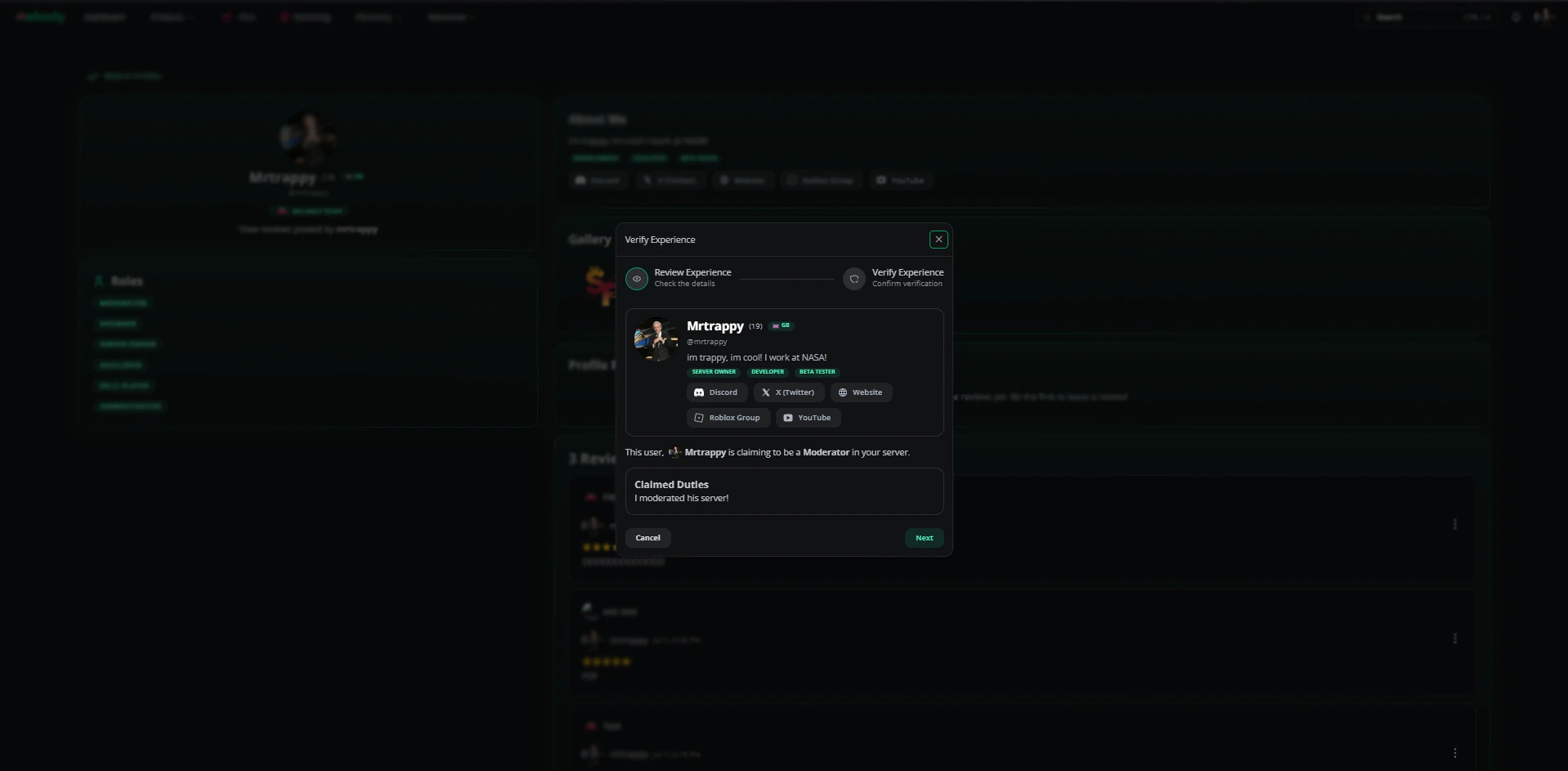 Read the duties they've listed for your server and make sure they're accurate.
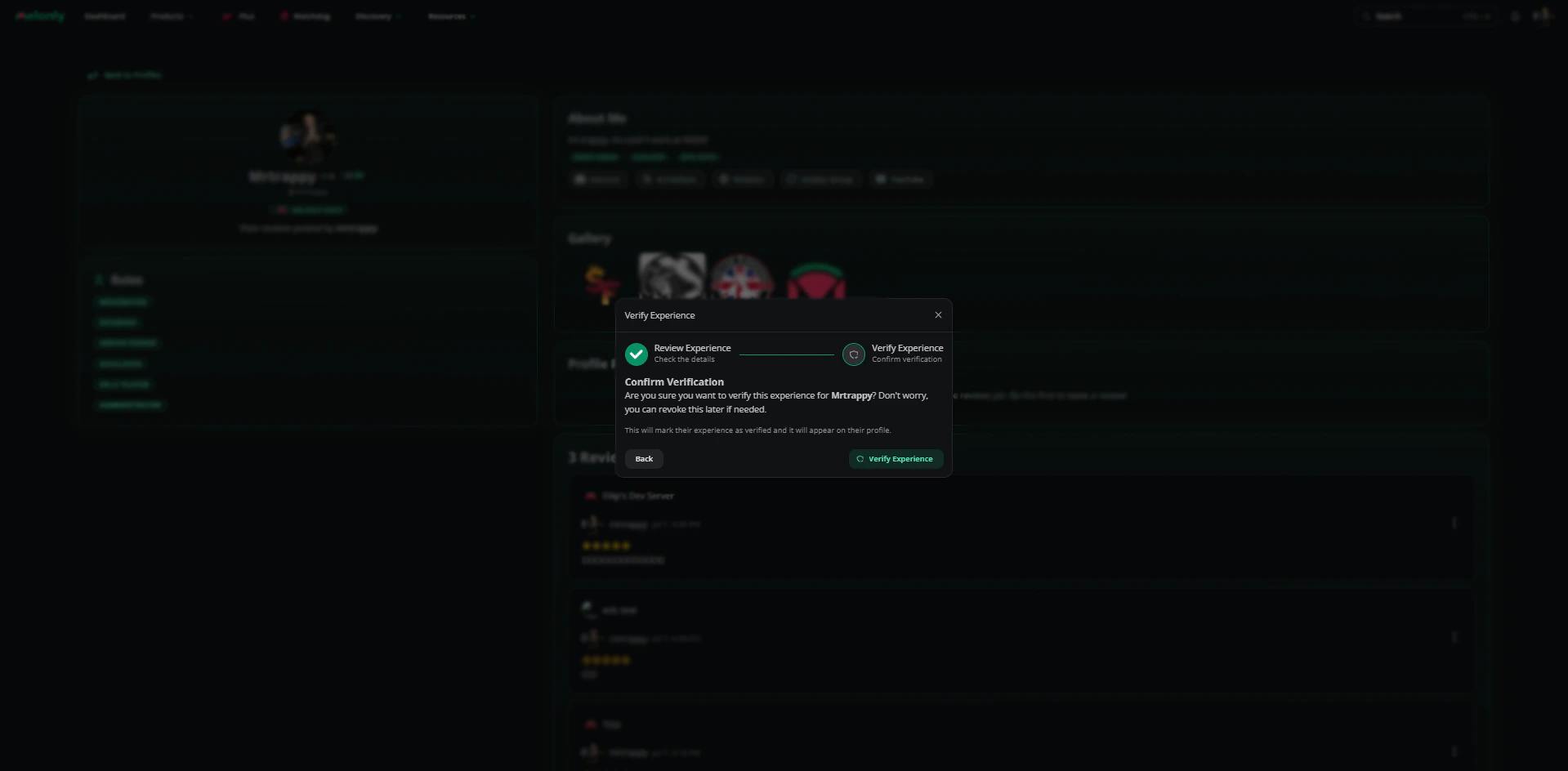
Click **Next**, then **Verify experience**.
Read the duties they've listed for your server and make sure they're accurate.
Click **Next**, then **Verify experience**.
 When a staff member leaves, open your server's directory page, find them under Staff Profiles and choose **Remove** from the three-dot menu.
Adding experience to your own profile is covered in [Your Profile](/Guides/profile/experience#adding-experience).
***
## Reporting
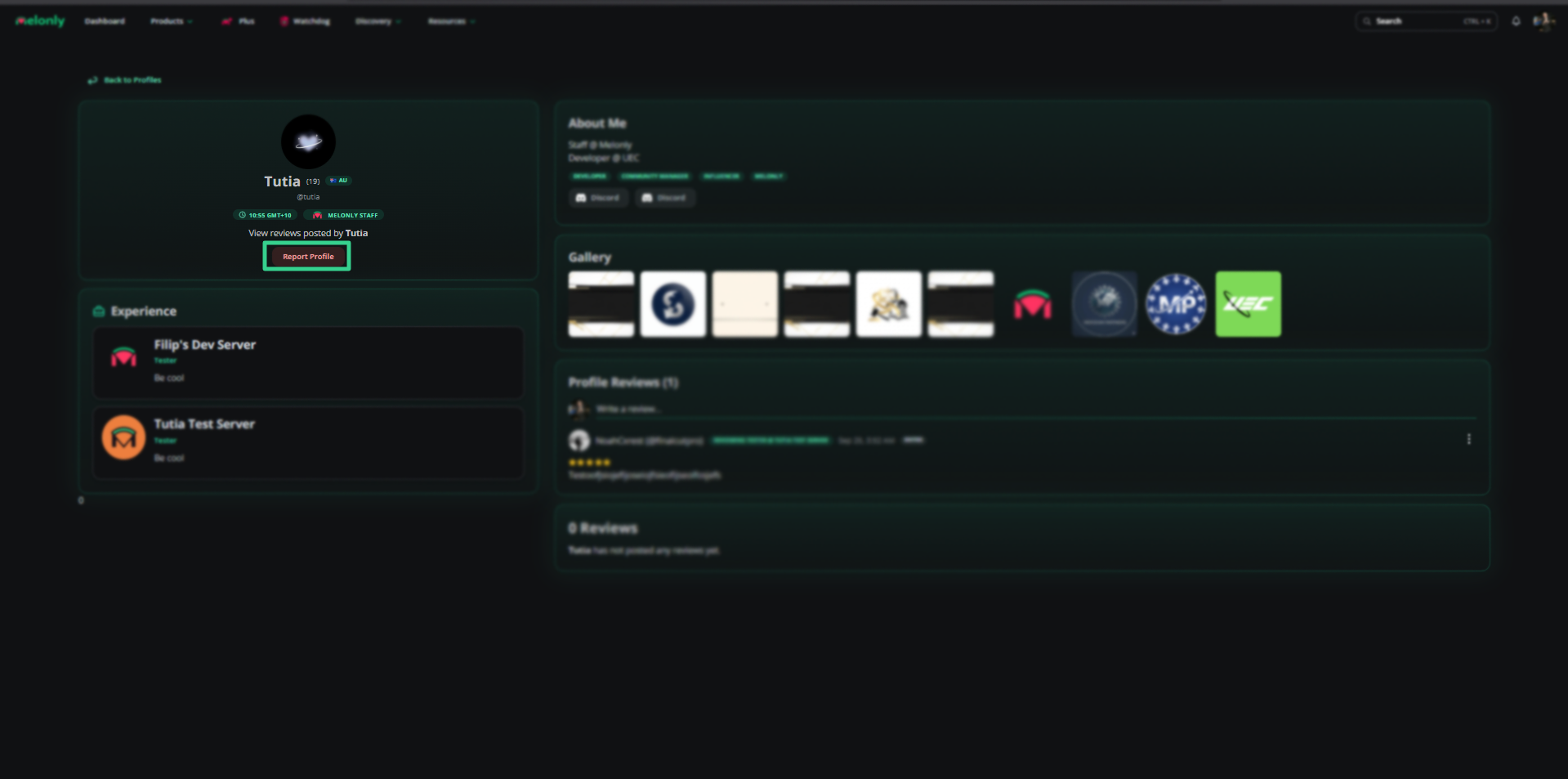
To report a whole profile, click the report button on the profile page, add a reason and submit.
When a staff member leaves, open your server's directory page, find them under Staff Profiles and choose **Remove** from the three-dot menu.
Adding experience to your own profile is covered in [Your Profile](/Guides/profile/experience#adding-experience).
***
## Reporting
To report a whole profile, click the report button on the profile page, add a reason and submit.
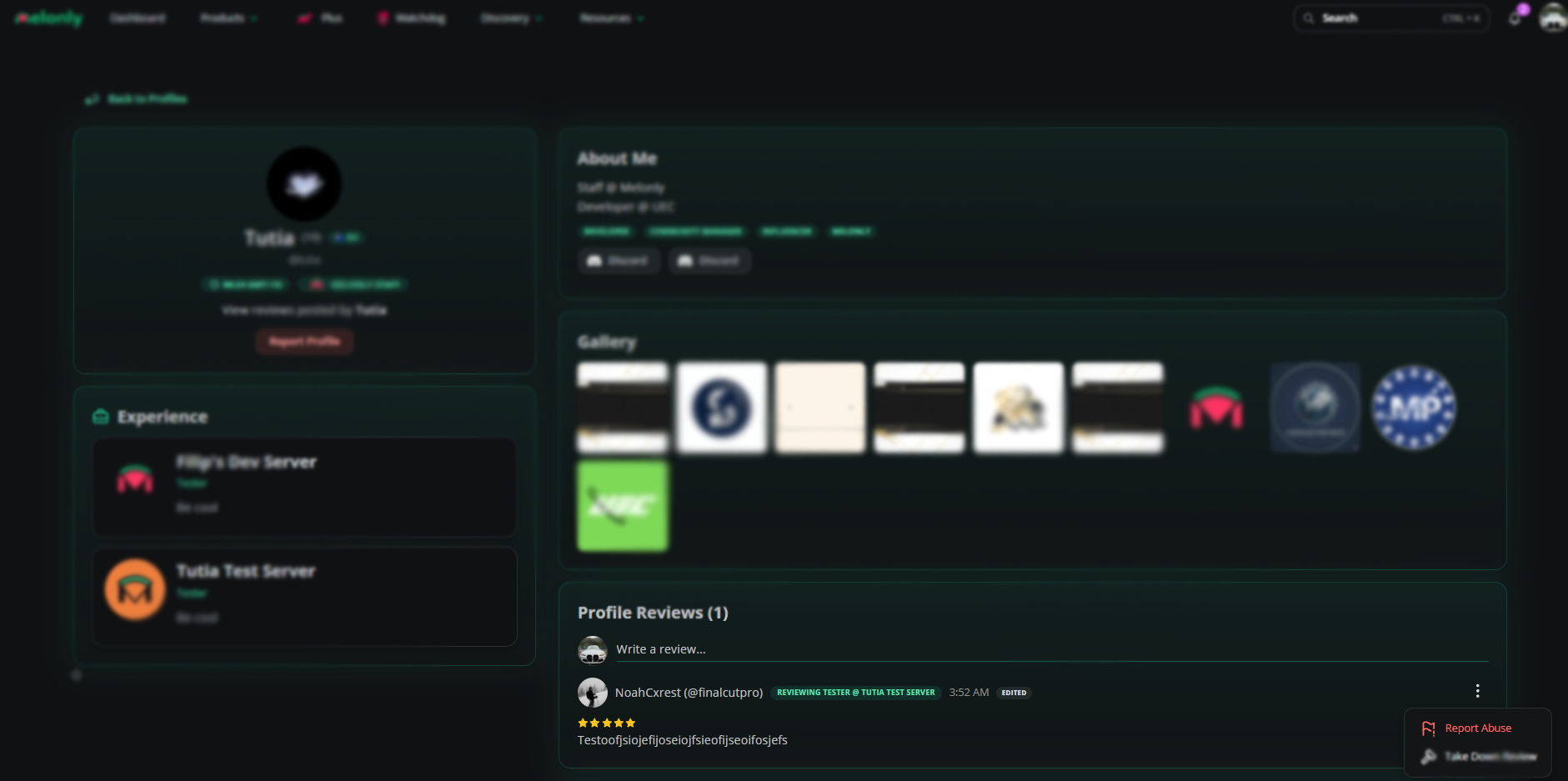
 To report a profile review, open the three-dot menu on the review and choose **Report abuse**.
 The Melonly team reviews every report and can remove the review or profile.
***
Still have questions? Join our Discord server for support from the Melonly Team.
This documentation is built and hosted on [Mintlify](https://mintlify.com), a developer documentation platform.
The Melonly team reviews every report and can remove the review or profile.
***
Still have questions? Join our Discord server for support from the Melonly Team.
This documentation is built and hosted on [Mintlify](https://mintlify.com), a developer documentation platform.