> ## Documentation Index
> Fetch the complete documentation index at: https://docs.melonly.com/llms.txt
> Use this file to discover all available pages before exploring further.
# Switching to Melonly
> Move your punishment logs and shifts from ERM, Ducky or Trident into Melonly with the import tool.
***
## Moving to Melonly
Coming from ERM, Ducky or Trident? Melonly can import your old punishment logs and shifts from the Discord channels those bots posted in, so your staff keep their history.
You need the Administrator permission in the Melonly server, and your Discord server must be linked to it.
***
## Import Your Data
You can start an import when you [create a server](/Guides/dashboard/creating-a-server) by answering yes to importing logs and shifts, or at any time from the **Import Data** card in your server's [Settings](/Dashboard/settings#import-data).
Click **Import data** in the Import Data card.
Pick **ERM**, **Ducky** or **Trident**.
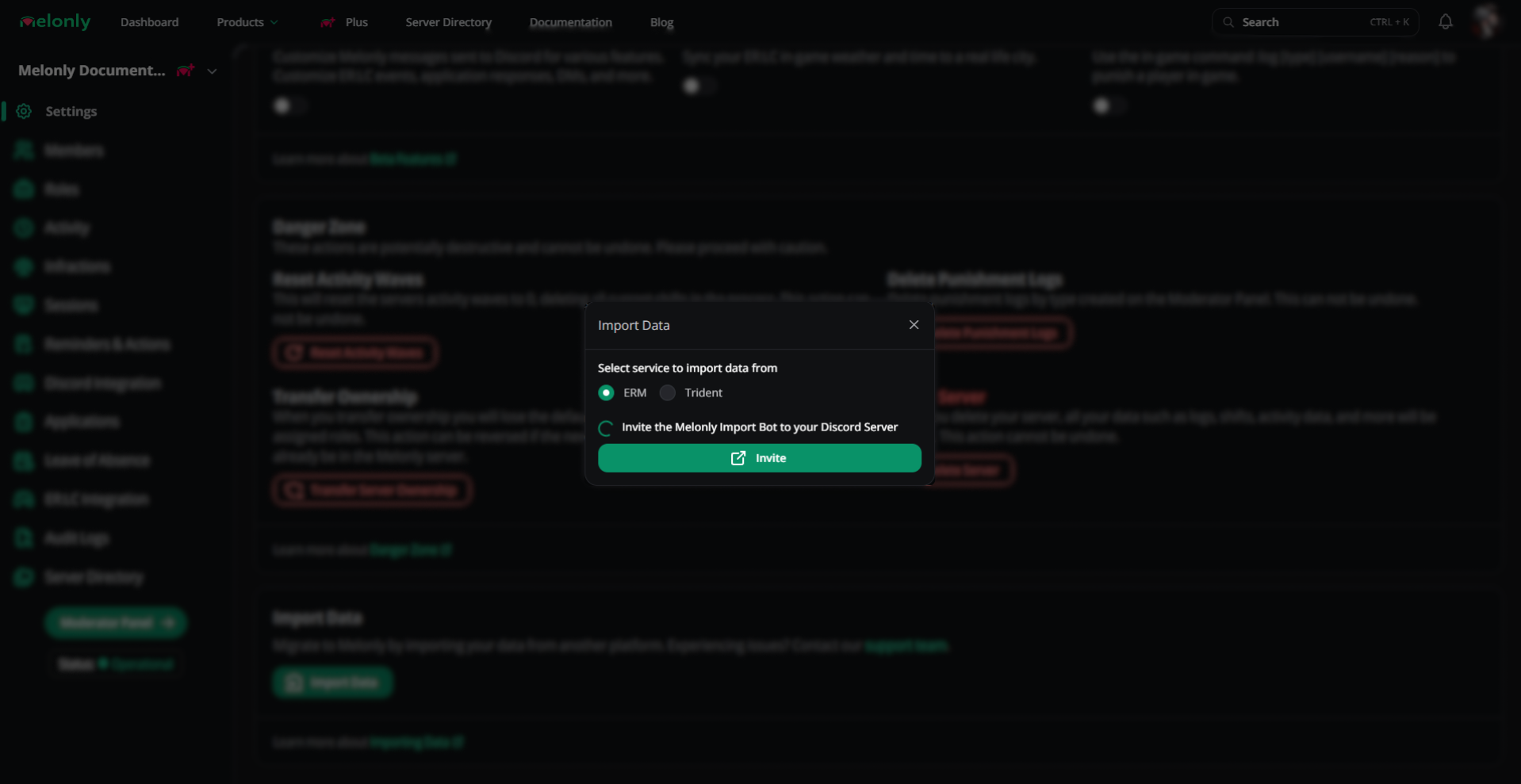 Click **Invite** and add the Melonly Import Bot to your Discord server. The window ticks it off once the bot has joined.
Select **Punishment Logs**, **Shifts** or **Punishment Logs and Shifts**, then pick the channel each one should be read from.
Click **Invite** and add the Melonly Import Bot to your Discord server. The window ticks it off once the bot has joined.
Select **Punishment Logs**, **Shifts** or **Punishment Logs and Shifts**, then pick the channel each one should be read from.
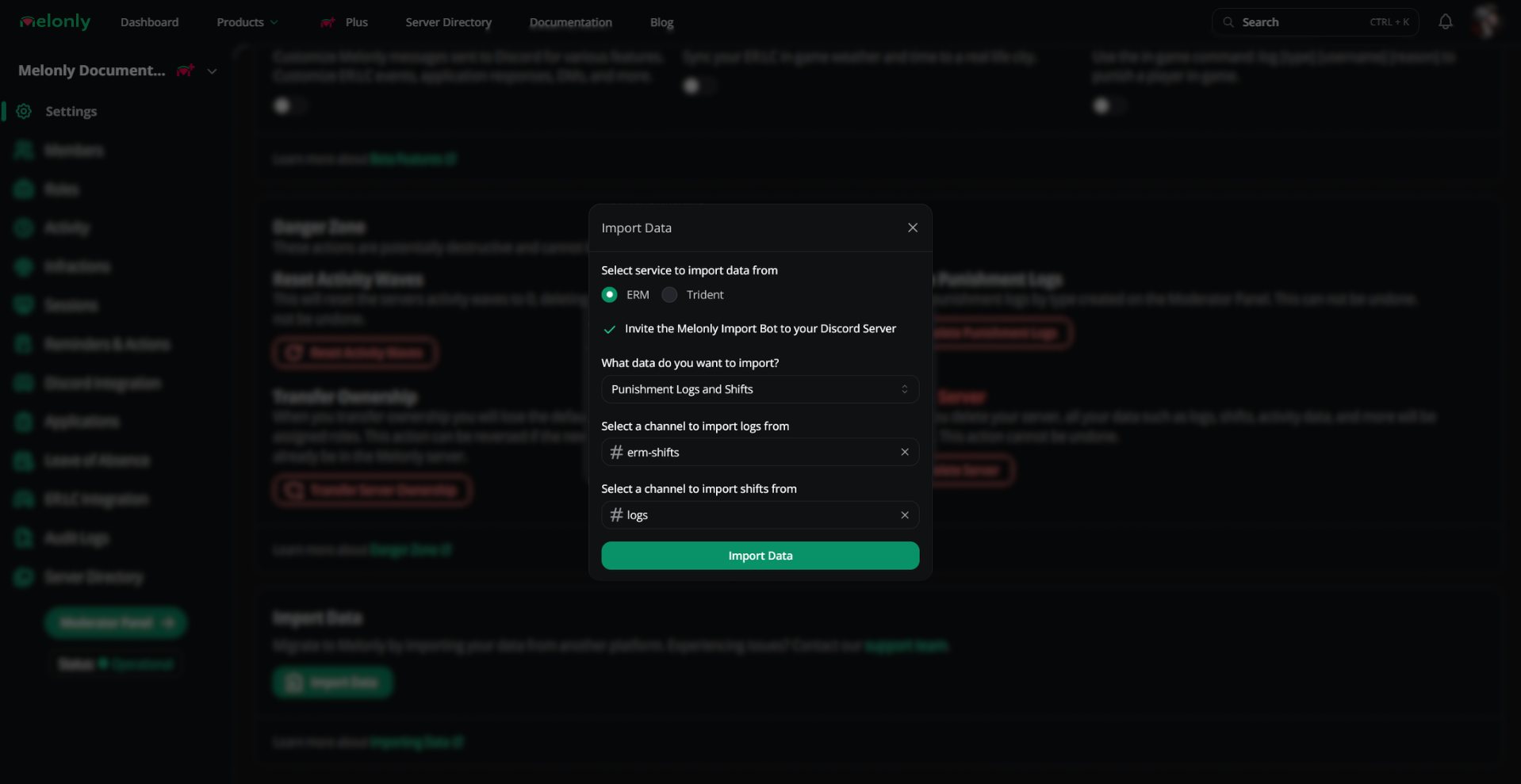 Click **Import data**. Large servers can take a few minutes.
The import bot needs View Channel and Read Message History in the channels you pick. Missing permissions are the most common reason an import fails.
***
## Tracking an Import
Each import shows up in the Import Data card with who started it, its status and how many logs and shifts came across.
| Status | Meaning |
| - | - |
| In Queue | Waiting to start |
| In Progress | Importing now |
| Complete | Finished |
| Error | Something went wrong. Check the bot's channel permissions and try again. |
| Cancelled | Stopped before it finished |
Use the menu on an import to **Cancel import** while it runs, or **Delete imported data** to remove everything it brought in.
***
## Good to Know
* Only one import can run at a time.
* A server can run up to 10 imports in total.
* After you start an import you're offered 20% off your first month of [Melonly Plus](/Guides/plus).
* Once your data is in, set up your server in [Settings](/Dashboard/settings) and invite your staff.
***
Still have questions? Join our Discord server for support from the Melonly Team.
This documentation is built and hosted on [Mintlify](https://mintlify.com), a developer documentation platform.
Click **Import data**. Large servers can take a few minutes.
The import bot needs View Channel and Read Message History in the channels you pick. Missing permissions are the most common reason an import fails.
***
## Tracking an Import
Each import shows up in the Import Data card with who started it, its status and how many logs and shifts came across.
| Status | Meaning |
| - | - |
| In Queue | Waiting to start |
| In Progress | Importing now |
| Complete | Finished |
| Error | Something went wrong. Check the bot's channel permissions and try again. |
| Cancelled | Stopped before it finished |
Use the menu on an import to **Cancel import** while it runs, or **Delete imported data** to remove everything it brought in.
***
## Good to Know
* Only one import can run at a time.
* A server can run up to 10 imports in total.
* After you start an import you're offered 20% off your first month of [Melonly Plus](/Guides/plus).
* Once your data is in, set up your server in [Settings](/Dashboard/settings) and invite your staff.
***
Still have questions? Join our Discord server for support from the Melonly Team.
This documentation is built and hosted on [Mintlify](https://mintlify.com), a developer documentation platform.