> ## Documentation Index
> Fetch the complete documentation index at: https://docs.melonly.com/llms.txt
> Use this file to discover all available pages before exploring further.
# Your Melonly Account
> Sign in to Melonly and find your account settings, profile, notifications, LOAs, logs, infractions, priority requests and playtime.
***
## What is Your Account?
Your Melonly account is you across every Melonly server. It holds your personal settings and shows your history in every server and department you're in: leaves of absence, punishment logs, infractions and more.
It all lives under [melonly.xyz/my](https://melonly.xyz/my/account), with a sidebar to move between pages.
***
## 🧭 Quick Navigation
Preferred name, Roblox link, default server, DM preferences and sign out.
Your public profile, tags, roles, social links and experience.
Choose your notification DMs and read recent alerts.
Request, start, end or extend a leave of absence.
See moderation logs made about your Roblox account.
Ask for a priority scenario in an ER:LC server.
Your points, infractions and suspensions in each server.
Appeal an infraction or suspension and track the result.
Your playtime, rank and level in each server.
***
## Signing In
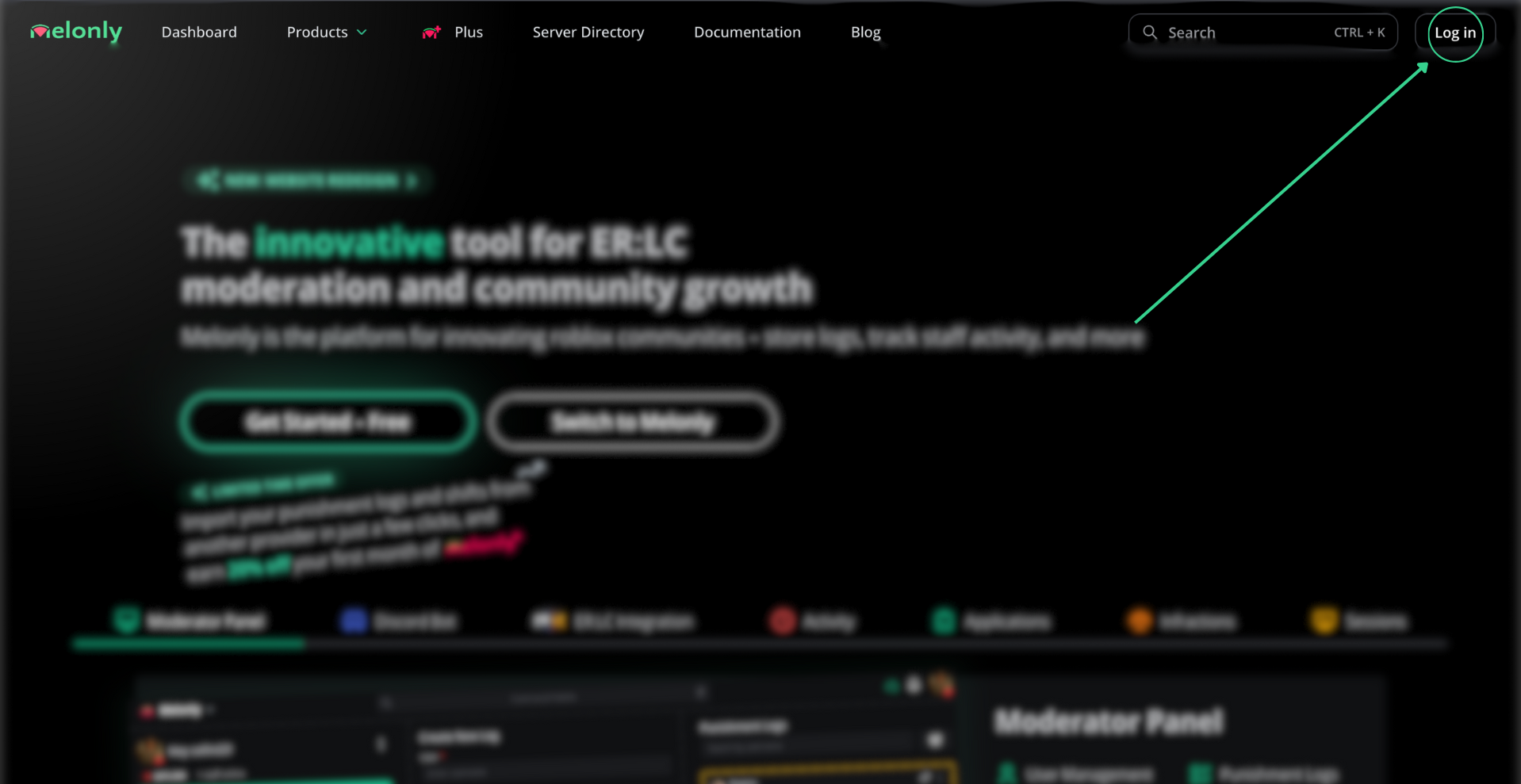
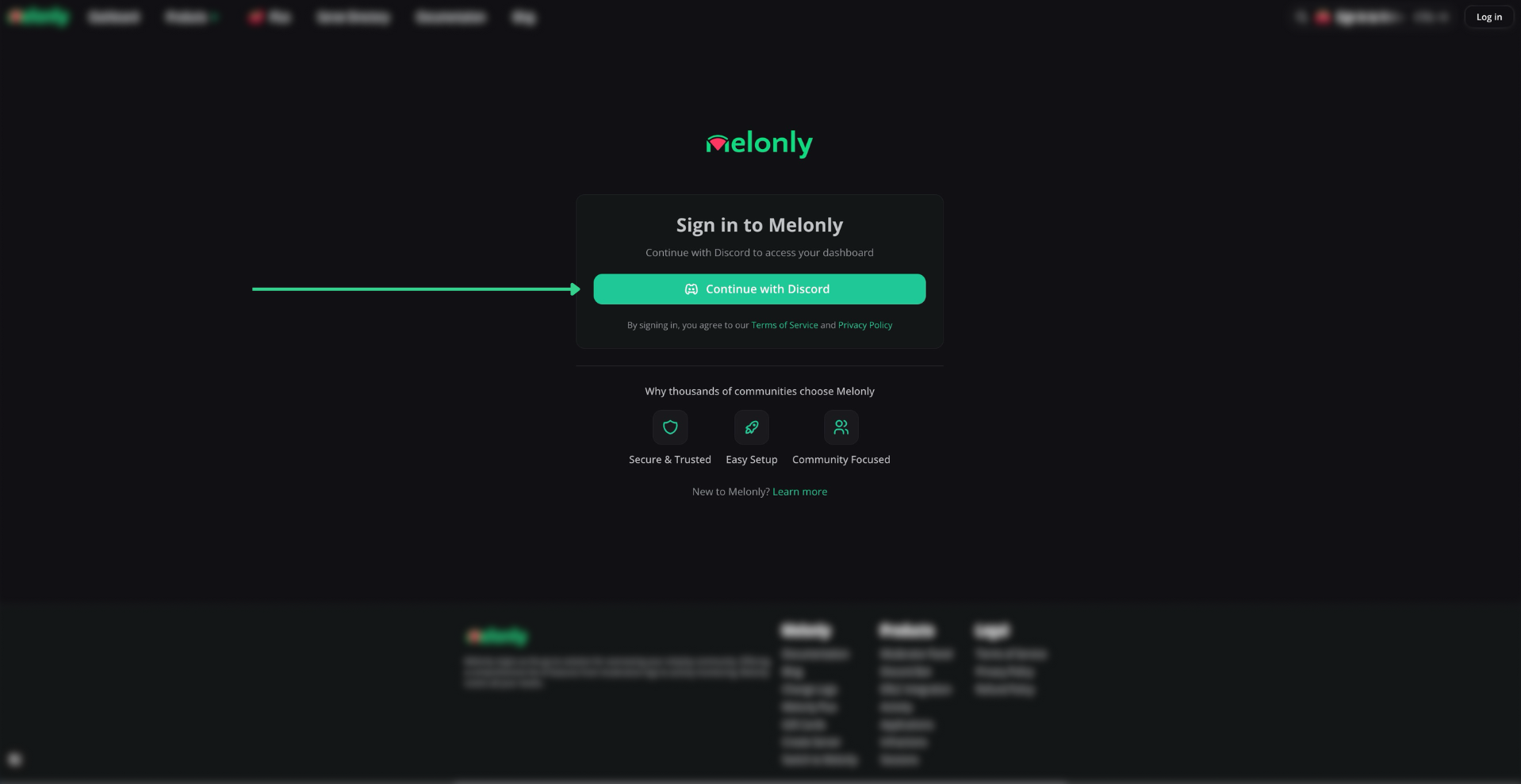
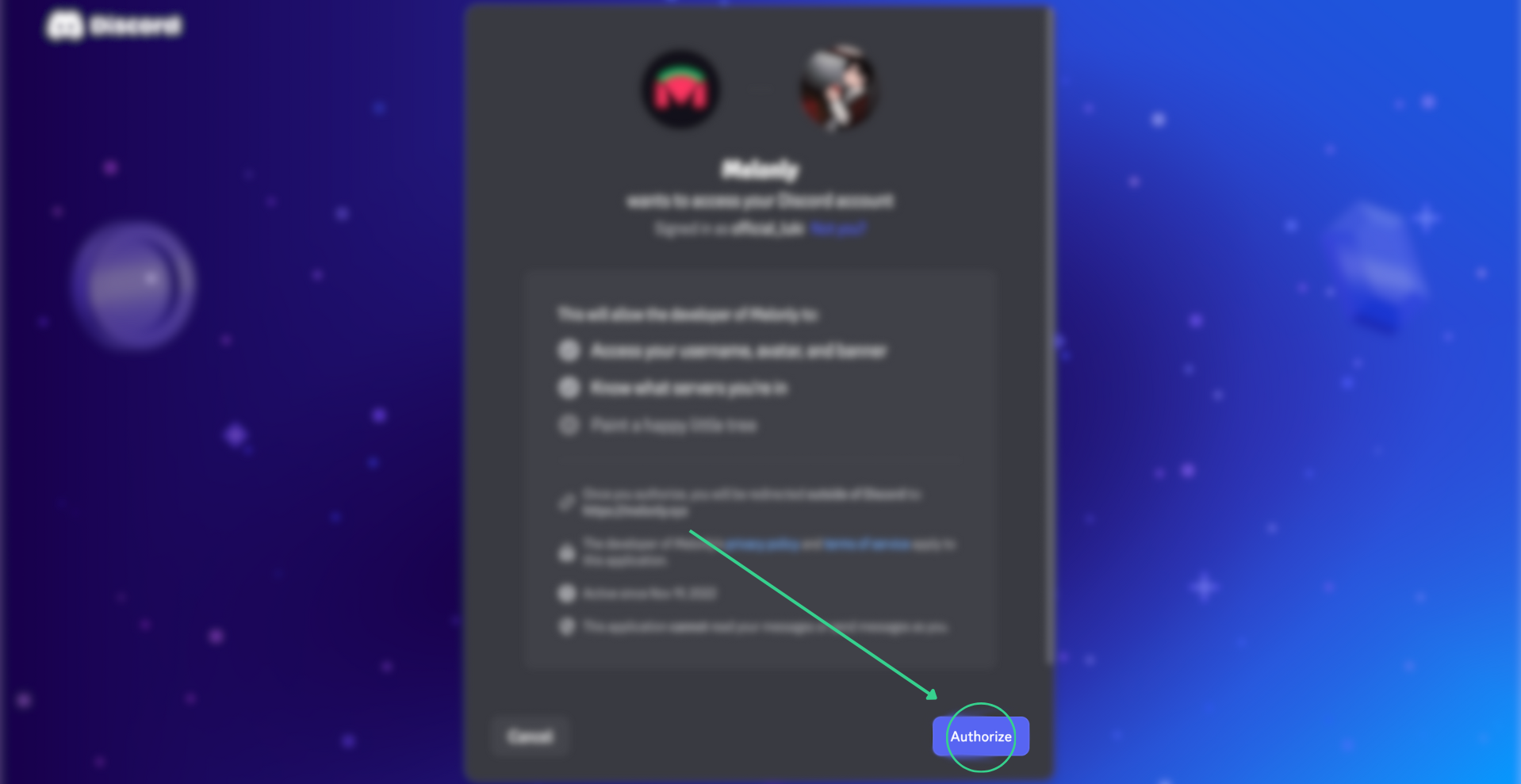
Click **Log in** in the top right of [melonly.xyz](https://melonly.xyz), then **Continue with Discord** and authorize Melonly.
 Click your avatar in the top right, or go to [melonly.xyz/my/account](https://melonly.xyz/my/account).
Collapse the sidebar with its toggle button or Ctrl+B (Cmd+B on Mac). The top of the sidebar has a menu for Account settings, Your servers, Melonly home and Sign out.
***
## Account
Your personal settings. See [Account Settings](/Guides/account/settings).
### Account Profile
Your preferred name and Discord profile. See [Profile](/Guides/account/settings#profile).
### Roblox Connection
Link, refresh or unlink your Roblox account. See [Roblox Connection](/Guides/account/settings#roblox-connection).
### Server Preferences
Default server, auto shifts and in-game `:log` options. See [Server Preferences](/Guides/account/settings#server-preferences).
### Direct Message Preferences
Choose which Discord DMs you get. See [Direct Message Preferences](/Guides/account/settings#direct-message-preferences).
### Security
Sign out, or sign out of every device. See [Signing Out](/Guides/account/settings#signing-out).
***
## Notifications
Your notification DMs and recent alerts. See [Notifications](/Guides/account/notifications).
### Preferences
Turn notification, product update and blog DMs on or off. See [Preferences](/Guides/account/notifications#preferences).
### Recent Notifications
Read your latest notifications. See [Recent Notifications](/Guides/account/notifications#recent-notifications).
***
## Manage LOA
Request and manage leaves of absence in any server or department. See [Manage LOA](/Guides/account/loa).
***
## Punishment Logs
See the moderation logs servers have made about you. See [Punishment Logs](/Guides/account/logs).
***
## Priority Requests
Ask staff for a priority scenario. See [Priority Requests](/Guides/account/priority).
### Submit a Request
Describe your scenario and pick the players involved. See [Submitting a Request](/Guides/account/priority#submitting-a-request).
***
## Infractions
Your points, infractions and suspensions, and how to appeal them. See [Infractions](/Guides/account/infractions) and [Appealing an Infraction](/Guides/account/appeals).
***
Still have questions? Join our Discord server for support from the Melonly Team.
This documentation is built and hosted on [Mintlify](https://mintlify.com), a developer documentation platform.
Click your avatar in the top right, or go to [melonly.xyz/my/account](https://melonly.xyz/my/account).
Collapse the sidebar with its toggle button or Ctrl+B (Cmd+B on Mac). The top of the sidebar has a menu for Account settings, Your servers, Melonly home and Sign out.
***
## Account
Your personal settings. See [Account Settings](/Guides/account/settings).
### Account Profile
Your preferred name and Discord profile. See [Profile](/Guides/account/settings#profile).
### Roblox Connection
Link, refresh or unlink your Roblox account. See [Roblox Connection](/Guides/account/settings#roblox-connection).
### Server Preferences
Default server, auto shifts and in-game `:log` options. See [Server Preferences](/Guides/account/settings#server-preferences).
### Direct Message Preferences
Choose which Discord DMs you get. See [Direct Message Preferences](/Guides/account/settings#direct-message-preferences).
### Security
Sign out, or sign out of every device. See [Signing Out](/Guides/account/settings#signing-out).
***
## Notifications
Your notification DMs and recent alerts. See [Notifications](/Guides/account/notifications).
### Preferences
Turn notification, product update and blog DMs on or off. See [Preferences](/Guides/account/notifications#preferences).
### Recent Notifications
Read your latest notifications. See [Recent Notifications](/Guides/account/notifications#recent-notifications).
***
## Manage LOA
Request and manage leaves of absence in any server or department. See [Manage LOA](/Guides/account/loa).
***
## Punishment Logs
See the moderation logs servers have made about you. See [Punishment Logs](/Guides/account/logs).
***
## Priority Requests
Ask staff for a priority scenario. See [Priority Requests](/Guides/account/priority).
### Submit a Request
Describe your scenario and pick the players involved. See [Submitting a Request](/Guides/account/priority#submitting-a-request).
***
## Infractions
Your points, infractions and suspensions, and how to appeal them. See [Infractions](/Guides/account/infractions) and [Appealing an Infraction](/Guides/account/appeals).
***
Still have questions? Join our Discord server for support from the Melonly Team.
This documentation is built and hosted on [Mintlify](https://mintlify.com), a developer documentation platform.