> ## Documentation Index
> Fetch the complete documentation index at: https://docs.melonly.com/llms.txt
> Use this file to discover all available pages before exploring further.
# Verification
> Verify your Roblox account with a server's Discord through Melonly, and fix the most common verification problems.
***
## What is Verification?
Verification links your Roblox account to a server's Discord. Once you verify, the server knows which Roblox account is yours and gives you its verified roles.
It's built into Melonly, so you don't need a separate verification bot. You only need a Melonly account and a linked Roblox account.
 ***
## 🧭 Quick Navigation
Fix "You are not allowed to use this application" and check your country's minimum age.
For server admins: verification types, roles and requirements.
***
## How to Verify
Servers start verification in different ways: a button in a channel, a welcome message, a DM when you join or the `/verify` command. Each opens your verification page.
Click the button or link the server gave you. Sign in to Melonly with Discord if asked.
If you haven't linked Roblox yet, click **Link Account** and sign in to Roblox. If the wrong account shows, click **Not you?** to switch.
Click **Verify**. Many servers verify you automatically as soon as the page opens.
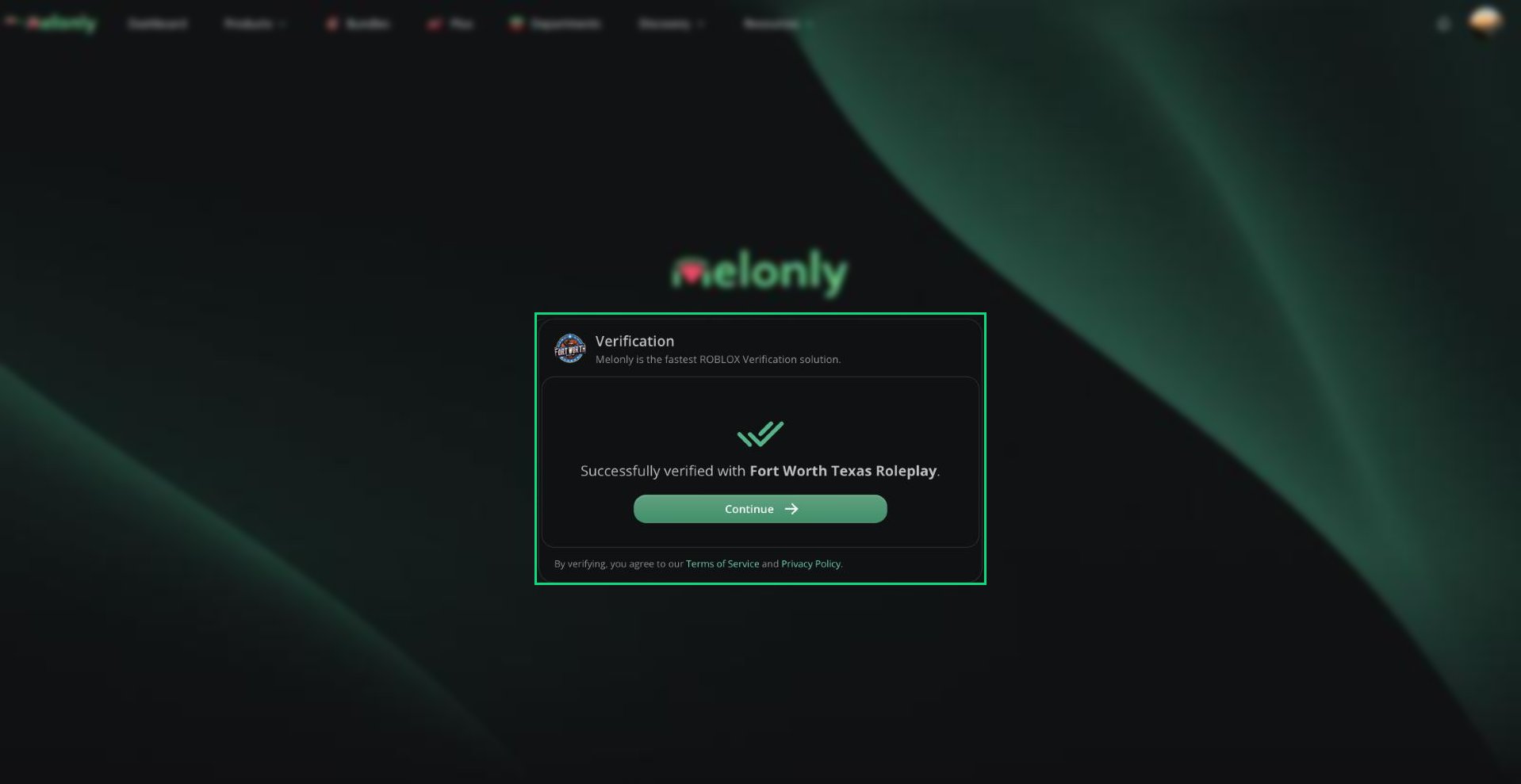
When it works, you see a success message and Melonly:
* Gives you the server's verified roles.
* Removes its unverified roles.
* Sets your Discord nickname to your Roblox username, if the server has that turned on.
***
## Troubleshooting
You need to be in the server's Discord before you can verify. Click **Join Server**, join in Discord, then come back. The page carries on by itself once you've joined. If it doesn't, click **continue** after a few seconds.
The server has rules you don't meet yet. The page lists each one, for example being in a Roblox group (sometimes at a minimum rank or exact role), or your Roblox account being a certain number of days old. Meet the requirement, then try again.
The server has turned verification off, or turned off this verification type. Ask the server's staff.
Your Roblox account doesn't meet the age requirement. See [Age Requirements](/Guides/verification/age-requirements).
Click **Not you?** on the verification page, or change it in [Account Settings](/Guides/account/settings#roblox-connection).
***
Still have questions? Join our Discord server for support from the Melonly Team.
This documentation is built and hosted on [Mintlify](https://mintlify.com), a developer documentation platform.
***
## 🧭 Quick Navigation
Fix "You are not allowed to use this application" and check your country's minimum age.
For server admins: verification types, roles and requirements.
***
## How to Verify
Servers start verification in different ways: a button in a channel, a welcome message, a DM when you join or the `/verify` command. Each opens your verification page.
Click the button or link the server gave you. Sign in to Melonly with Discord if asked.
If you haven't linked Roblox yet, click **Link Account** and sign in to Roblox. If the wrong account shows, click **Not you?** to switch.
Click **Verify**. Many servers verify you automatically as soon as the page opens.
When it works, you see a success message and Melonly:
* Gives you the server's verified roles.
* Removes its unverified roles.
* Sets your Discord nickname to your Roblox username, if the server has that turned on.
***
## Troubleshooting
You need to be in the server's Discord before you can verify. Click **Join Server**, join in Discord, then come back. The page carries on by itself once you've joined. If it doesn't, click **continue** after a few seconds.
The server has rules you don't meet yet. The page lists each one, for example being in a Roblox group (sometimes at a minimum rank or exact role), or your Roblox account being a certain number of days old. Meet the requirement, then try again.
The server has turned verification off, or turned off this verification type. Ask the server's staff.
Your Roblox account doesn't meet the age requirement. See [Age Requirements](/Guides/verification/age-requirements).
Click **Not you?** on the verification page, or change it in [Account Settings](/Guides/account/settings#roblox-connection).
***
Still have questions? Join our Discord server for support from the Melonly Team.
This documentation is built and hosted on [Mintlify](https://mintlify.com), a developer documentation platform.