> ## Documentation Index
> Fetch the complete documentation index at: https://docs.melonly.com/llms.txt
> Use this file to discover all available pages before exploring further.
# Map Editor
> Draw custom areas on the ER:LC map for Area of Play, team jurisdictions, safe zones and CAD jurisdictions.
***
## What is the Map Editor?
The map editor is where you draw custom areas on the ER:LC map. The same editor is used for every location feature in Melonly.
| Editor | Opened from | Used for |
| - | - | - |
| Area of Play Editor | [Sessions settings](/Dashboard/sessions#area-of-play) | Where roleplay is allowed during a session |
| Jurisdiction Editor | [Team Jurisdictions](/Dashboard/erlcintegration/api/teamjurisdictions) | Where each team is allowed to operate |
| Safe Zone Editor | [Safe Zone Enforcement](/Dashboard/erlcintegration/api/safezoneenforcement) | Areas where killing another player is punished |
| Agency and Subdivision Jurisdiction | [CAD agencies](/CAD/Admin/agencies-panels#jurisdiction) | The area a CAD agency or subdivision covers |
 ***
## Creating an Area
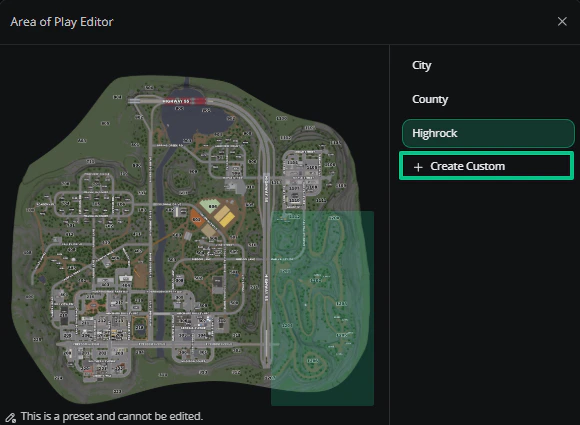
The list on the right shows your areas. Presets, like City or Police, can be viewed but not edited.
Click **Create Custom**. A new area is added with one shape on the map.
Drag the shape to move it, and drag its corner points to resize or reshape it.
Use **Add Rectangle** or **Add Polygon** to add another shape to the same area. An area can be made of several shapes.
Close the editor, then save the settings page it was opened from.
***
## Editing Shapes
Click a shape to select it, then:
| Action | How |
| - | - |
| Move or resize | Drag the shape or its corner points |
| Turn off snapping | Hold Shift while dragging a point |
| Add a polygon point | Hover near an edge and drag the point that appears. Polygons can have up to 32 points. |
| Remove a polygon point | Hold Ctrl and click the point. Polygons need at least 3 points. |
| Delete a shape | Click the Delete boundary icon |
| Zoom | Scroll, pinch or use the zoom buttons on the map |
***
## Managing Areas
Select an area in the list to see its buttons.
***
## Creating an Area
The list on the right shows your areas. Presets, like City or Police, can be viewed but not edited.
Click **Create Custom**. A new area is added with one shape on the map.
Drag the shape to move it, and drag its corner points to resize or reshape it.
Use **Add Rectangle** or **Add Polygon** to add another shape to the same area. An area can be made of several shapes.
Close the editor, then save the settings page it was opened from.
***
## Editing Shapes
Click a shape to select it, then:
| Action | How |
| - | - |
| Move or resize | Drag the shape or its corner points |
| Turn off snapping | Hold Shift while dragging a point |
| Add a polygon point | Hover near an edge and drag the point that appears. Polygons can have up to 32 points. |
| Remove a polygon point | Hold Ctrl and click the point. Polygons need at least 3 points. |
| Delete a shape | Click the Delete boundary icon |
| Zoom | Scroll, pinch or use the zoom buttons on the map |
***
## Managing Areas
Select an area in the list to see its buttons.
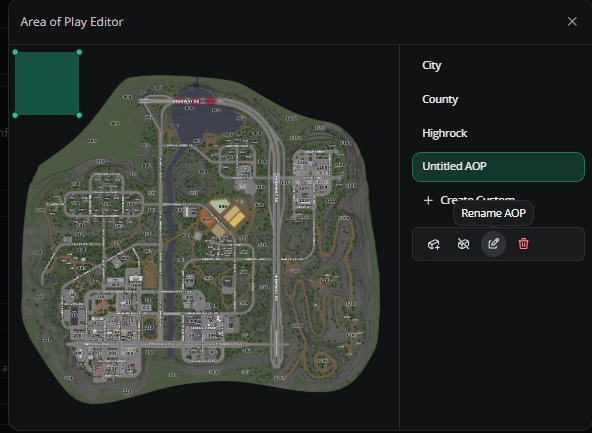 | Button | What it does |
| - | - |
| Rename | Gives the area a new name |
| Delete | Removes the whole area |
| Open AOP Image | Area of Play only. Opens an image of the map with your area drawn on it, ready to share with players. |
***
Still have questions? Join our Discord server for support from the Melonly Team.
This documentation is built and hosted on [Mintlify](https://mintlify.com), a developer documentation platform.
| Button | What it does |
| - | - |
| Rename | Gives the area a new name |
| Delete | Removes the whole area |
| Open AOP Image | Area of Play only. Opens an image of the map with your area drawn on it, ready to share with players. |
***
Still have questions? Join our Discord server for support from the Melonly Team.
This documentation is built and hosted on [Mintlify](https://mintlify.com), a developer documentation platform.