
What is the Mod Panel?
The Mod Panel is where your staff team moderates day to day. It brings shifts, moderation logs, live in-game activity and your server’s tools together on one screen. New logs, game events and staff changes show up without refreshing.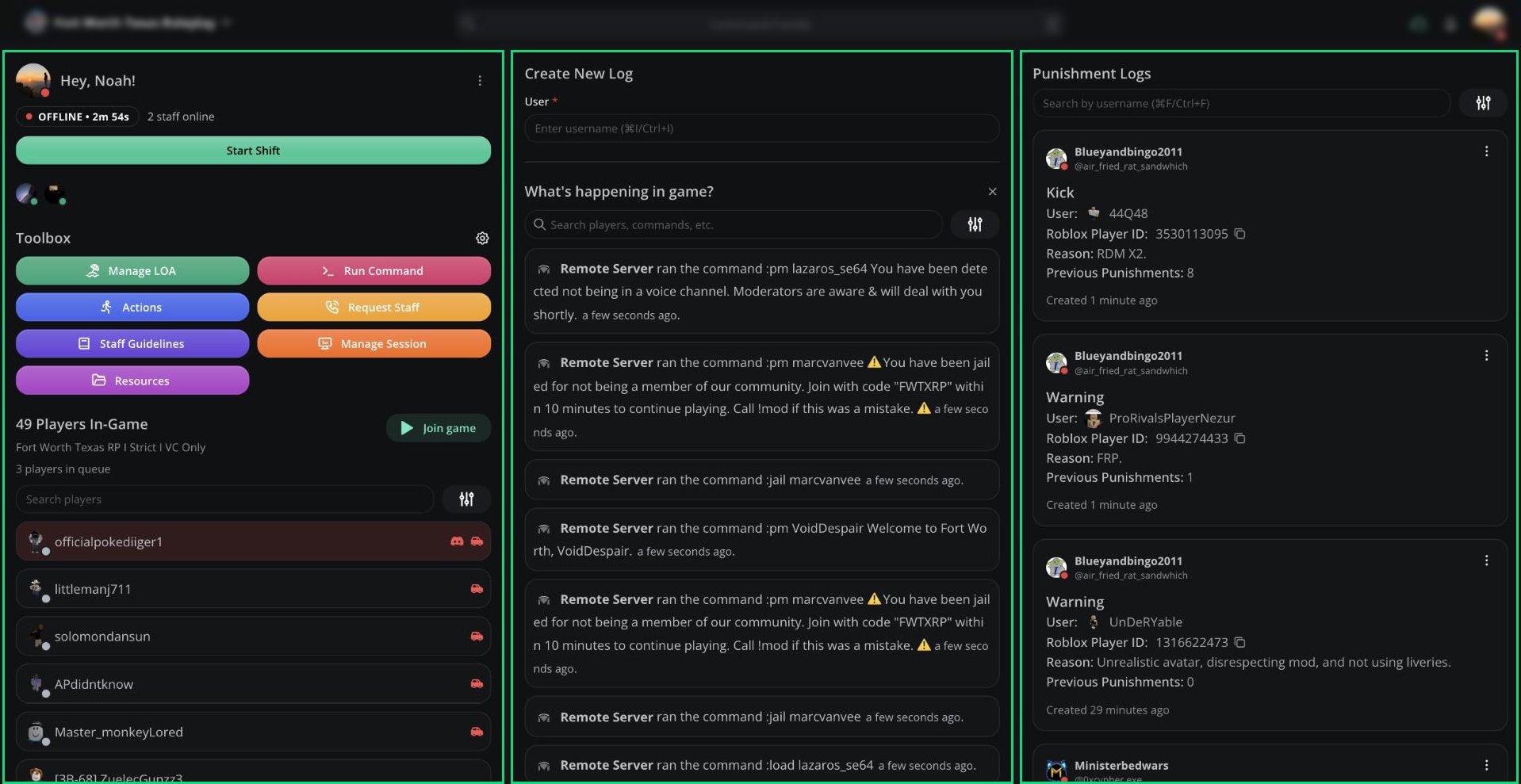
The Mod Panel
🧭 Quick Navigation
Shifts
Clock in, take breaks and track your activity.
Moderation Logs
Create, search and manage punishment logs.
ER:LC Tools
Players, live game logs and remote commands.
Toolbox
LOA, actions, sessions, staff requests and more.
Command Palette
Do almost anything from the keyboard.
Keyboard Shortcuts
Every shortcut on the panel.
Open the Mod Panel
You can open the panel from any of these:- Click Moderator Panel in your server’s dashboard sidebar.
- Click Moderator panel on a server card at melonly.xyz/dashboard.
- Go to Dashboard → Panel and click Open moderator panel or Copy Link.
- Go straight to melonly.xyz/panel.
Panel Layout
The panel is split into three columns.
When you open a player’s User Panel, the left column shows their profile and the right column shows only their logs. See User Panel.
Resizing Columns
Drag the handles between columns to resize them. Your widths are remembered on this device. To reset them, double-click a handle or pressCtrl + Shift + R (⌘ + Shift + R on Mac).
The Players list, the game feed and the Run Command button only appear when your server has the ER:LC integration set up.
Header
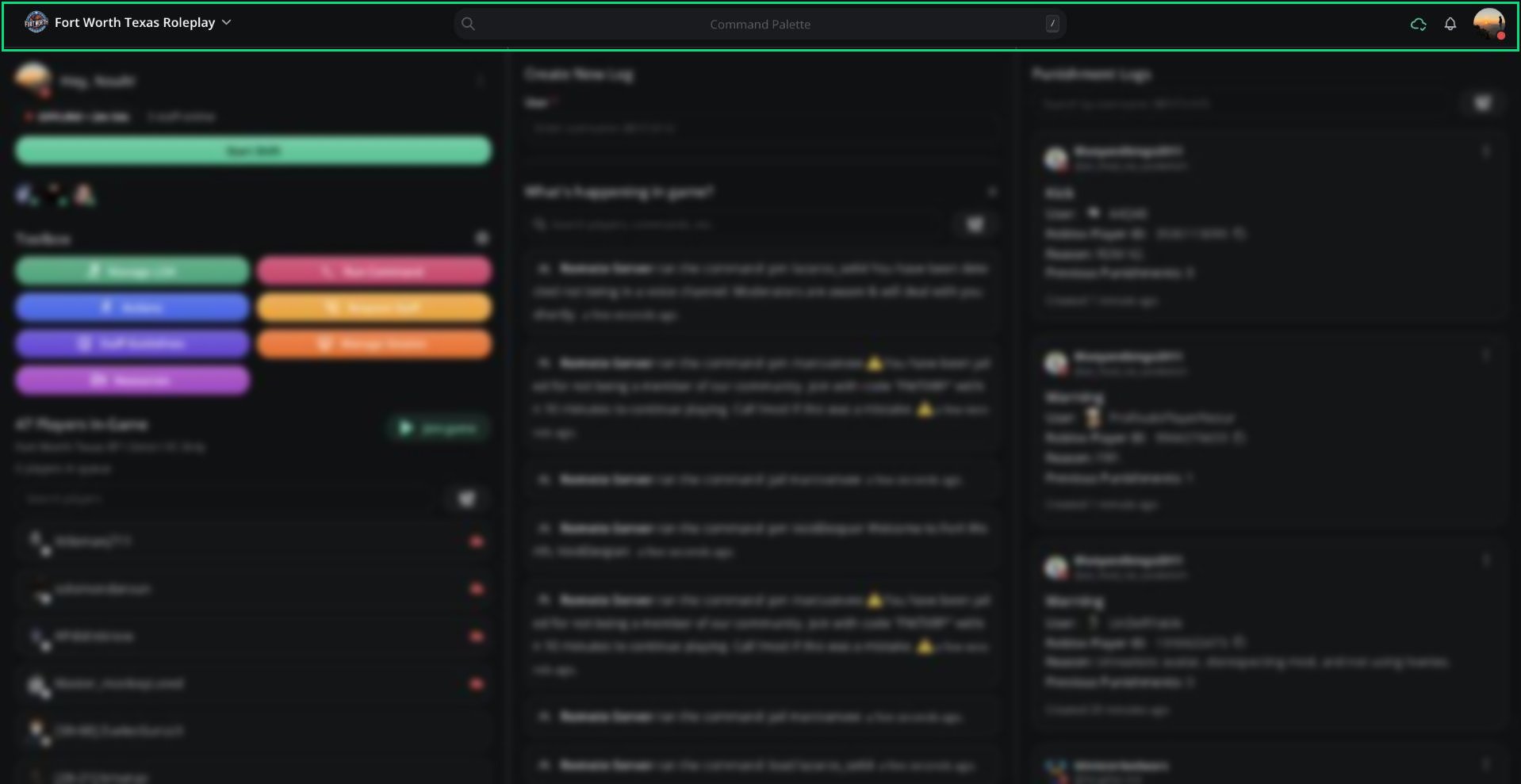
Panel header
A thin line under the header turns green while you’re on shift and orange while you’re on break.
Server Switcher
Click the server name in the top-left to open the server switcher.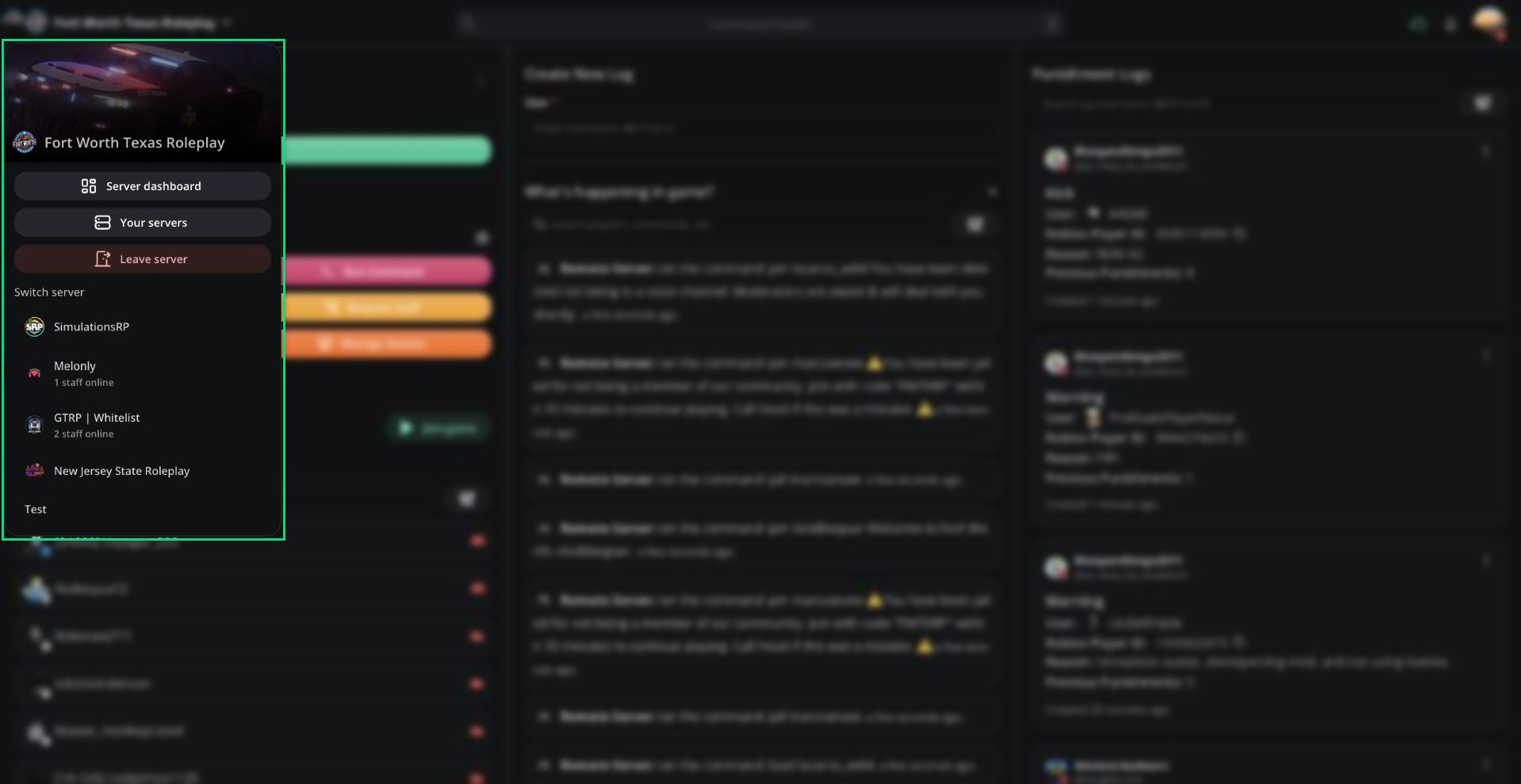
Server switcher
Mobile
On phones, the columns stack into one page and a bar appears at the bottom:- Home takes you back to the top.
- Players and Game jump to the player list and game feed (ER:LC servers only).
- Logs jumps to Punishment Logs.
Need help?
Still have questions? Join our Discord server for support from the Melonly Team.