
What You Need
- A parent server where you’re the owner or have the Administrator permission.
- A free department slot on that server, or be ready to buy a plan. See Plans & Billing.
- An icon for the department.
- Optionally, a Discord server for the department where you have the Discord Administrator permission.
Create a Department
Start from your dashboard by clicking New, then Department. You can also click Create department in Departments → Overview on the parent server, which picks that server for you.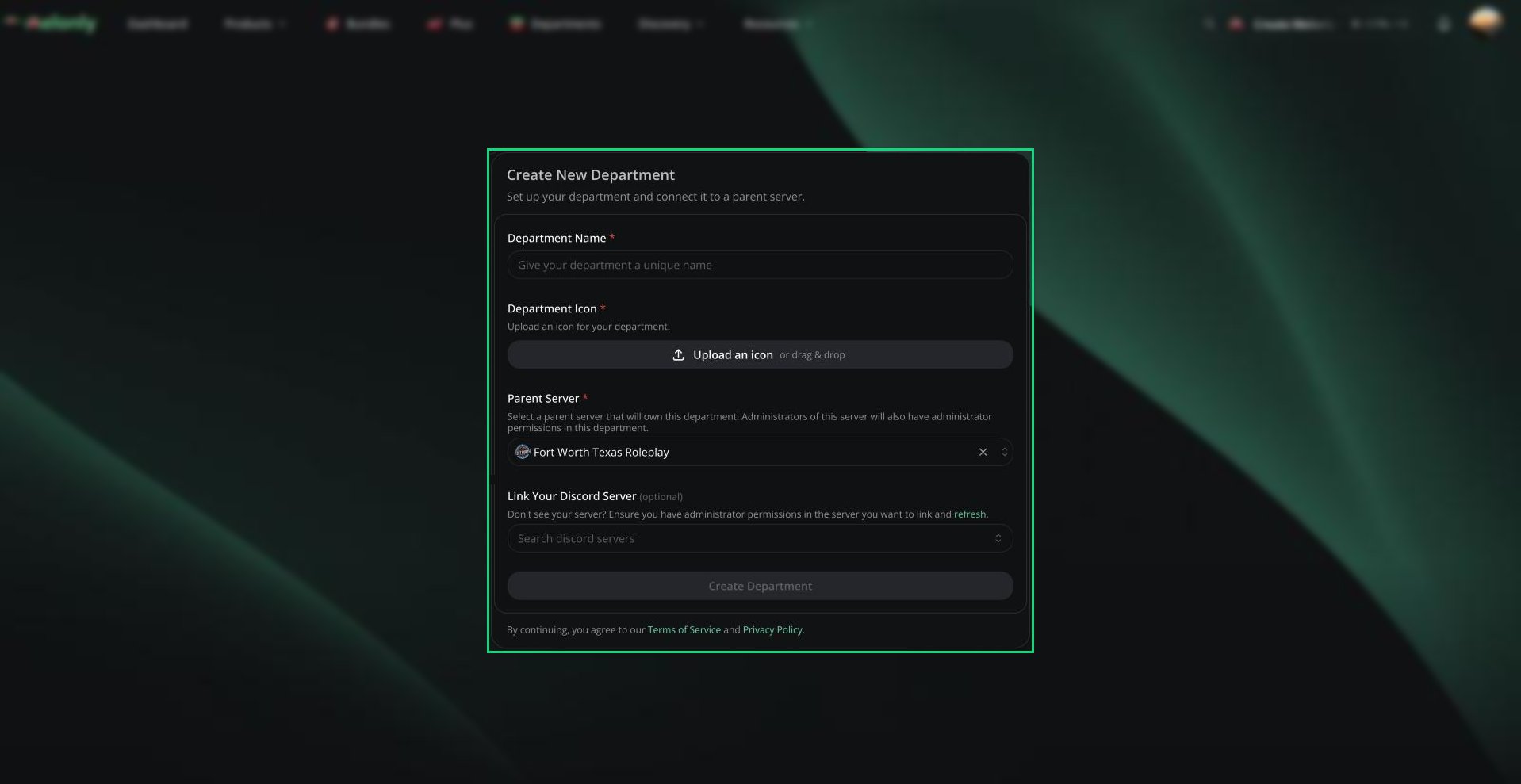
Create New Department
1
Fill in the Details
Enter a name, upload an icon, pick the parent server and, if you like, a Discord server.
2
Click Create Department
If the parent server has no free slot, you’ll be asked to buy a plan first.
3
Invite the Bot If Asked
If the Melonly bot isn’t in your Discord server yet, you’re sent to Discord to add it, then brought back.
4
Finish the Setup Wizard
You land on the department’s Home page and the setup wizard opens.
A new department starts with you as its only member, one rank called First Rank with no permissions and a random join code. Rename that rank and set its permissions in Ranks.
No Free Slot
If the parent server has no free slot, the create page shows the Departments plans.1
Subscribe
Pick monthly or annual billing and a plan. Checkout opens in a new tab.
2
Activate It on the Parent Server
Click Manage subscriptions on your dashboard and activate the plan on your parent server. See Activate a Subscription.
3
Create the Department
Come back and click Create Department.
Onboarding Wizard
The setup wizard opens for administrators right after the department is created.1
Pick a Department Type
Law Enforcement, Fire, EMS, DOT, Dispatch or Civilian. This decides which CAD panel your members use. See Department Types.
2
Link Discord (Optional)
Pick a Discord server and a shouts channel. Shouts then sync both ways between Melonly and that channel.
3
Invite Your Members
Copy your join link and share it. See Joining a Department.
4
Save
Click Save to finish.
Next Steps
Joining a Department
Members join with your join link or join code. See Joining a Department for how requests and auto-join work.Convert an Existing Server
Already running a team as its own Melonly server? You can turn it into a department and keep its members, roles and most data. See Converting a Server.Need help?
Still have questions? Join our Discord server for support from the Melonly Team.