
What is the Home Page?
Home is the first page you see when you open a department. It brings your day-to-day tools together: shouts, your shift buttons, your activity quota, pinned resources, actions and who’s on duty right now.
The department Home page
🧭 Quick Navigation
Shouts
Post announcements and sync them with Discord.
Roster
See every member, their rank and their details.
Activity
Manage activity waves, shifts and quotas.
Pinned Buttons
Choose which buttons appear on Home.
Getting Around
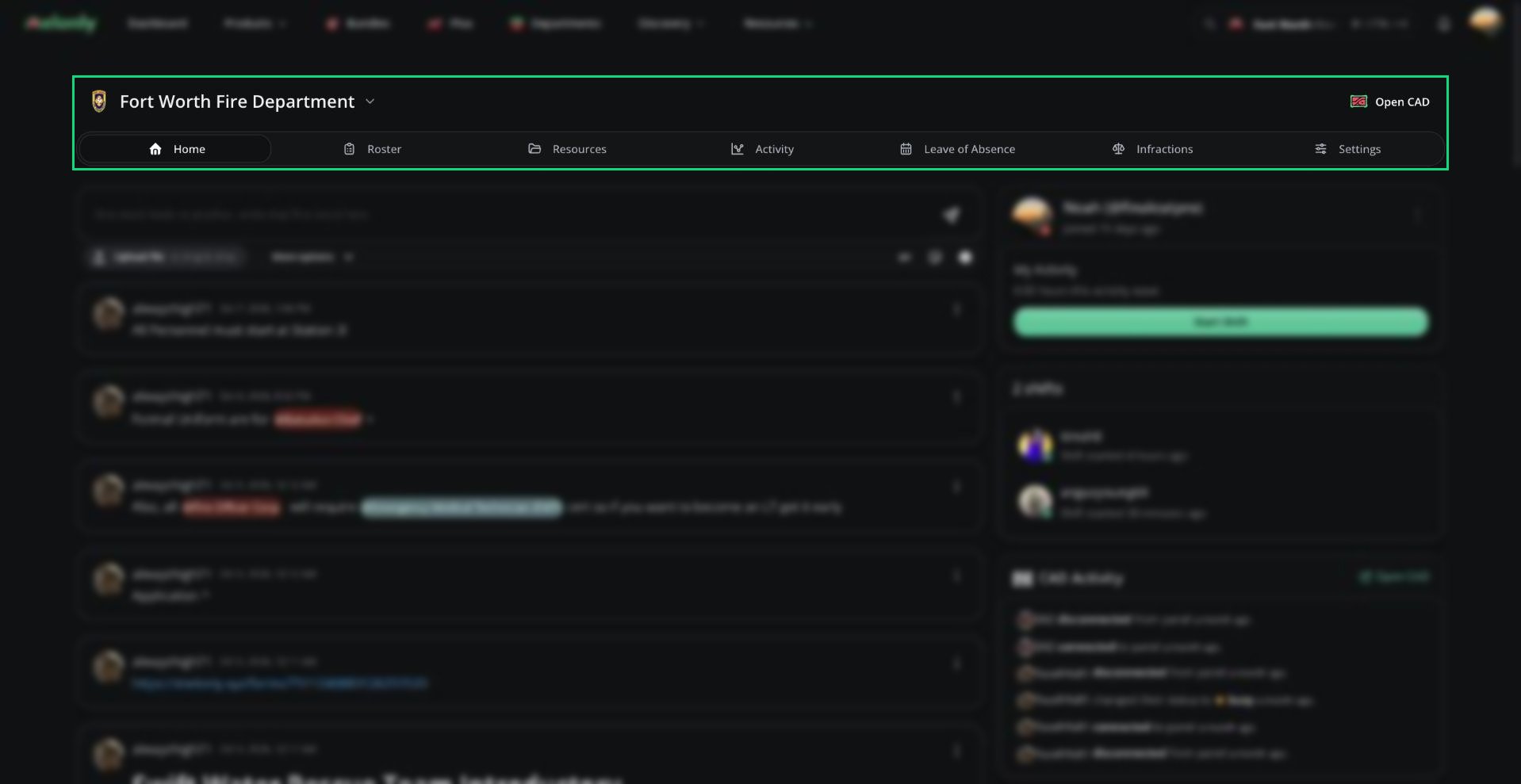
Department header and tabs
Tabs
The tabs under the department name take you to each area. You only see the tabs your rank has permission to use (see Who Can Access What). On mobile, find them in the site menu instead.Switching Departments
Click the department name in the header to see every department you belong to. Pick one to jump to the same page in that department.Open CAD
The Open CAD button opens this department’s Melonly CAD panel in a new tab. It shows when the server has CAD enabled, the department type has a CAD panel and you have access to that panel.Deactivated Departments
If a department’s subscription lapses or a server administrator deactivates it, its pages are locked and its actions and Discord shout sync stop. See Plans & Billing to reactivate it.Your Profile and Shifts

The right column
Starting and Ending Shifts
If the department uses shift types, you pick one when starting. Types you don’t have the rank or role for are greyed out.
When you end a shift, the shift report form opens if your shift type has one. Your on-shift Discord role, nickname prefix and shift logs update too, if they’re set up in Discord Integration.
You can’t start a shift if the Max On Shift limit is reached, or if you’re on leave and the department doesn’t allow shifts during leave.
Actions
If the department has Actions, click Actions under your shift buttons to open Run & View Actions.- Click an action to run it. If it has a form, you fill that in first.
- Actions limited to certain ranks or roles are greyed out if you don’t have them.
- Below the actions is the history of past runs. Filter it by member or action, or view each run’s form response.
- Deleting a run needs the Delete Actions permission.
Pinned Buttons
Pinned buttons are shortcuts to the links and resources your department uses most. Administrators set them up in General Settings → Pinned Buttons.
Links to sites other than Melonly, Roblox, Discord and GitHub ask you to confirm before leaving. Hold
Ctrl (or ⌘) while clicking a form or document to open it in a new tab instead.
Who’s On Duty
The on-duty card lists every member currently on shift or on break, and how long ago they started. Click a member to see their rank, Discord details, activity this wave and a link to them on the Roster. Members with Activity Manager can end someone’s shift or break from this popover, as long as that member ranks below them.CAD Activity
If the server has Melonly CAD enabled, the CAD Activity card shows recent events from this department’s CAD panel.Need help?
Still have questions? Join our Discord server for support from the Melonly Team.