
What is the Roster?
The Roster is your department’s chain of command. Ranks are listed from highest to lowest, with each member placed in their rank. Every member can view the Roster. What you can change depends on your permissions, and you can only act on members ranked below you.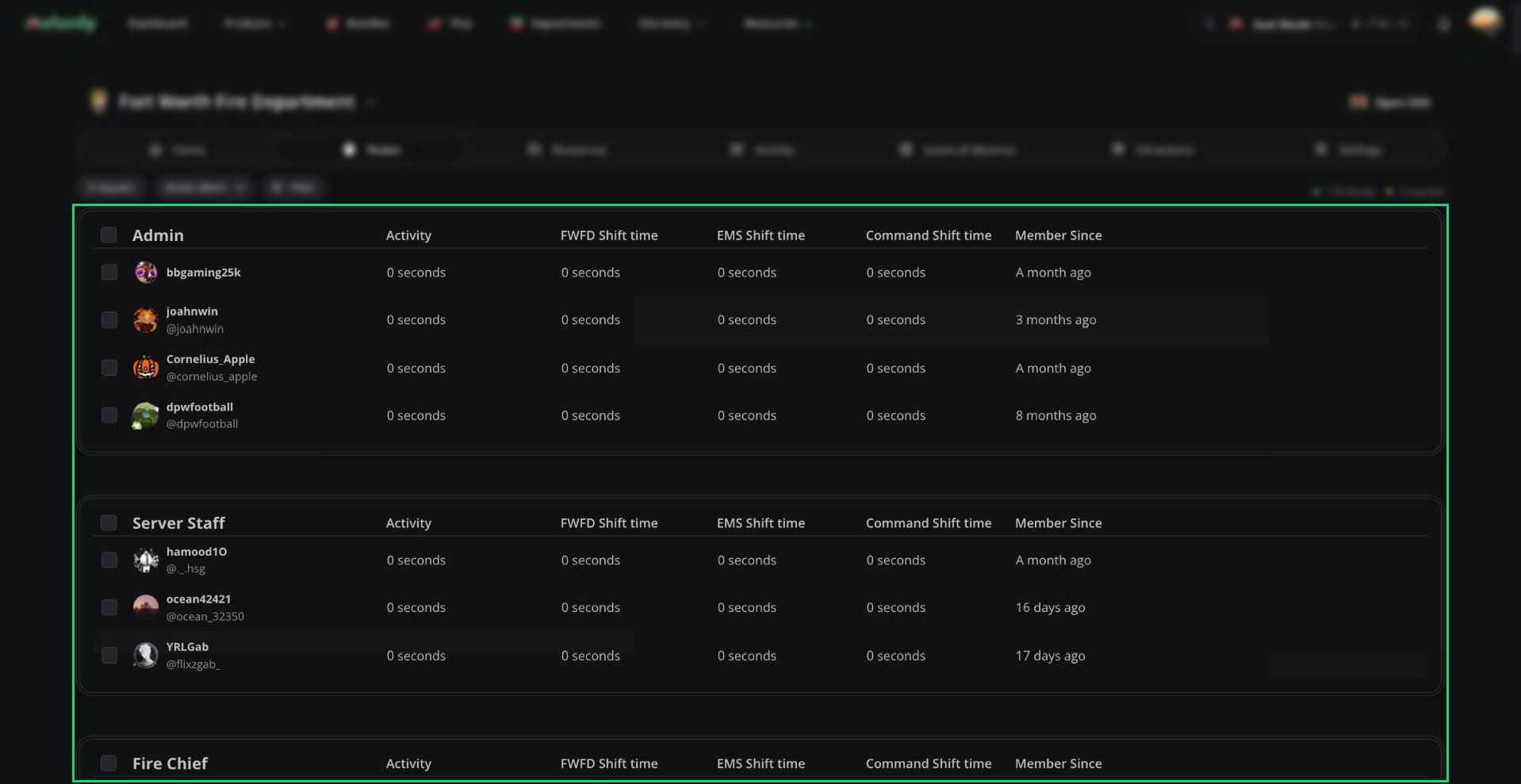
The Roster
🧭 Quick Navigation
Ranks
Create, order and delete ranks, then link Discord roles.
Promotions & Demotions
Change ranks and announce it with a shout and DM.
Ranks & Permissions
What each permission allows and how the hierarchy works.
Reading the Roster
Every member has exactly one rank, and can also hold any number of roles. Column order and visibility are set in Roster Settings, where you can also add custom columns for things like callsigns or certifications.Columns
Columns
A calendar icon on a row means the member is on a Leave of Absence.
Standing
Standing
Filters and Search
Filters and Search
Click Filter to narrow the roster by Activity, Status (online, on break, offline), Standing or Roles. Click the Active or Inactive count in the toolbar to filter by it.Press
Ctrl + F (⌘ + F on Mac) to search by name. While a filter or search is active, you can’t drag members or reorder ranks.Member Actions
Right-click a member to see what you can do. Only actions you’re allowed to use appear.
With Manage Members, you can also tick the checkbox next to several members (or a whole rank) and use Perform action to act on all of them at once. You can also click a custom column cell to edit it.
Moving Members
Drag a member to reorder them within a rank, or drop them into another rank to change their rank. This needs Manage Members. Only Administrators can drop members into any rank; everyone else can only use ranks below their own.Removing Members
To remove someone, terminate them. Members are also removed automatically if they lose their linked rank role in Discord, or leave your Discord server while Discord Autokick is on.Roles
Roles group members and grant extra permissions on top of their rank. Manage them under Department Roles in Roster Settings, or click Roster admin, then Create Role. Creating roles needs Administrator. Giving roles to members needs Manage Members. You can have up to 20 roles, and roles linked to a Discord role are assigned automatically, so you can’t tick them by hand.Review Membership Requests
People who use your join link or code send a request you need to accept. Click the requests button above the roster to review them. This needs Manage Members.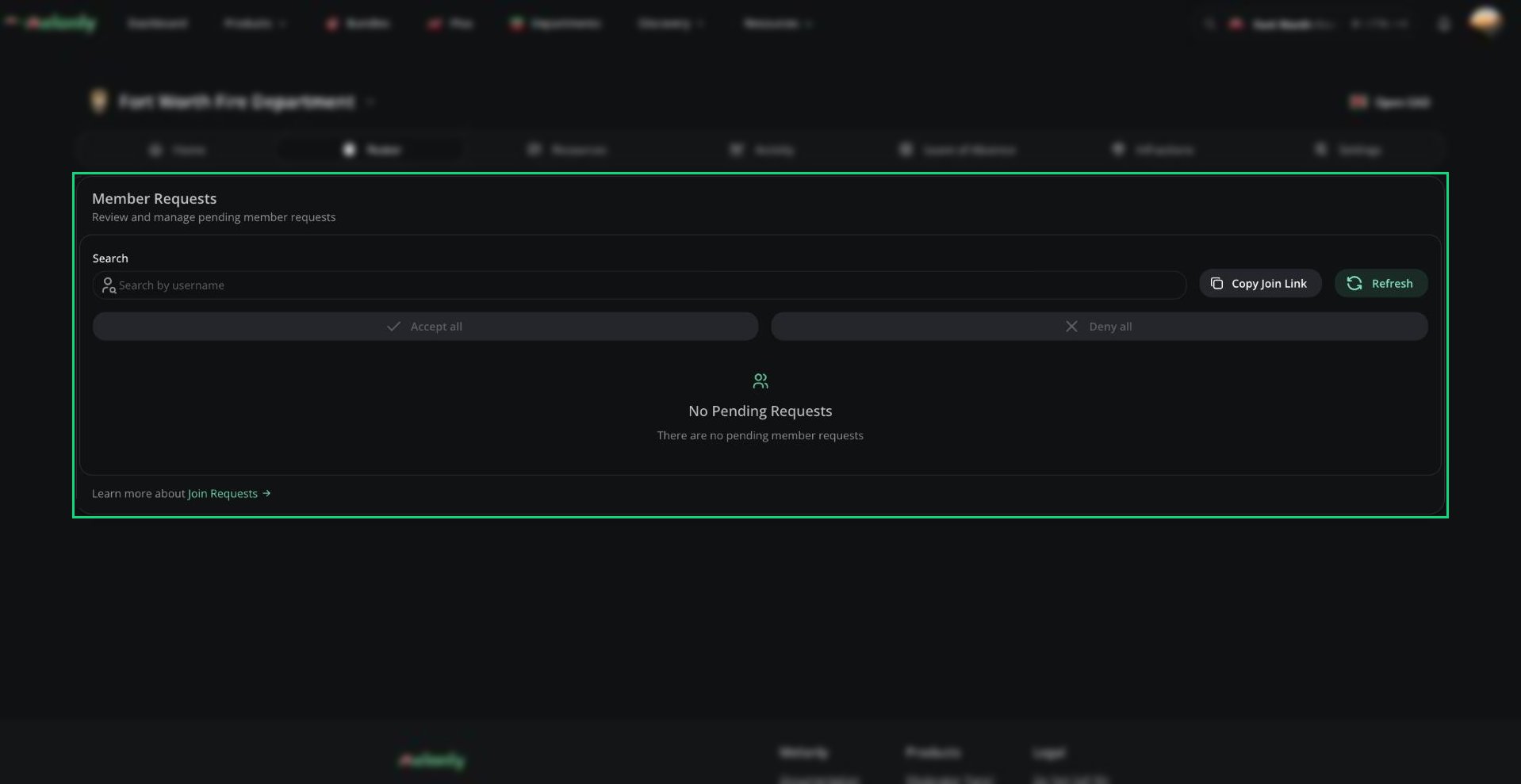
Member Requests
Need help?
Still have questions? Join our Discord server for support from the Melonly Team.