
Roles control what each staff member can do across your dashboard, the Mod Panel and the ER:LC integration.
Create a Role
Open the Roles page in the dashboard sidebar and click Create Role. Name the role and choose its permissions. With Melonly Plus, you can link a Discord role so members are added automatically.Permissions
Page Permissions
Page permissions let a role use a dashboard page. They need Plus.Edit a Role
Open the Roles page and click a role. You can change everything about it, including the name. Click View Members to see who has the role.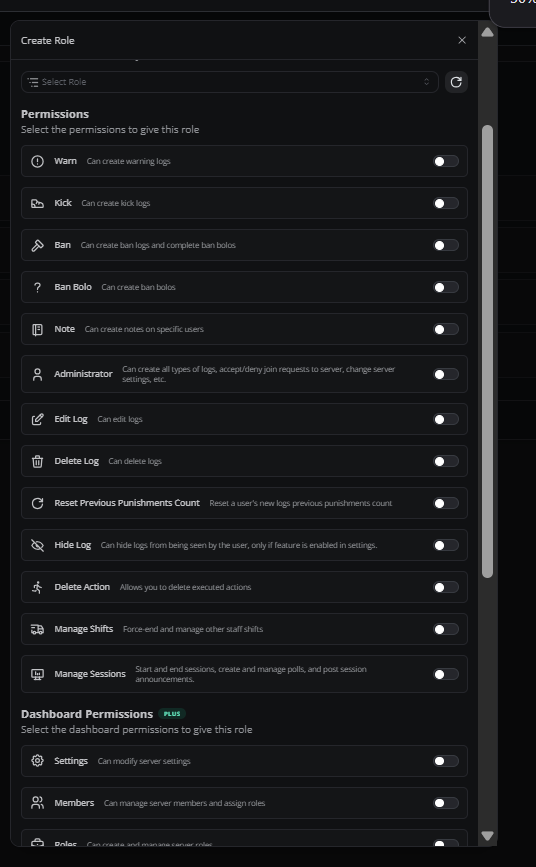
Manage roles
Role Hierarchy
Roles work like Discord’s: a role higher in the list outranks the roles below it. Members at the same level can’t approve each other’s LOAs or moderate each other.Need help?
Still have questions? Join our Discord server for support from the Melonly Team.