
What is the General Page?
The General page under Settings holds your server-wide settings. Each card has its own Save button. Only the Server Owner, members with Administrator, or Plus servers’ members with the Settings permission can edit these. Mod Panel options like presets and staff requests are on Panel Settings.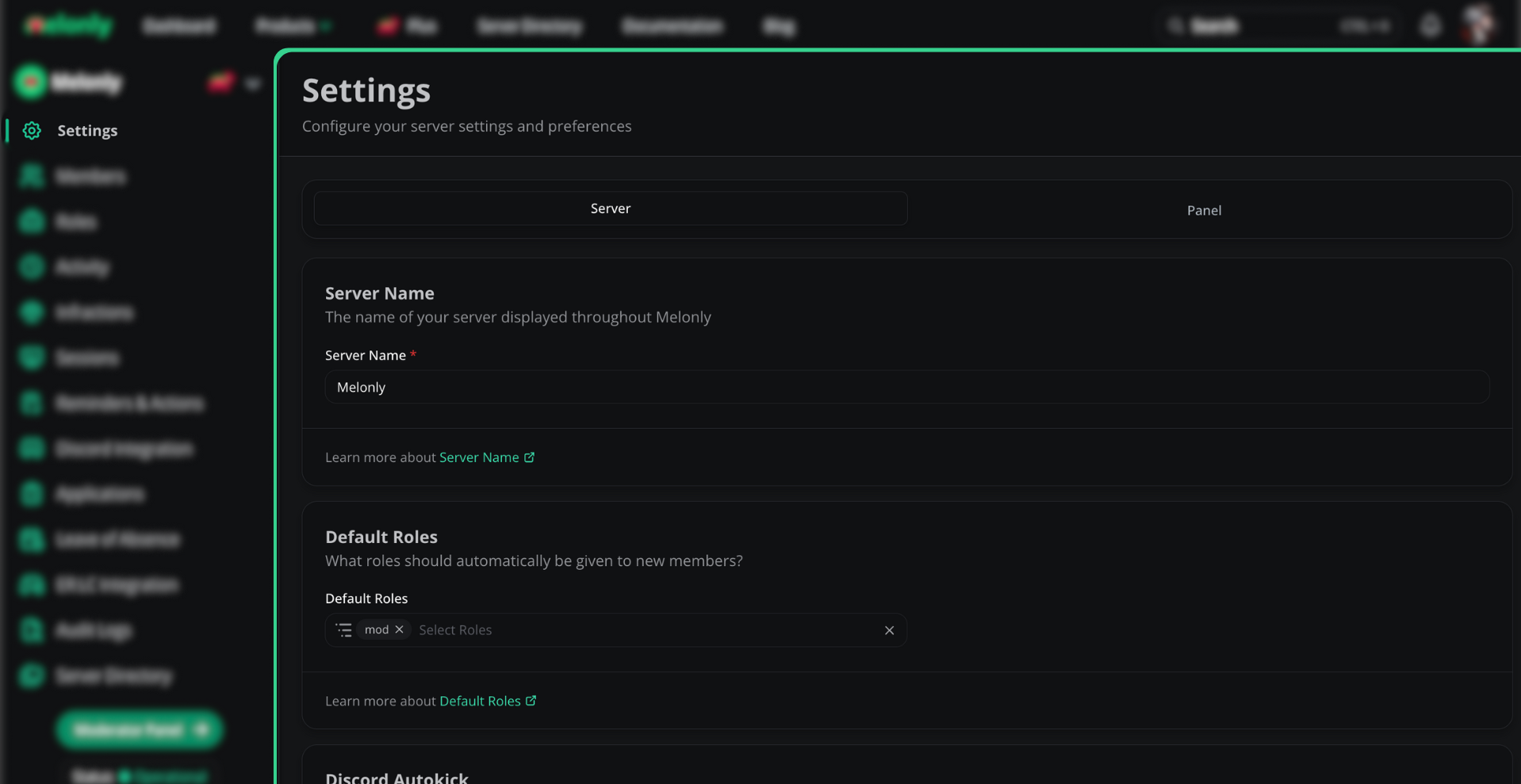
General settings
Server Name
Change your dashboard’s display name under Server Name. The usual naming guidelines apply.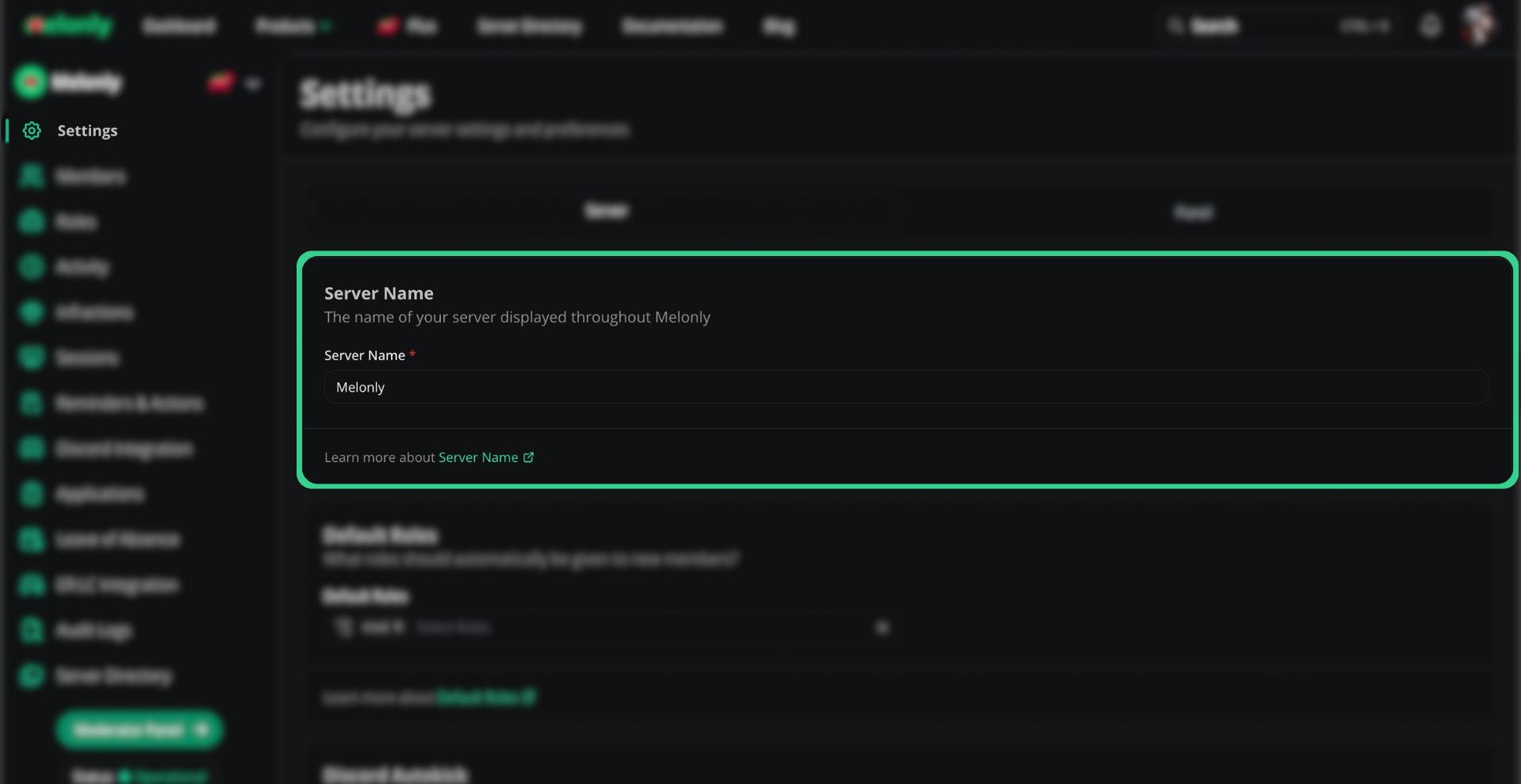
Server Name
Server Icon
Your icon is synced from your linked Discord server. Click Sync from Discord to pull the latest icon after you change it in Discord.Default Roles
Default roles are given to every new member automatically, which speeds up onboarding. Add as many as you like, or none.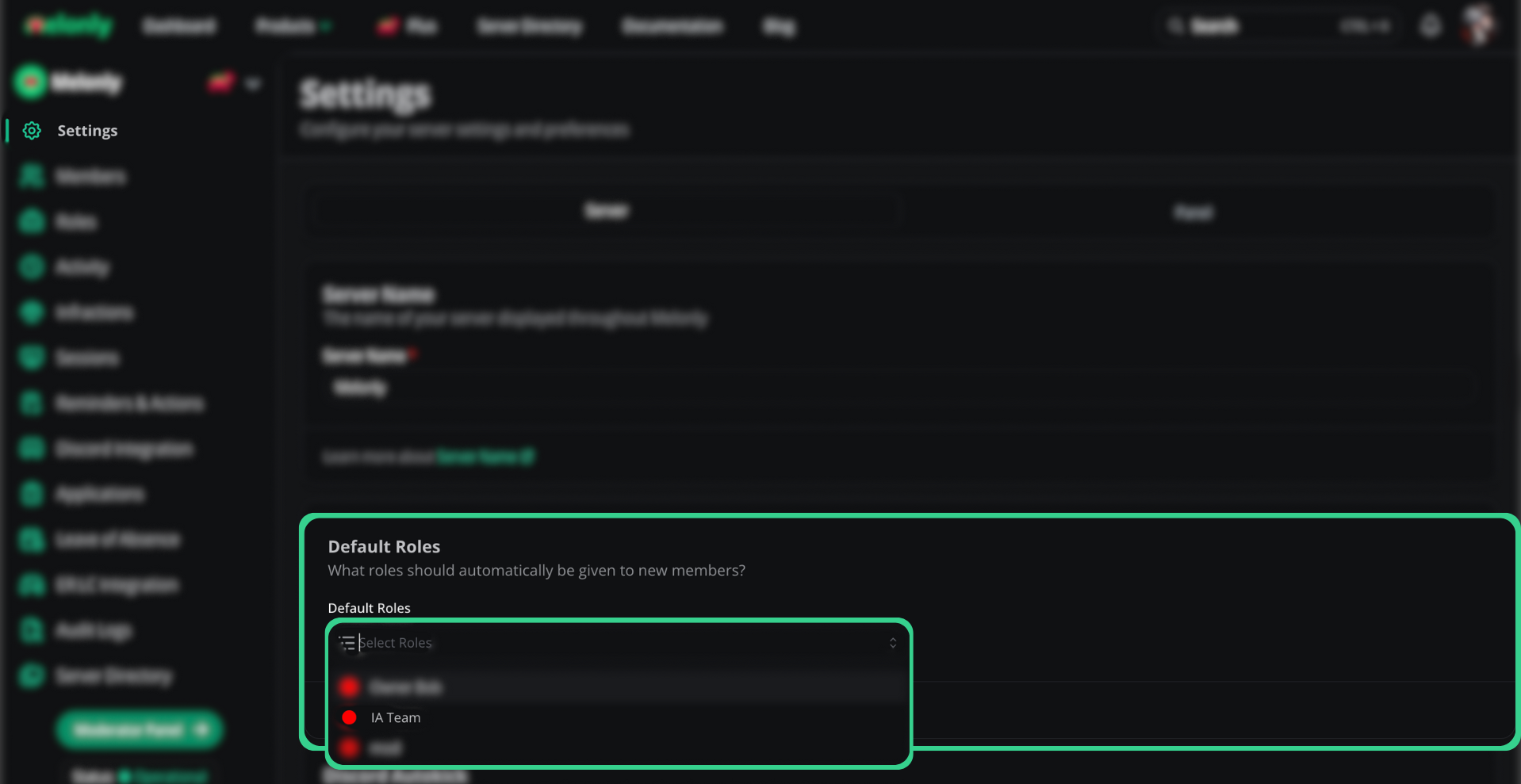
Default Roles
Discord Autokick
Removes members from your Melonly server when they leave your linked Discord server.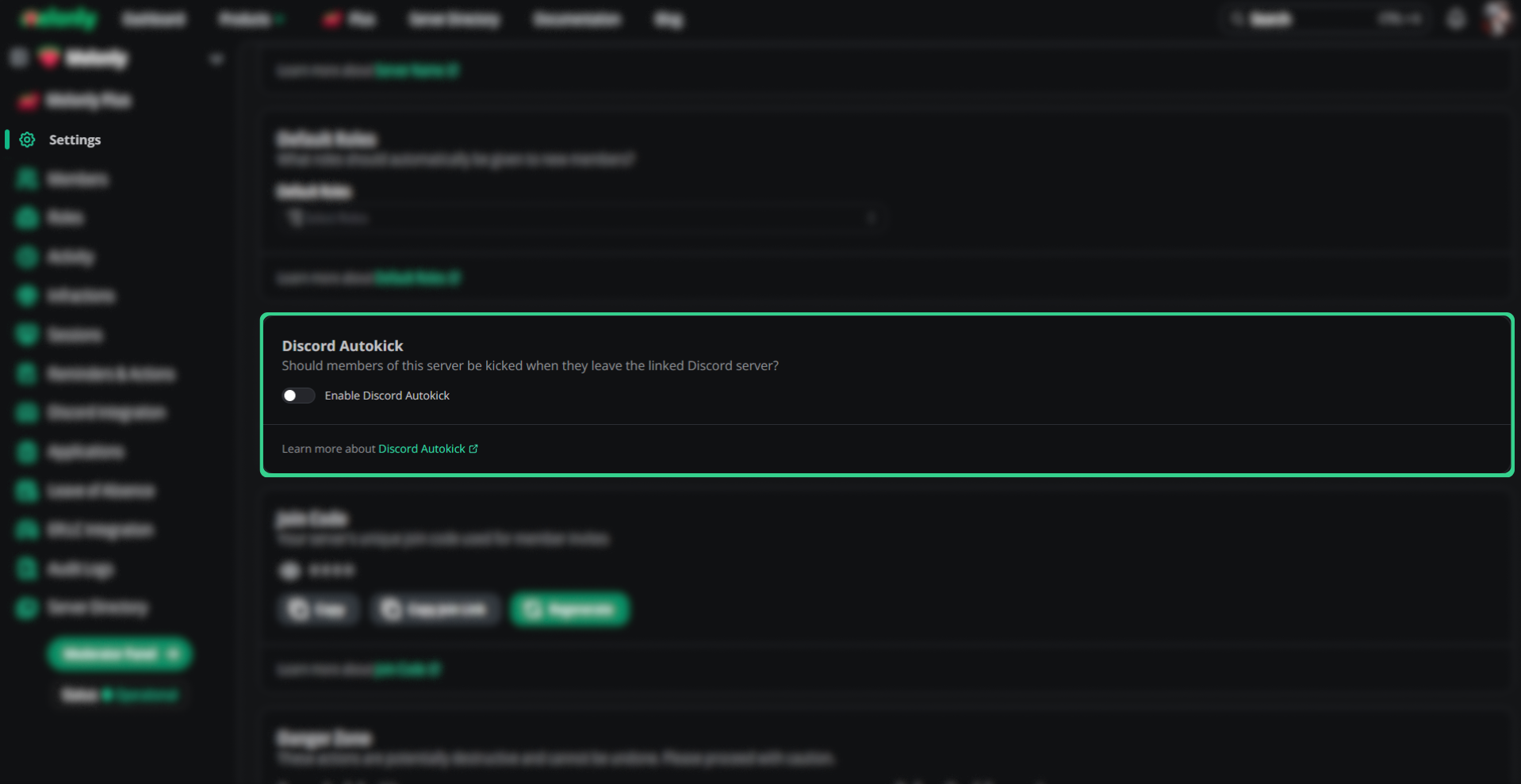
Discord Autokick
Remove Members with No Roles
Removes members who have no Melonly roles, so old accounts don’t hang around.
Remove Members with No Roles
Join Code
Your join code and join link let new staff request to join. You can’t turn it off, only regenerate it. Click Regenerate join code to make a new one. The old code stops working and all pending requests are cleared. To review requests, see Member Requests.Custom Join Code
With Melonly Plus, you can set a memorable code, like your server’s name. Enter it under Custom Join Code and click Set custom code. Codes are 3 to 20 characters, using letters, numbers and hyphens, and each code can only belong to one server.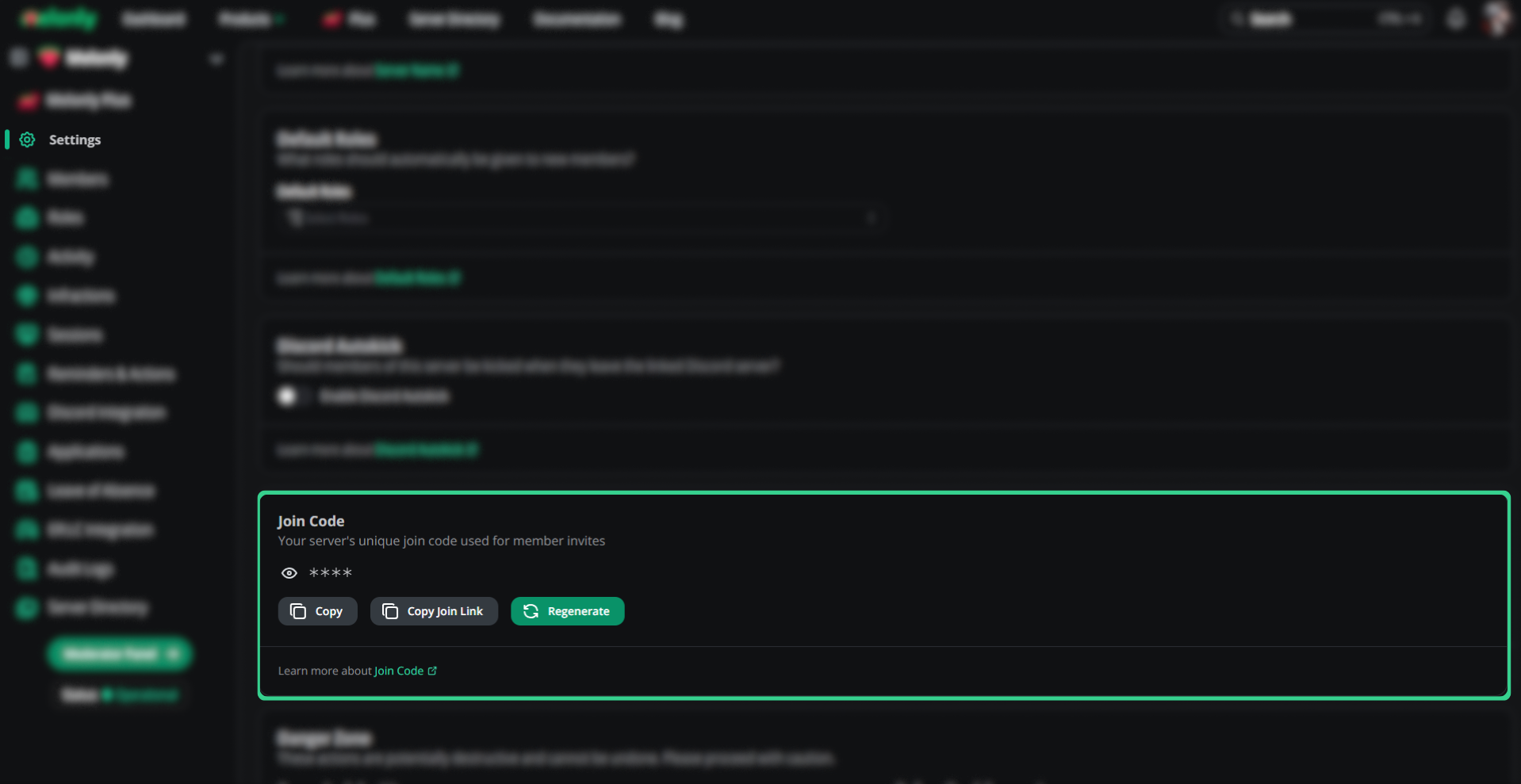
Join Code
Beta Features
The Experiments card lets you try upcoming features early. Turn on Opt-in to experiment to enable one for your server, and turn it off any time. Experiments with a Plus badge need Melonly Plus.
Experiments can be unstable. Report problems with the Provide feedback or report an issue link on the experiment, or in our Discord server.
Convert to a Department
Click Convert now on the Convert To a Department card to turn your server into a Department server. Your data, members and setup carry over. See Converting a Server for the full steps.
Convert To a Department
Import Data
Move punishment logs and shifts from another bot into Melonly. Click Import data and follow the prompts.1
Pick a service
Choose ERM, Ducky or Trident.
2
Invite the import bot
Invite the Melonly Import Bot to your Discord server. It needs to view and read message history in the channels you pick.
3
Choose what to import
Pick Punishment Logs, Shifts, or both, then the Discord channel to import each one from.
Server API Tokens
Tokens let you use the Melonly API for this server.1
Create a token
Click Create token, enter a Token Name, and optionally set an Expiration Date.
2
Copy it
Copy the token straight away. You won’t be able to see it again.
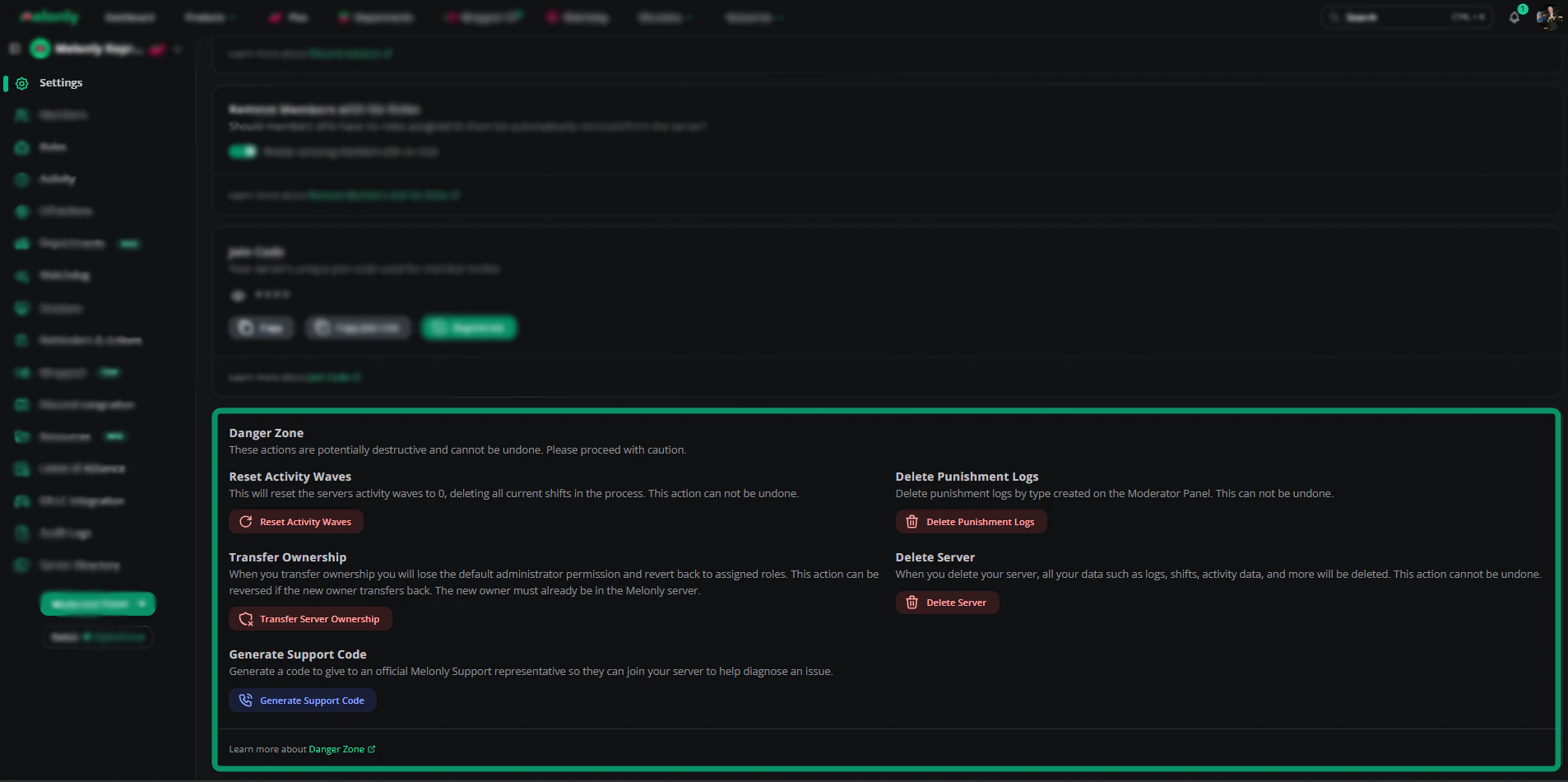
Danger Zone
Everything here is permanent, so read carefully before clicking.
Only the Server Owner can reset waves, delete logs, transfer ownership or delete the server.
Danger Zone
Need help?
Still have questions? Join our Discord server for support from the Melonly Team.