
What is the Departments page?
The Departments page on your main server’s dashboard is where you manage every department that belongs to it. Use it to create and activate departments, turn on Melonly CAD, and sync Discord roles, kicks and bans across your department Discords. New to departments? Start with the Departments Introduction.Requires the server owner, the Administrator permission, or the Departments dashboard permission. These people also have full control of every department on the server.
Unlock Melonly Departments
If your server has no slots and no departments, the page shows the Departments plans. A plan bought here is attached to this server automatically. Already bought one elsewhere? Click Manage your subscriptions and activate it on this server. See Plans & Billing.Overview
Departments → Overview lists every department on the server and how many slots you’re using.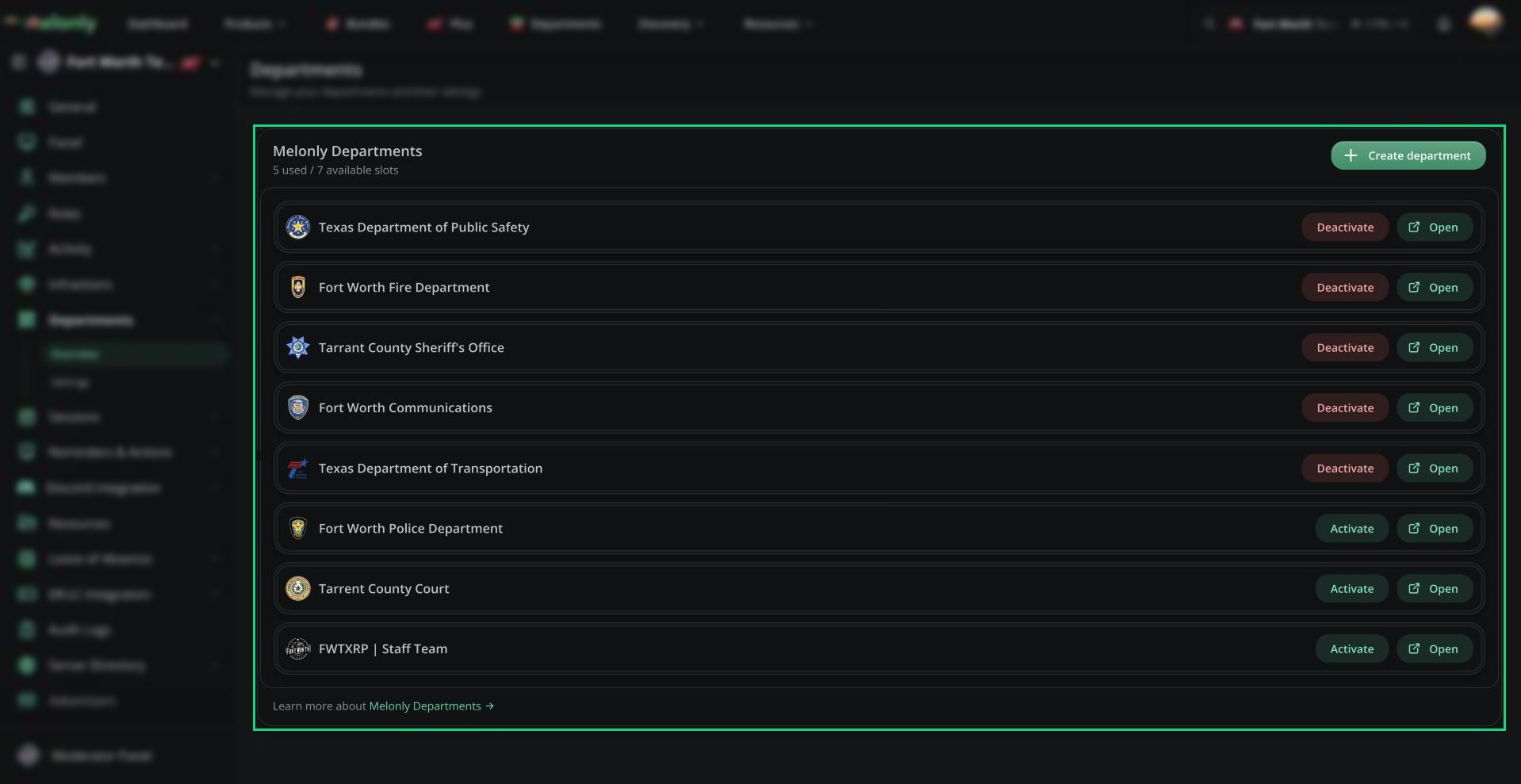
Departments Overview
Create a Department
Click Create department to open the create page with this server already picked. It’s unavailable when every slot is in use. See Getting Started.Activate or Deactivate a Department
Departments over your slot limit are deactivated automatically when a subscription is paused, cancelled or removed. They don’t come back on their own after you pay, so click Activate here.
Settings
Departments → Settings holds CAD, role syncing and punishment sync. Save role and punishment sync changes with the save bar.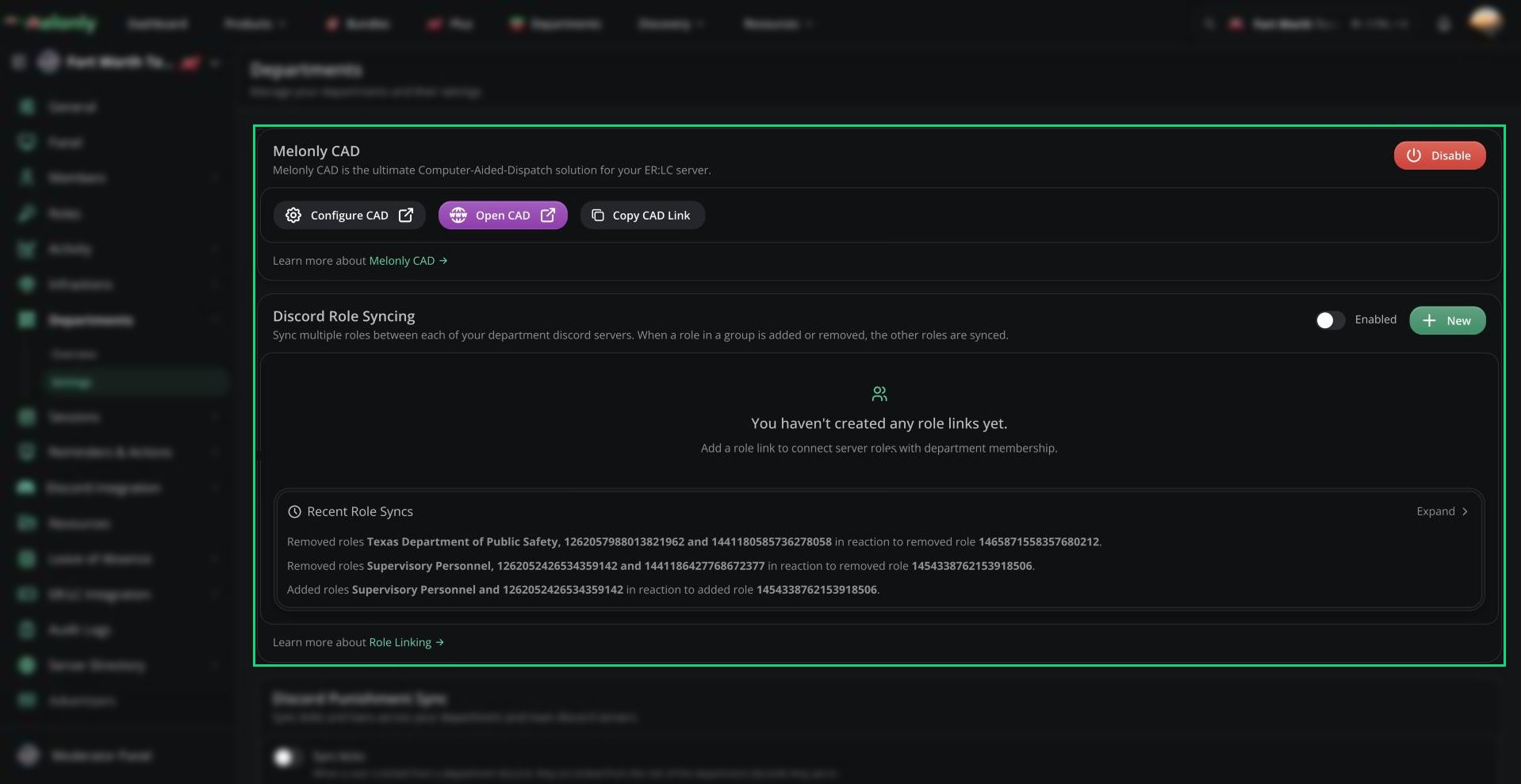
Departments Settings
Melonly CAD
Melonly CAD is the Computer-Aided Dispatch system for your ER:LC server. Click Enable to turn it on for the server. Department members then open it with Open CAD in their department header, on the panel for their department type. From this card you can also open the CAD settings, open the live CAD, or copy the CAD link to share. CAD needs an active Departments subscription. If the server loses all its slots, CAD turns off and you need to enable it again after renewing.Discord Role Syncing
Role syncing keeps Discord roles matched across your main Discord, every department Discord, and any extra servers you add. It’s on by default. Click New to add a link.
You can create up to 1,000 links. @everyone and @here can’t be synced.
Primary roles in groupings
Primary roles in groupings
Open a role’s menu in a grouping and click Set primary. When a group has a primary role, the other roles only sync when the primary role is added or removed.
Adding other Discord servers
Adding other Discord servers
Your main and department Discords are included already. To add another, click New, then Add Discord Server, and pick a server where you have the Discord Administrator permission. Remove added servers from the menu next to their list.
Deleting a link
Deleting a link
Open the link’s menu and click Delete link.
Recent Role Syncs
Recent Role Syncs
Shows the latest role changes Melonly made and which role caused each one. Useful for checking a link works as expected.
Discord Punishment Sync
Sync kicks and bans across your Discord servers. Everything is off by default.Need help?
Still have questions? Join our Discord server for support from the Melonly Team.