
What is Records & Reports?
Every record in your CAD, from civilians and licences to arrest reports and warrants, is built from a record template. The Records & Reports tab of the CAD admin panel is where you design those templates, add custom search types, report on charges and clean up old records. For how users fill in records, see Records.Requires the CAD Admin permission. See Permissions.
🧭 Quick Navigation
Creating Templates
Create a template, pick its type and share or import templates.
Template Editor
Every template setting, section, field and matcher.
Search Indices
Custom search types for any record field.
Record Mappings
How matchers link templates, Search fill, Run and charge totals.
Templates
Open Templates to see every template on your CAD.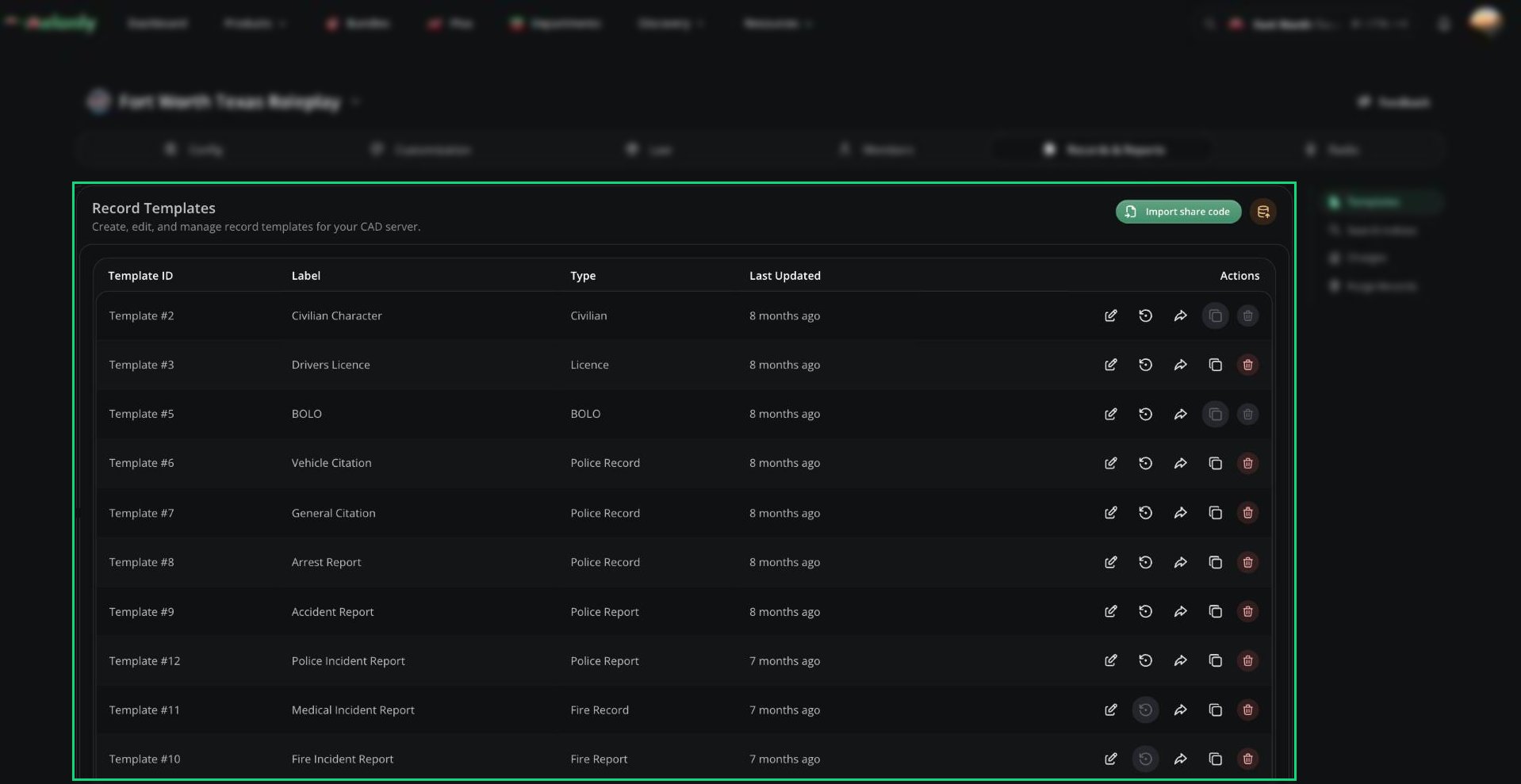
Record Templates
Template Details
The Template Details card in the editor sets the template’s name, look, type, which agencies can use it and how charges on it behave. Licence, Vehicle, DMV and Civilian templates have extra settings like expiry and renewal cost and every template can post records to Discord webhooks.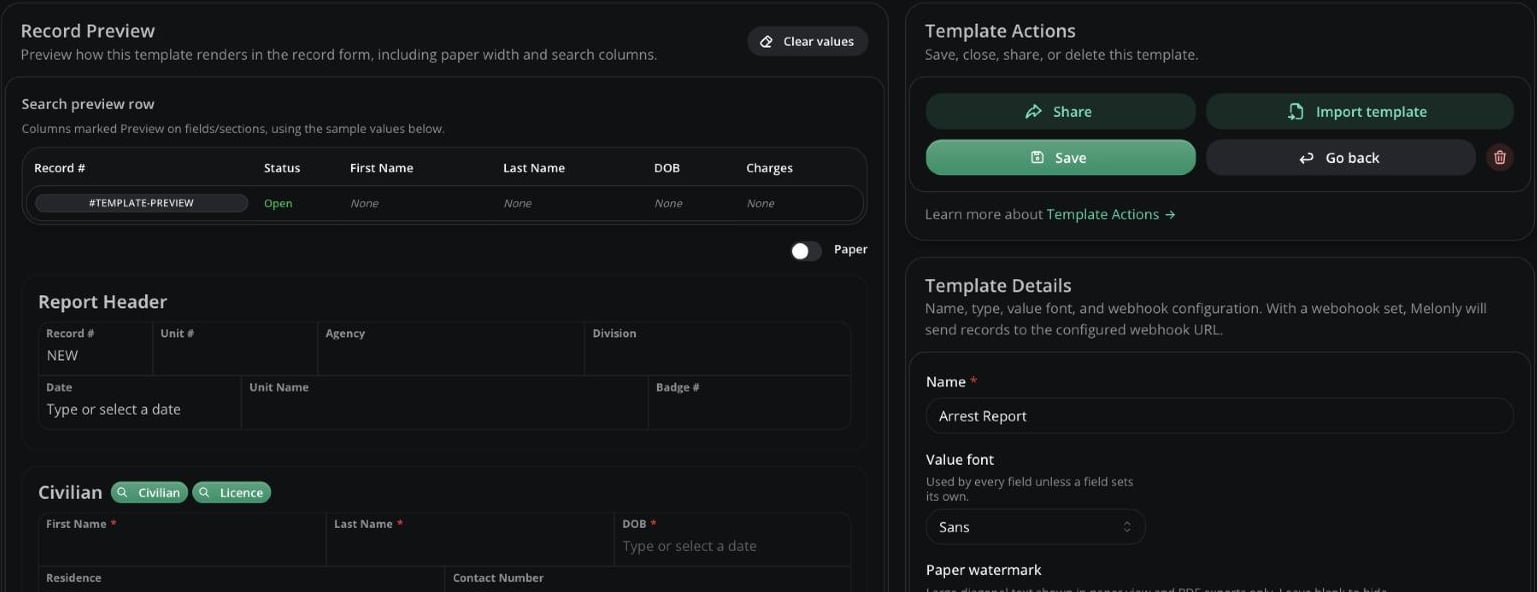
Template editor
Sections
Templates are built from sections, and sections hold fields. Click Add new section for a blank or special section (charges, speed, licence suspension and more) or Add premade section for ready-made civilian info, report headers and footers.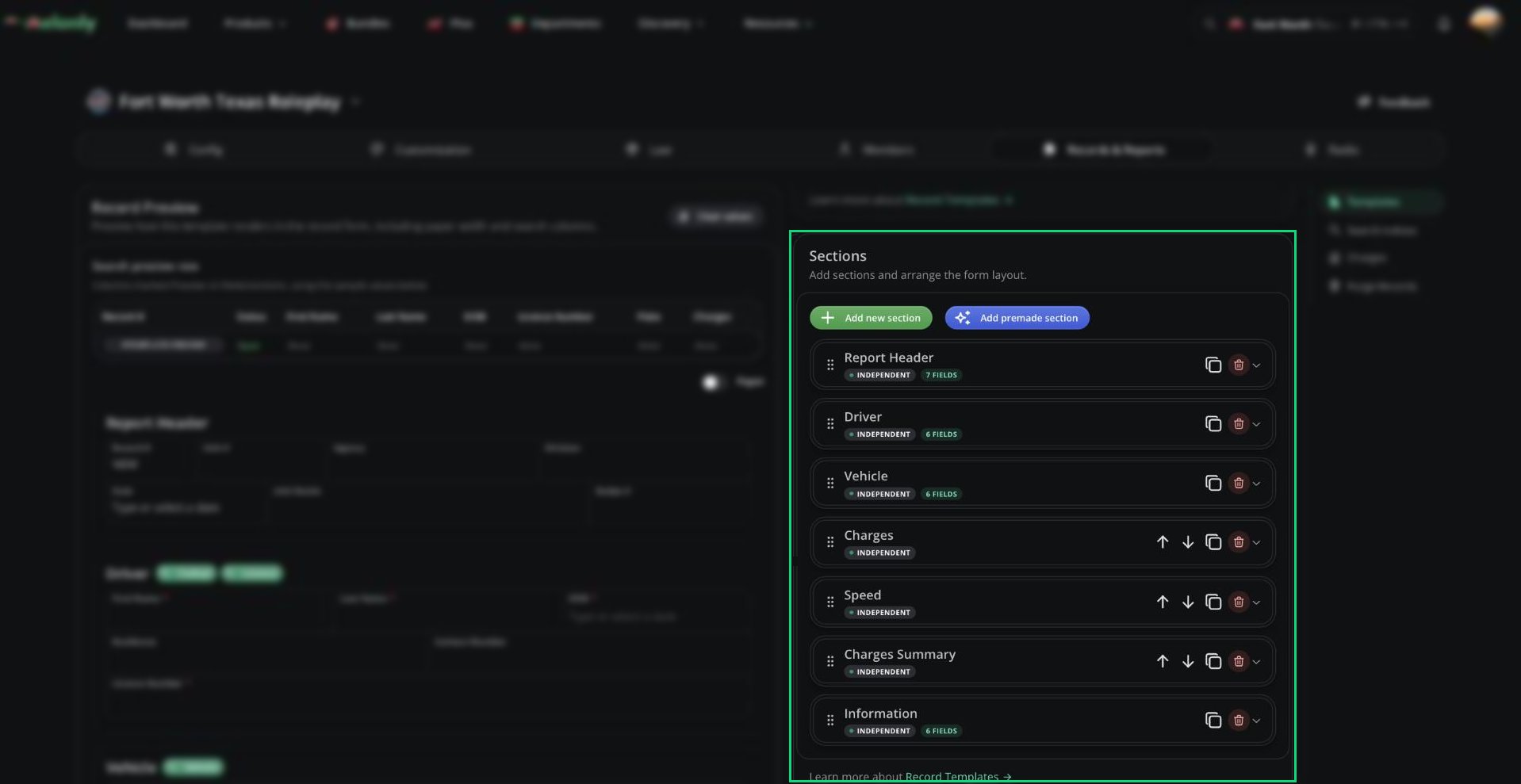
Sections
Duplicate or Delete
- Click Duplicate Template to open a copy you can change and save.
- Click Delete template to remove it. This can’t be undone.
Search Indices
Search indices are custom search types that let users search records by any field, such as phone number. See Search Indices to add one.Charges Report
The Charges page totals every charge filed on records, so you can see what’s charged most. Filter by date, template, act or the creating unit’s agency and subdivision, then click Get Results. Click Export to download a CSV.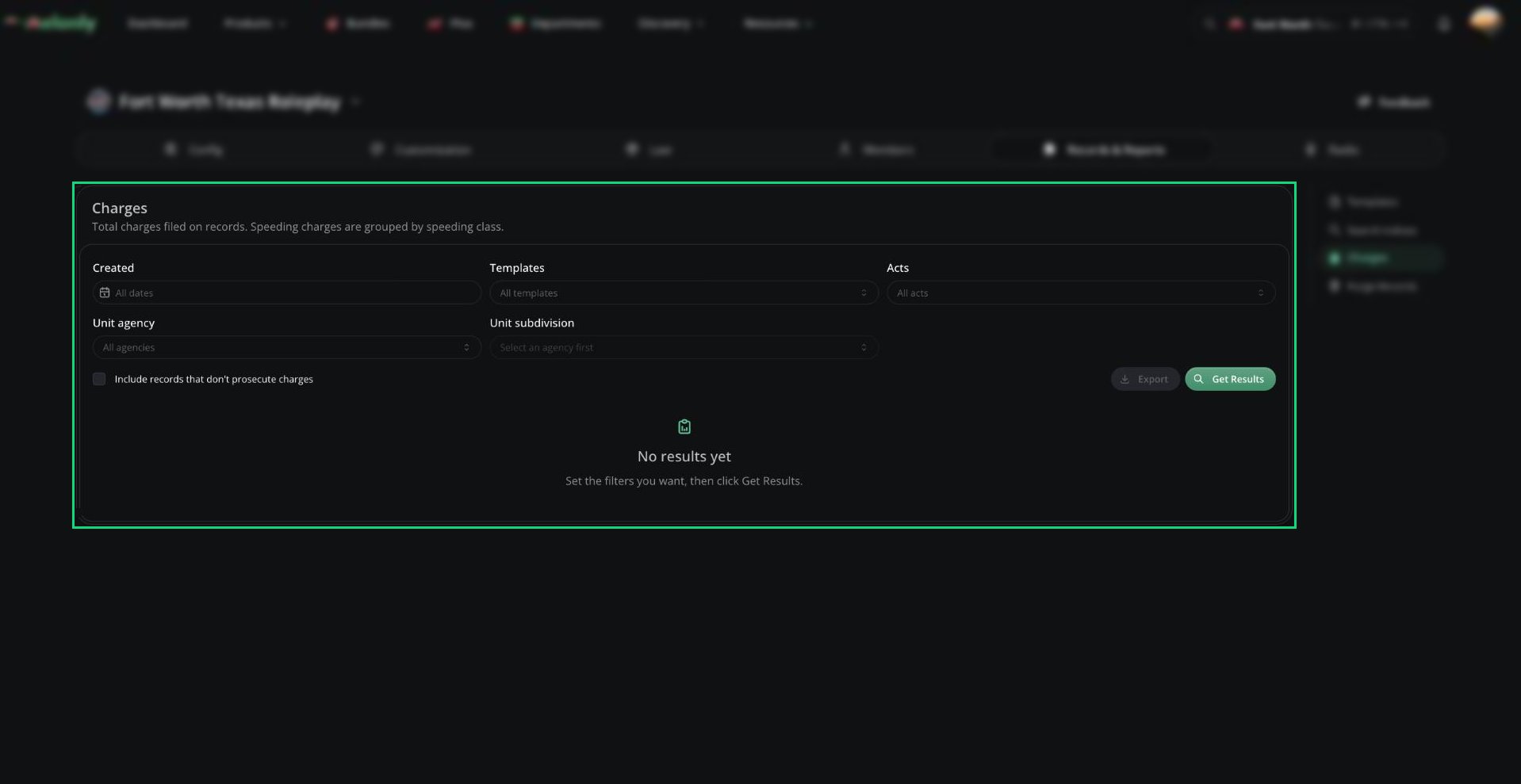
Charges report
Purge Records
Purging permanently deletes records in bulk. Open Purge Records to start.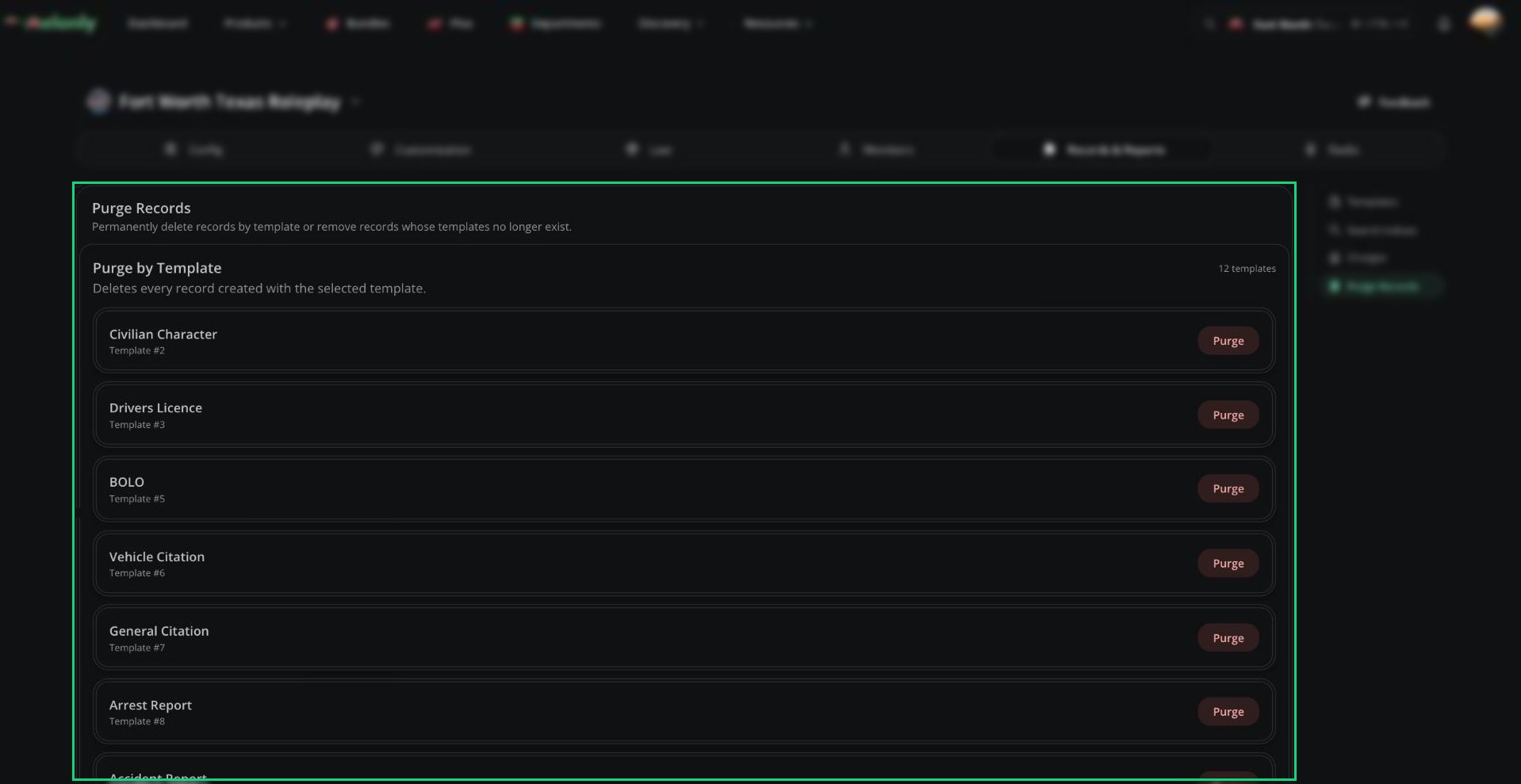
Purge Records
Purging can’t be undone and is recorded in the audit log.
Need help?
Still have questions? Join our Discord server for support from the Melonly Team.