What are Quizzes?

A quiz is an application or form that gets marked. You set the correct answer and points for each question, Melonly grades every response automatically and you choose when people see their score. Use it for training tests, entry exams or staff evaluations. Quizzes work the same for servers and departments.

Turning On a Quiz

Open the application or form in Resources, go to its settings and tick Make this form a quiz under Quiz Settings. Full settings are in Applications for servers and Department applications for departments.

Setting the Answer Key

1

Open the answer key

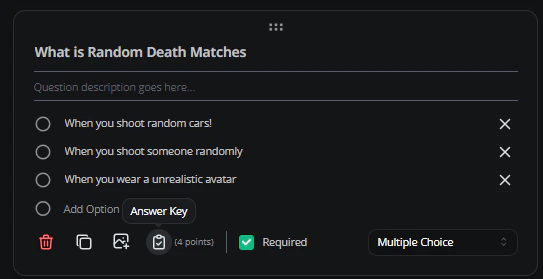
In the form editor, click the Answer Key icon on a question.
The Answer Key button on a question in the form editor

Answer Key

2

Set the points

Enter how many points the question is worth, from 0 to 100.
3

Choose the correct answer

Pick or type the correct answer, then click Done.
Shift Start, Shift End, file upload and moderation questions can’t be graded, so they have no answer key.
Text answers have to match exactly, including capitals and spacing. For open questions, give them points and adjust the score by hand when you review.

Reviewing Scores

Open a response to see its score per question. You can change the points for any answer and add feedback, then save your scoring changes. When Release Scores is set to After Review, tick Release score to respondent when you save to send the score. The person gets a notification with their total, like “You scored 8/10 points”. Scores are only sent if the form sends responders a copy of their response.

Need help?

Still have questions? Join our Discord server for support from the Melonly Team.

Last modified on October 8, 2026