The ER:LC integration links Melonly to your private server for Virtual Server Management (VSM), member checks, in-game logs, automation and more. Each section below links to its full page.

Set Up the Integration

Get Your API Key

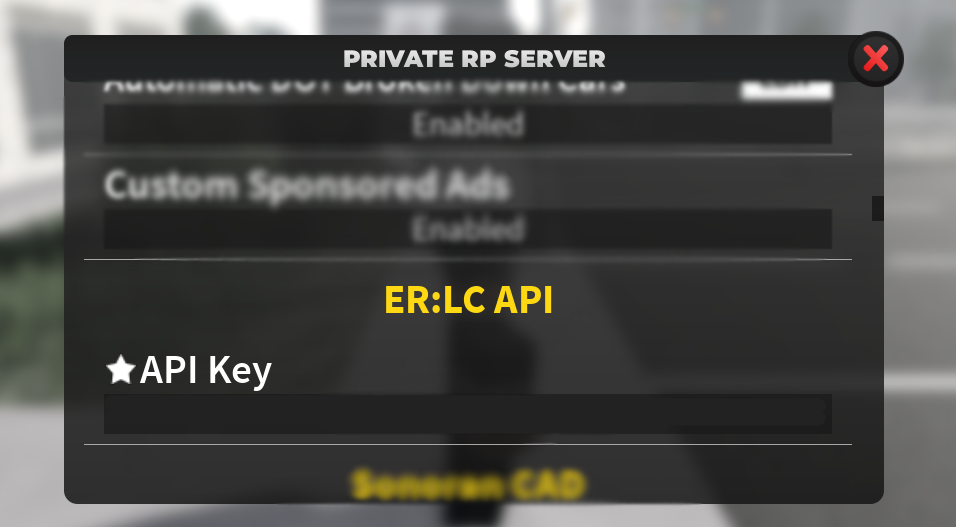
Join your ER:LC private server and open Private Server Settings → ER:LC API. Copy your unique key.

Find your API key

Add the Server in Melonly

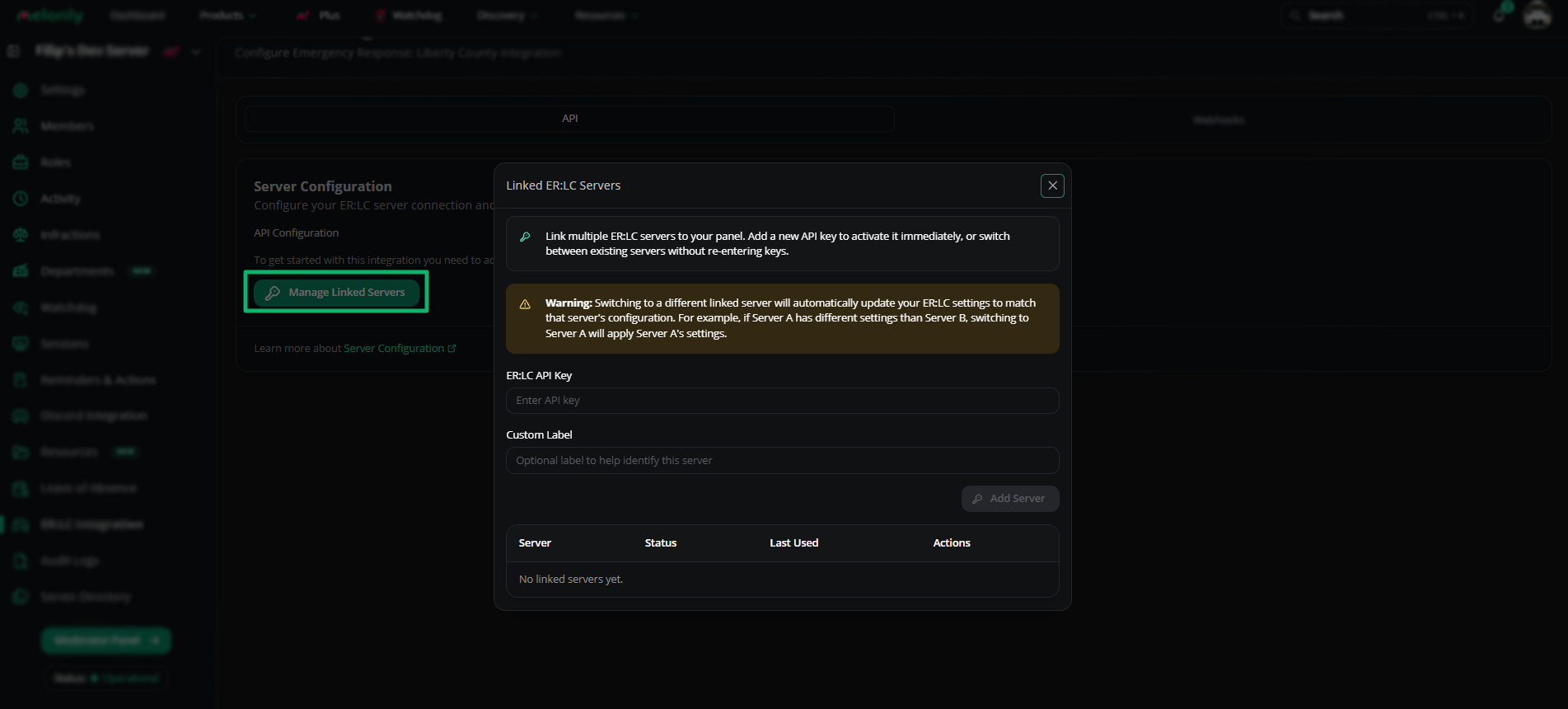
On your dashboard’s ER:LC Integration page, click Manage linked servers. Paste your API key, enter a label and click Add Server. Server info appears next to the setup button.You can add several API keys and switch between linked servers. Each key keeps its own settings.

Set up the API key

VSM and member checks become available as soon as a key is set.

ER:LC API

These settings are on the ER:LC Integration → API page.

Server Configuration

See Server Configuration.

Raid Rollback

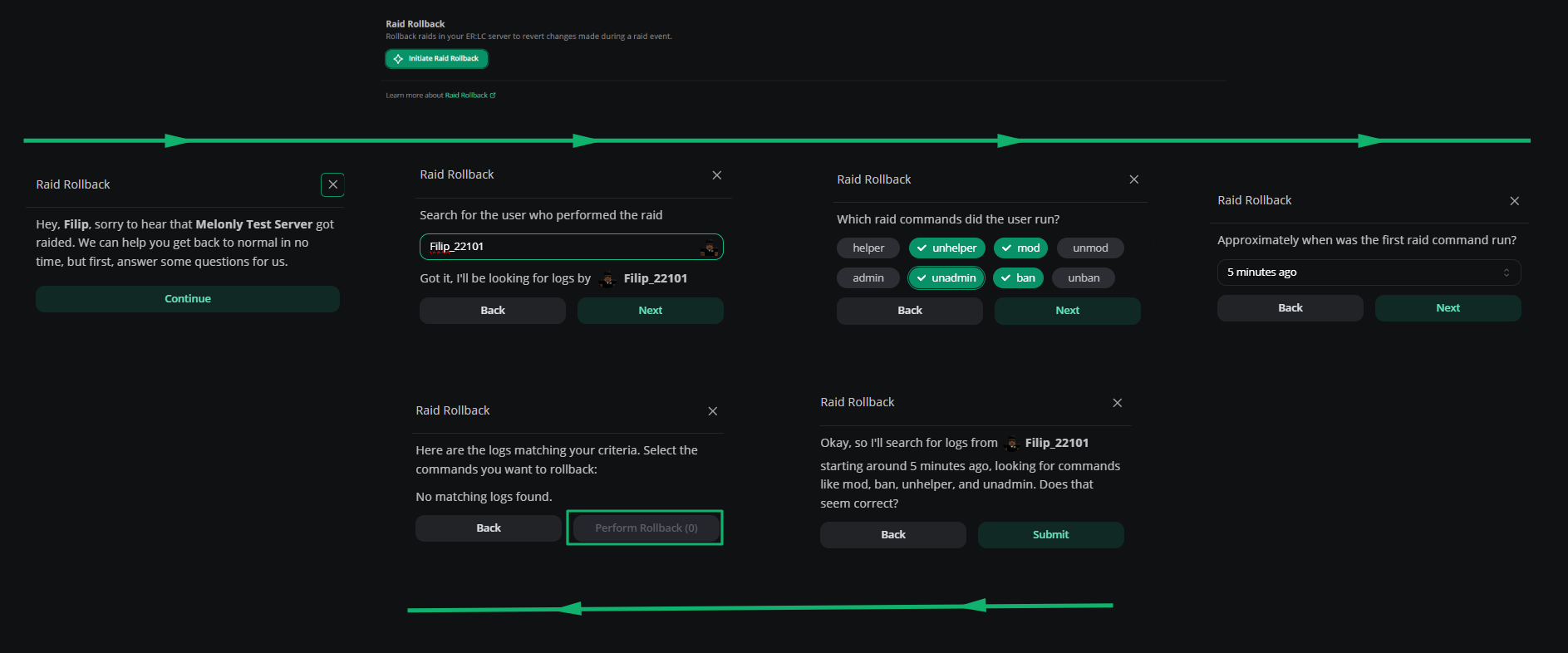
Revert the commands a raider ran. Answer a few prompts and Melonly handles the rest. See Raid Rollback.

Raid rollback

Event Logs

Forward ER:LC events to Discord channels. Requires Melonly Plus. See Event Logs.

AFK Inactivity Checks

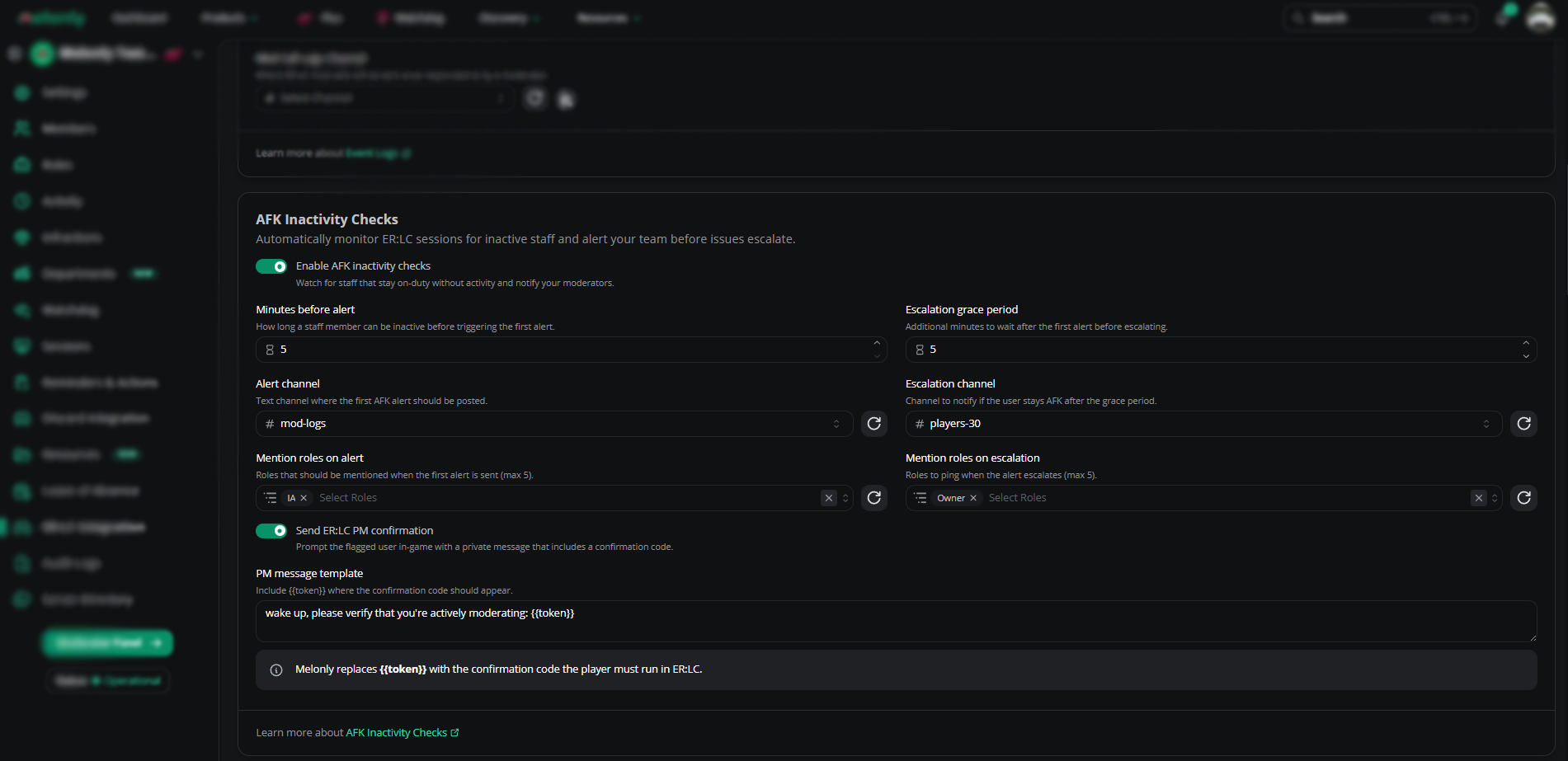
Check that on-duty staff are actually moderating. Flagged staff get a PM with a code they must run in game. See AFK Inactivity Checks.

Inactivity checks

Restrictions

Team and vehicle restrictions don’t run on their own. Create a reminder on the Reminders page to run the checks.

Team Restrictions

Lock teams behind Discord roles or Melonly departments. See Team Restrictions.

Vehicle Restrictions

Lock vehicles behind a Discord role. Players without the role are flagged in the panel or by reminders. See Vehicle Restrictions.

Safe Zone Enforcement

See Safe Zone Enforcement.

Safe zone enforcement

Team Jurisdictions

See Team Jurisdictions.

Team jurisdictions

VC Server Status

Voice channels whose names update with live server data. Requires Plus. See VC Server Status.

Voice Channel Configurations

Give voice channels abbreviations for the in-game ;vc command. If s1 maps to the Scene 1 channel, running ;vc s1 moves you into Scene 1 (you must already be in a voice channel). Use ;vc [usernames] [abbreviation] to move other players. Anyone can use an abbreviation unless Staff Only is turned on for it. See Voice Channel Configurations.

Ban BOLO

See Ban BOLO.

Shift Automation

Requires Plus and a linked Roblox account. See Shift Automation.

Punishment Controls

Requires Plus. See Punishment Controls.

Welcome Messages

See Welcome Messages.

Permission Management

Requires Plus. See Permission Management.

Username Moderation

See Username Moderation.

Weather and Time Sync

Requires Plus. Turn off the in-game weather cycle in your ER:LC server settings first. See Weather and Time Sync.

Webhooks

These settings are on the ER:LC Integration → Webhooks page.

ER:LC Webhook Channel

Requires PRC command logs in your Discord server. See PRC’s setup video.
See Webhook Configuration and ER:LC Events Webhook.

Auto-Log Kicks and Bans

Logs every kick and ban in your ER:LC server. Add reasons later by editing the log in the Mod Panel. See Logging Settings.

:log Punish Command

The :log command lets staff log punishments from in game. It needs a linked Roblox account. Custom log types work too, once you set them up on the dashboard.

Off-Duty Commands Alert

Catch staff using moderation commands while off duty. See Off-Duty Commands Alert.

Mass Command Alerts

Flag server-wide commands like :ban all and post an alert. See Mass Command Alerts.

Playtime Levels

These settings are on the ER:LC Integration → Playtime Levels page. See Playtime Levels.

Enable Playtime Levels

Manage Levels

You can create up to 15 levels, or up to 100 with Plus.

Notifications


Need help?

Still have questions? Join our Discord server for support from the Melonly Team.
Last modified on October 11, 2026