What is Server Configuration?

Server Configuration is where you connect your ER:LC private server to Melonly with an API key. Once linked, it shows live server info and lets you switch between linked servers.

How to Connect Your Server

1

Get Your API Key

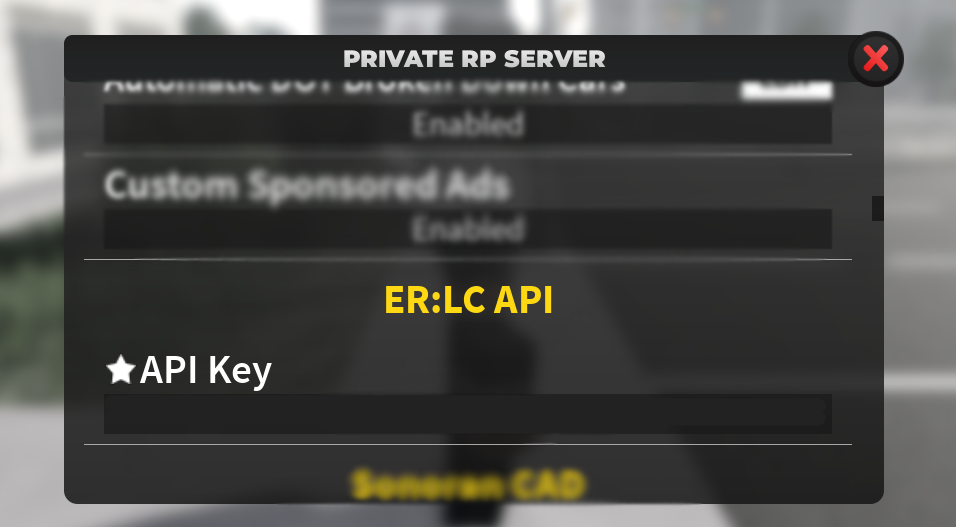
Join your ER:LC private server and open Private Server Settings → ER:LC API. Copy your unique API key.

Find your API key

2

Add the Key in Melonly

On the ER:LC Integration → API page, click Manage linked servers. Paste your key into ER:LC API Key, add a label for the server and click Add Server.

Add your API key


Server Information

Once linked, this section shows your server name, current player count and join code. It also shows your Events Webhook status. If PRC has banned your API key, the dashboard shows an API Key Invalid alert. Contact PRC support for help.

Managing Your Linked Servers

Click Set Active on a linked server to make it the one your dashboard and the Mod Panel use. Click the red X to remove a key from your server. Free servers can link up to 2 ER:LC servers, and Melonly Plus raises this to 100. API keys must be at least 15 characters and contain a dash.
ER:LC settings are saved per API key. Switching to another linked server replaces the ER:LC settings on your dashboard with that server’s settings.

Need help?

Still have questions? Join our Discord server for support from the Melonly Team.

Last modified on October 8, 2026